
GITNUXSOFTWARE ADVICE
Technology Digital MediaTop 10 Best Document Scanning Software of 2026
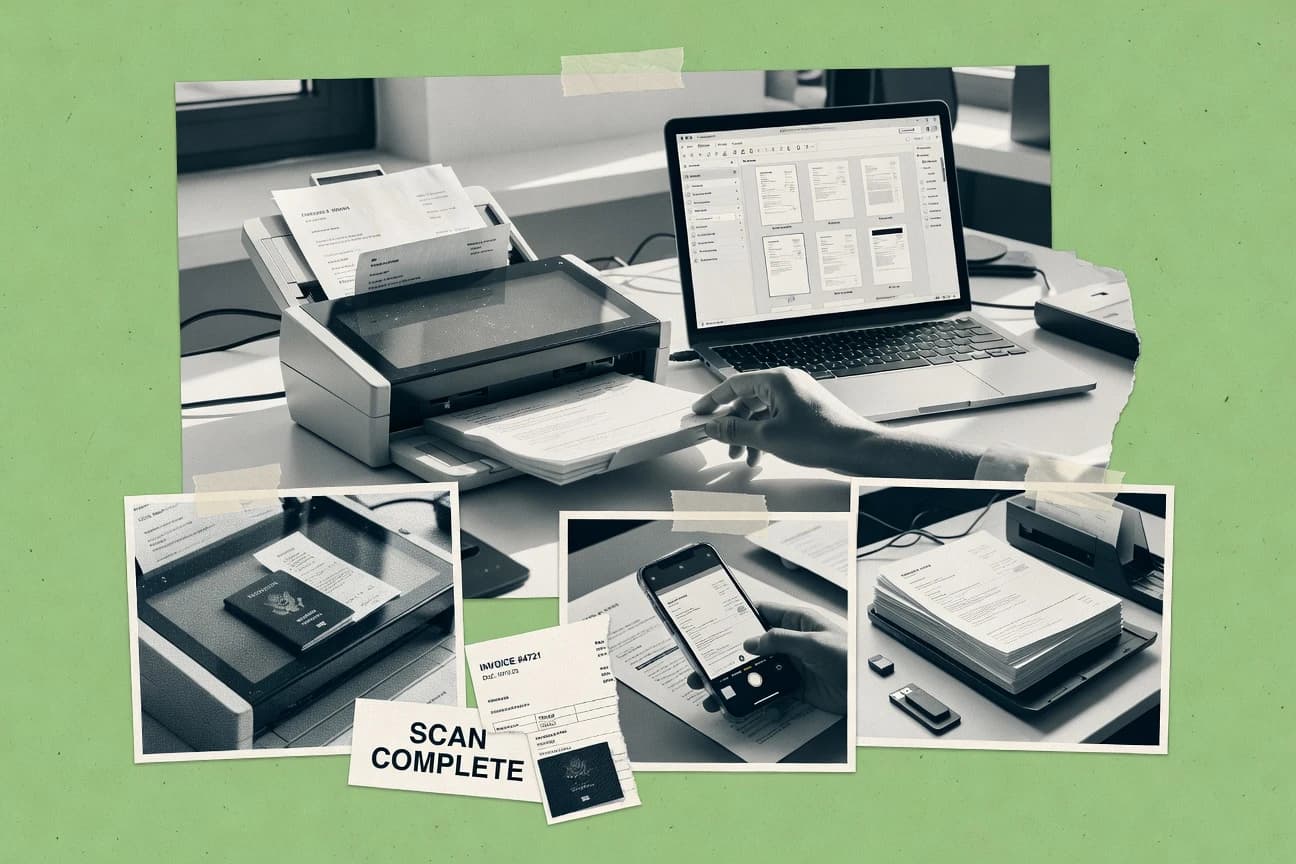
Top 10 document scanning software roundup with ranked picks, criteria, and tradeoffs for teams comparing tools like Docsumo and Adobe Acrobat.

How we ranked these tools
Core product claims cross-referenced against official documentation, changelogs, and independent technical reviews.
Analyzed video reviews and hundreds of written evaluations to capture real-world user experiences with each tool.
AI persona simulations modeled how different user types would experience each tool across common use cases and workflows.
Final rankings reviewed and approved by our editorial team with authority to override AI-generated scores based on domain expertise.
Score: Features 40% · Ease 30% · Value 30%
Gitnux may earn a commission through links on this page — this does not influence rankings. Editorial policy
Docsumo is the best fit when finance, lending, or operations teams need configurable, API-first extraction from scanned invoices and records, whereas Tungsten TotalAgility suits shared service centers that require governed, high-volume classification and routing, and if you want desktop batch scanning without server governance, NAPS2 is the budget entry point.
Editor’s top 3 picks
Three quick recommendations before you dive into the full comparison below — each one leads on a different dimension.
Docsumo
Configurable field extraction with confidence-based review queues and API delivery for mixed business documents.
Built for fits when finance, lending, or operations teams need configurable cloud document processing with API-based delivery..
Tungsten TotalAgility
Editor pickVisual process orchestration links extraction, validation, business rules, exception handling, and downstream actions in one configurable model.
Built for fits when shared service centers need governed processing across complex, high-volume document workflows..
Adobe Acrobat
Editor pickAdobe Scan integration moves phone-captured pages into Acrobat for editing, sharing, and signature workflows.
Built for fits when teams need mobile capture tied to Adobe's PDF editing, sharing, and signature workflows..
Comparison Table
Docsumo
API-firstDocsumo captures scanned documents and extracts structured data from invoices, forms, and identity records.
Configurable field extraction with confidence-based review queues and API delivery for mixed business documents.
Docsumo receives PDFs and images, runs OCR, classifies documents, and returns extracted fields through APIs, webhooks, or export integrations. Configurable schemas support organization-specific fields alongside prebuilt workflows for invoices, bank statements, pay stubs, tax forms, and identity documents.
Confidence thresholds and review queues let teams send uncertain fields to people before delivery. Cloud delivery does not replace a desktop scanner application, so organizations scanning paper records locally need a separate capture layer.
- +Prebuilt workflows cover invoices, bank statements, identity documents, and tax forms.
- +Custom fields and validation rules support document-specific extraction.
- +APIs, webhooks, and connectors support downstream system integration.
- +Human review queues handle low-confidence fields before export.
- –Cloud delivery does not provide a desktop scanner-driver workflow.
- –Advanced deployments require careful field, rule, and review-queue configuration.
- –Unusual layouts may require custom model training.
- –Local processing requires a separate capture layer.
Accounts payable teams
Automated invoice intake
Faster invoice routing
Lending operations teams
Borrower document review
Reduced manual review
Show 2 more scenarios
Insurance administrators
Claims document intake
Consistent claims data
Docsumo identifies incoming claim records and maps relevant fields into operational systems.
Identity verification teams
Identity document processing
Faster applicant checks
Docsumo extracts identity fields from submitted documents and returns structured results through an API.
Best for: Fits when finance, lending, or operations teams need configurable cloud document processing with API-based delivery.
Tungsten TotalAgility
enterpriseTungsten TotalAgility captures scanned documents and automates classification, extraction, and workflow routing.
Visual process orchestration links extraction, validation, business rules, exception handling, and downstream actions in one configurable model.
Organizations with centralized operations teams can use Tungsten TotalAgility to process invoices, claims, applications, and correspondence through configurable workflows. OCR, machine learning extraction, and human validation reduce manual indexing across mixed document types. The platform also supports reusable process components, business rules, queue management, and operational monitoring.
The broad feature set introduces a substantial configuration burden compared with focused scanning applications. Administrators must define extraction models, workflow rules, permissions, exception paths, and system integrations before production use. TotalAgility fits shared service centers that need controlled processing across several departments and document-heavy processes.
- +Visual workflow designer connects capture, validation, routing, and business decisions.
- +Machine learning extraction handles variable layouts and document classes.
- +REST APIs and web services support enterprise application integration.
- +Role-based permissions and audit trail support controlled operations.
- –Initial configuration requires specialist knowledge of workflows and extraction models.
- –Small teams may find the feature set excessive for basic scanning.
- –Advanced integrations can require custom development and testing.
- –Extraction accuracy depends on representative training documents and review rules.
Accounts payable departments
Automated invoice approval
Faster invoice cycle times
Insurance operations teams
Claims document processing
Consistent claims intake
Show 2 more scenarios
Government service centers
Application intake automation
Fewer manual handoffs
TotalAgility validates submitted forms, identifies missing information, and routes cases to responsible departments.
Healthcare administration teams
Referral packet routing
Improved referral routing
Extraction models identify referral details and direct packets to queues based on service and urgency rules.
Best for: Fits when shared service centers need governed processing across complex, high-volume document workflows.
Adobe Acrobat
SMBAdobe Acrobat scans documents, applies OCR, and manages searchable PDF files across desktop and mobile.
Adobe Scan integration moves phone-captured pages into Acrobat for editing, sharing, and signature workflows.
Adobe Scan sends phone-captured pages into Acrobat, where users can correct page order, crop documents, edit text, and add signatures. Acrobat supports searchable PDFs, PDF/A export, redaction, form fields, and document comparison across its desktop, web, and mobile applications. Adobe PDF Services API adds programmatic PDF generation, extraction, conversion, and processing for custom workflows.
The product favors PDF-centered work over structured capture pipelines or direct scanner management. Teams processing occasional receipts, signed forms, or intake packets gain a connected review workflow, while high-volume operations still need dedicated hardware capture software and separate classification controls. Acrobat Actions can automate repeatable desktop PDF operations, but they do not provide a full document classification system.
- +Adobe Scan sends mobile captures directly into Acrobat workspaces.
- +Desktop, web, and mobile apps share document access and editing.
- +Adobe PDF Services API supports generation, extraction, conversion, and processing.
- +Actions automate repeatable PDF operations without custom development.
- –Camera capture cannot replace high-volume hardware scanning workflows.
- –Acrobat centers on PDFs rather than structured capture records.
- –Advanced extraction requires separate service configuration and workflow design.
- –Desktop automation offers limited control over scanner drivers and devices.
Field service teams
Capture signed site records
Faster centralized record handling
Legal operations teams
Convert intake packets
Consistent case-file preparation
Show 1 more scenario
Small business administrators
Digitize supplier paperwork
Centralized supplier documentation
Administrators capture invoices and forms, then organize them with shared Acrobat folders and permissions.
Best for: Fits when teams need mobile capture tied to Adobe's PDF editing, sharing, and signature workflows.
NAPS2
SMBNAPS2 provides free desktop scanning with OCR, automatic document feeding, and PDF export.
Queue-based scanning with reusable scan profiles for repeatable duplex batch capture and cleanup before export.
NAPS2 is a document scanning app designed for local batch capture, with a focus on turning scanner output into searchable documents. It supports duplex scanning workflows using installed scanner drivers and offers image cleanup steps like deskew and blank-page removal.
NAPS2 can export to PDF and image formats and can generate OCR text for full-text search within PDFs. The standout workflow model is queue-based scanning with reusable scan profiles to keep batch throughput consistent.
- +Scan profiles make repeatable batch capture consistent across devices
- +OCR output improves search and retrieval from exported PDFs
- +Image cleanup steps like deskew and blank-page removal improve legibility
- +Offline-first operation keeps capture and export on the local machine
- –Limited automation and API surface compared with enterprise capture platforms
- –Advanced routing, retention policy, and audit trails are not built around governance
- –Scanner driver compatibility depends on host OS and installed TWAIN or WIA support
- –Large-scale capture management across multiple users needs manual coordination
Best for: Fits when teams need local batch scanning, OCR, and consistent scan profiles without server governance.
Google Document AI
API-firstGoogle Document AI processes scanned files with OCR, classification, and specialized document parsers.
Model-backed document understanding with API outputs that map extracted entities into structured results for workflow integration.
Google Document AI converts scanned document images into extracted data by running OCR and classification models, then returning results in structured form.
The automation surface is built around an API that can process batches and route extracted fields into other systems without manual rekeying.
Governance is handled through Google Cloud identity and access management, which supports RBAC for who can submit, run, and view processing artifacts.
For scanning operations, the service focuses on capture-to-data transformation rather than scanner hardware control.
- +Structured extraction output returned as machine-readable JSON for automation
- +API supports high-throughput batch processing for large scan backlogs
- +Document understanding pipelines can be customized per document type
- +Google Cloud IAM controls access and supports enterprise governance needs
- –End-to-end capture setup depends on integrating the right input sources and storage
- –Less optimized for front-end scan controls like feeder modes compared with scanner-first tools
- –Field accuracy can require iterative tuning on document variations and layouts
- –On-prem capture workflows require additional architecture since processing runs in the cloud
Best for: Fits when teams need reliable cloud document extraction with API-first automation and strong access controls.
Scanbot Document Scanner SDK
API-firstScanbot Document Scanner SDK adds mobile document capture, image correction, and OCR to applications.
SDK-level capture workflow orchestration that combines image processing and OCR so apps can generate searchable PDFs programmatically.
Scanbot Document Scanner SDK is built for teams that need document capture inside a native app, not a standalone scanning website. It supports OCR and document image processing steps such as deskew and blank-page removal so captures can convert into searchable outputs.
The SDK focuses on integration via an API surface for capture workflow control and on-device or controlled deployments. Scanbot Document Scanner SDK also supports multi-format page outputs so systems can store images and searchable PDFs together.
- +API-first capture workflow control for custom applications
- +Image processing includes deskew and blank-page removal
- +OCR pipeline supports searchable PDF creation
- +Format flexibility for storing images and PDFs together
- –Integration effort is higher than consumer scanning apps
- –Advanced tuning needs careful scan-profile configuration
- –Deployment choices require engineering ownership for operations
- –Workflow automation depth depends on specific SDK modules
Best for: Fits when mobile or desktop teams need document scanning with OCR and post-processing inside a governed app.
ABBYY FineReader PDF
enterpriseABBYY FineReader PDF scans paper documents and converts images into searchable, editable files.
Interactive recognition editing that preserves context within the searchable PDF output after initial OCR runs.
ABBYY FineReader PDF focuses on OCR-to-searchable-PDF workflows with strong layout recognition and text correction loops. It handles scanning output formats like TIFF and image files while generating searchable documents that preserve reading order.
Automation features support batch processing and repeatable scan profiles for consistent results across document sets. The product also supports downstream document review by letting users edit recognized text and export structured outputs.
- +Layout-aware OCR improves reading order in complex documents
- +Text editing keeps corrections tied to the recognized PDF output
- +Batch workflows support consistent processing across many files
- +Scan profile settings reduce variance across repeated captures
- –Advanced OCR tuning takes time for high-accuracy targets
- –Workflow automation depends on the batch settings rather than deep API integration
- –Large archives can become slow during full-text indexing passes
- –Some capture scenarios require specific scanner driver support
Best for: Fits when teams need accurate OCR and editable searchable PDFs for recurring document types.

Amazon Textract
API-firstAmazon Textract extracts text, forms, and tables from scanned documents through a cloud API.
Block-based extraction outputs forms and tables with layout-aware structure for key-value and cell mapping.
Amazon Textract converts document images into extracted text and structured data, with support for both form fields and table layouts. It distinguishes itself with tight workflow integration through managed OCR and IDP APIs that return coordinates, text blocks, and key-value results.
Automated extraction can be triggered from pipelines that ingest images and PDFs and then route results into downstream systems. The focus on machine-readable output makes it a fit for batch document capture and document classification steps that depend on consistent field extraction.
- +API responses include detected text blocks with bounding geometry
- +Form and table extraction output reduces custom post-processing work
- +Designed for batch and high-throughput document processing workflows
- +Integrates directly into AWS data pipelines for extraction-to-storage paths
- –Complex layouts often need tuned preprocessing and field mapping
- –Structured output depends on document quality and consistent templates
- –No native ADF feeder support since scanning happens outside the service
- –Cross-document reconciliation for business rules requires custom logic
Best for: Fits when teams need automated field and table extraction from scanned documents into downstream systems.
Paperless-ngx
SMBPaperless-ngx imports scanned documents, runs OCR, and organizes files in a searchable archive.
Document processing automation is rule-driven through configurable fields and tagging, with search powered by OCR text indexing.
Paperless-ngx ingests scanned documents and automates filing by extracting text for full-text search. It runs on-premises and stores documents as files with metadata, then lets users tag, classify, and view OCRed content in a unified interface.
The system is driven by configurable processing steps for image cleanup and text extraction, with searchable PDFs as an expected output path. Integrations are mostly about connecting scanners to file intake and fitting into self-hosted workflows rather than offering a wide SaaS automation surface.
- +On-premises deployment with a document-centric workflow UI
- +Full-text indexing over OCR output for fast retrieval
- +Configurable capture pipeline steps for image preprocessing
- +Metadata-driven search that combines text and document fields
- –Initial setup and container administration require hands-on attention
- –Scanner driver and capture integration depend on local ingestion method
- –Advanced data extraction workflows need careful rules configuration
- –Bulk operations can feel slow on large libraries
Best for: Fits when an organization needs local document capture, OCR search, and rule-based filing without SaaS tooling.
Veryfi
vertical specialistVeryfi converts scanned receipts, invoices, and financial documents into structured data through APIs.
IDP extraction that combines OCR with document classification so captured images map to structured fields automatically.
Veryfi focuses on turning captured documents into structured fields with an IDP workflow designed for extraction accuracy. It supports OCR, document image enhancements, and automated classification so scans can be routed and labeled without manual renaming.
The system is built for batch processing and integration with capture sources through APIs, which is useful when document volume drives the workflow. Veryfi also generates searchable output formats for downstream storage and review.
- +Field extraction that pairs OCR with consistent document structure
- +Batch-friendly processing for high scan throughput workloads
- +Image quality steps like deskew and noise cleanup support OCR accuracy
- +API-first integration for connecting scanners, storage, and systems
- –Scan quality issues still require tuning to hit extraction accuracy targets
- –Workflow outcomes depend on document classification behavior for each doc type
- –Less direct control for low-level scanning driver settings than capture hardware stacks
- –Administration needs stronger governance when many templates and users exist
Best for: Fits when teams need automated OCR-to-fields extraction with API integration for recurring document types.
Conclusion
After evaluating 10 technology digital media, Docsumo stands out as our overall top pick — it scored highest across our combined criteria of features, ease of use, and value, which is why it sits at #1 in the rankings above.
Use the comparison table and detailed reviews above to validate the fit against your own requirements before committing to a tool.
How to Choose the Right document scanning software
Document scanning software in this guide targets workflows that turn duplex or batch captures into searchable PDFs, extracted fields, and governed routing outcomes. The covered tools include Docsumo for configurable cloud extraction with API delivery, Tungsten TotalAgility for visual process orchestration with exception handling, and Adobe Acrobat for mobile-to-PDF editing and signing flows.
Other picks in scope cover Docsumo-style API-first automation and SDK-controlled capture using Scanbot Document Scanner SDK, plus local and open document capture options like NAPS2 and Paperless-ngx. Google Document AI and Amazon Textract are included for structured API outputs, ABBYY FineReader PDF for editable searchable recognition, and Paperless-ngx for on-premises rule-driven filing.
Veryfi is also included for OCR-to-fields extraction tied to document classification behavior, completing a mix of cloud IDP platforms, SDK integrations, and scanner-side queue tooling.
Document scanning software that produces searchable PDFs and structured extraction for capture workflows
Document scanning software coordinates capture steps like feeder scanning, deskew, blank-page removal, and OCR to convert images into searchable PDF outputs and indexed text. It also supports downstream use where extracted entities map into machine-readable results for filing, routing, or case processing.
Cloud IDP platforms such as Docsumo and Google Document AI focus on API delivery that returns structured extraction results for workflow integration. Scanner-side and desktop options such as NAPS2 and ABBYY FineReader PDF focus on repeatable scan profiles and recognition editing tied to exported searchable PDF content.
Core evaluation features for document scanning software
This buyer’s guide weights features that turn scanned page streams into usable outputs like searchable PDFs and structured extraction results. It also prioritizes how those outputs plug into downstream routing, filing, and case workflows.
API-first extraction output for workflow integration
Docsumo returns configurable field extraction and delivers results through an API designed for mixed business documents. Google Document AI returns structured extraction results as machine-readable JSON via API for automation in backlogs.
Visual workflow orchestration with exception handling
Tungsten TotalAgility links capture, validation, routing, business rules, and exception handling in one configurable model. It supports governed processing across complex, high-volume document workflows without requiring app-level orchestration.
Scanner-side batch repeatability with reusable scan profiles
NAPS2 focuses on queue-based scanning with reusable scan profiles for repeatable duplex batch capture and cleanup before export. This design supports local scan consistency and predictable export behavior.
Editable recognition inside searchable PDF outputs
ABBYY FineReader PDF supports interactive recognition editing so corrections remain tied to the searchable PDF output after OCR. It targets accurate OCR for recurring document types where review and edits matter.
Mobile-to-PDF workflows tied to editing and signing
Adobe Acrobat integrates Adobe Scan to move phone-captured pages into Acrobat workspaces. This connects mobile capture to editing, sharing, and signature workflows rather than enterprise capture records.
SDK-level capture workflow control for app-generated searchable PDFs
Scanbot Document Scanner SDK provides an SDK that combines image processing and OCR so apps can generate searchable PDFs programmatically. It includes image processing steps like deskew and blank-page removal inside the capture pipeline.
Structured extraction for forms and tables into downstream systems
Amazon Textract returns detected text blocks with bounding geometry and supports form and table extraction for key-value and cell mapping. Its structured outputs reduce custom post-processing when layout quality holds.
How to choose based on capture-to-output workflow control
The decision starts with where workflow control must live: inside a cloud processing platform, inside a visual orchestration system, inside an SDK embedded in an app, or on the scanner desktop side. Each placement changes what configuration needs to happen and where review queues are managed.
Select the output contract that matches downstream systems
If downstream systems need machine-readable extraction, choose Docsumo or Google Document AI because both deliver structured results through API outputs. If downstream systems need form and table structure mapped to cells, choose Amazon Textract because it returns text blocks with bounding geometry plus form and table extraction.
Pick the control plane: visual orchestration vs capture-side queueing
If capture workflows require governed routing, validation, and exception handling tied to business decisions, choose Tungsten TotalAgility because its visual workflow designer connects those steps in one model. If teams need local repeatable batch scanning using scan profiles without enterprise governance, choose NAPS2 because it emphasizes queue-based scanning and export cleanup.
Choose how much document understanding happens before human review
If the workflow needs configurable field extraction with review queues for mixed business documents, choose Docsumo because it combines extraction configuration with confidence-based review queues and API delivery. If the workflow needs model-backed extraction returned as JSON for automation, choose Google Document AI because it maps extracted entities into structured results.
Decide between app-embedded capture or desktop/mobile document management
If scanning must run inside a custom application with programmatic control over OCR and post-processing, choose Scanbot Document Scanner SDK because it orchestrates image processing and OCR in SDK workflows. If scanning is mostly mobile intake that must land in an editing and signing environment, choose Adobe Acrobat because it routes Adobe Scan captures into Acrobat workspaces.
Set recognition correction expectations against the output type
If the workflow expects users to correct recognition while keeping changes tied to the searchable PDF output, choose ABBYY FineReader PDF because it supports interactive recognition editing. If the workflow expects automation to succeed primarily based on template quality and document quality, choose Amazon Textract because structured output depends on consistent layouts.
Align deployment needs with capture integration scope
If on-premises deployment and local rule-driven filing matter, choose Paperless-ngx because it supports on-premises document processing automation with local OCR text indexing. If deployment must be SDK-driven within a governed app experience, choose Scanbot Document Scanner SDK because it is designed for API-first capture workflow control.
Who document scanning software is built for
Document scanning software is used when scanned page streams must become searchable PDFs and extracted fields that downstream systems can act on. The tools in this guide split into cloud API automation, governed workflow orchestration, SDK-driven capture, and local capture and filing options.
Finance, lending, and operations teams managing mixed document types
Docsumo fits when configurable field extraction must support invoices, bank statements, identity documents, and tax forms with confidence-based review queues and API delivery.
Shared service centers running high-volume document workflows with governance requirements
Tungsten TotalAgility fits when teams need visual process orchestration that links extraction, validation, business rules, routing, and exception handling in one configurable model.
IT and developers embedding scanning into custom apps
Scanbot Document Scanner SDK fits when applications must generate searchable PDFs programmatically with OCR plus image processing steps like deskew and blank-page removal.
Teams standardizing local capture with repeatable profiles
NAPS2 fits when users need queue-based scanning and reusable scan profiles to keep duplex batch capture consistent without server-side governance.
Organizations running local capture and rule-based filing without SaaS tooling
Paperless-ngx fits when on-premises deployment is required and when rule-driven filing plus OCR full-text indexing supports fast retrieval in a local workflow UI.
Common pitfalls when selecting document scanning software
The biggest failures come from mismatch between where workflow automation is expected to live and what the tool can actually govern. Another common failure is choosing a desktop or mobile capture tool when enterprise-grade workflow orchestration and API delivery are required.
Assuming phone capture tools can replace feeder-based batch scanning for volume
Adobe Acrobat’s Adobe Scan integration connects mobile captures to Acrobat workspaces, but it is not designed as a high-volume hardware feeder workflow replacement.
Buying an API extraction platform without planning review queues and configuration work
Docsumo can support configurable extraction with confidence-based review queues, but advanced deployments require careful configuration of fields, rules, and review queue behavior.
Underestimating workflow modeling effort in governed extraction systems
Tungsten TotalAgility requires initial configuration of workflows and extraction models, which can overwhelm small teams that only need basic scanning.
Choosing scanner-side capture without an automation surface for downstream actions
NAPS2 provides scan profiles and local batch capture consistency, but it has limited automation and API surface compared with enterprise capture platforms.
Expecting structured form and table extraction to work without preprocessing or template consistency
Amazon Textract can return detected text blocks with bounding geometry plus form and table extraction, but complex layouts often need tuned preprocessing and field mapping.
How We Selected and Ranked These Tools
We evaluated Docsumo, Tungsten TotalAgility, Adobe Acrobat, NAPS2, Google Document AI, Scanbot Document Scanner SDK, ABBYY FineReader PDF, Amazon Textract, Paperless-ngx, and Veryfi for how reliably they turn capture into searchable PDF outputs and actionable extraction results. Features counted for 40% of the score because tools like Docsumo combine configurable field extraction with confidence-based review queues plus API delivery for mixed business documents.
Ease and value each counted for 30% of the score because implementation effort varies sharply between SDK capture workflows like Scanbot Document Scanner SDK and local capture queue tooling like NAPS2. Docsumo ranked highest because its extraction configuration model, review-queue handling, and API-first delivery align with capture workflows that need structured outputs for automation.
Frequently Asked Questions About document scanning software
Which tools provide API or webhook outputs for extracted document fields?
How should extraction results move from scanning into a downstream system?
How does the choice between OCR and IDP affect document understanding?
When is an ADF-driven duplex workflow a requirement rather than a preference?
What breaks if the capture tool cannot preserve reading order in searchable PDFs?
Where does on-prem document filing fall short compared with cloud-first extraction?
Which tool fits teams that need scanning inside an existing app rather than a separate capture site?
How do admin controls and access governance typically differ across enterprise capture platforms?
What are common causes of extraction failures when processing forms and tables?
Tools reviewed
Primary sources checked during evaluation.
amazon.comReferenced in the comparison table and product reviews above.
- Technology Digital MediaTop 10 Best Scanning Document Management Software of 2026
- Healthcare MedicineTop 10 Best Medical Document Scanning Software of 2026
- Technology Digital MediaTop 10 Best Card Scanning Software of 2026
- Technology Digital MediaTop 10 Best Remote Scanning Software of 2026
- Business FinanceTop 10 Best Scan And Organize Documents Software of 2026
Keep exploring
Comparing two specific tools?
Software Alternatives
See head-to-head software comparisons with feature breakdowns, pricing, and our recommendation for each use case.
Explore software alternatives→In this category
Technology Digital Media alternatives
See side-by-side comparisons of technology digital media tools and pick the right one for your stack.
Compare technology digital media tools→