
GITNUXSOFTWARE ADVICE
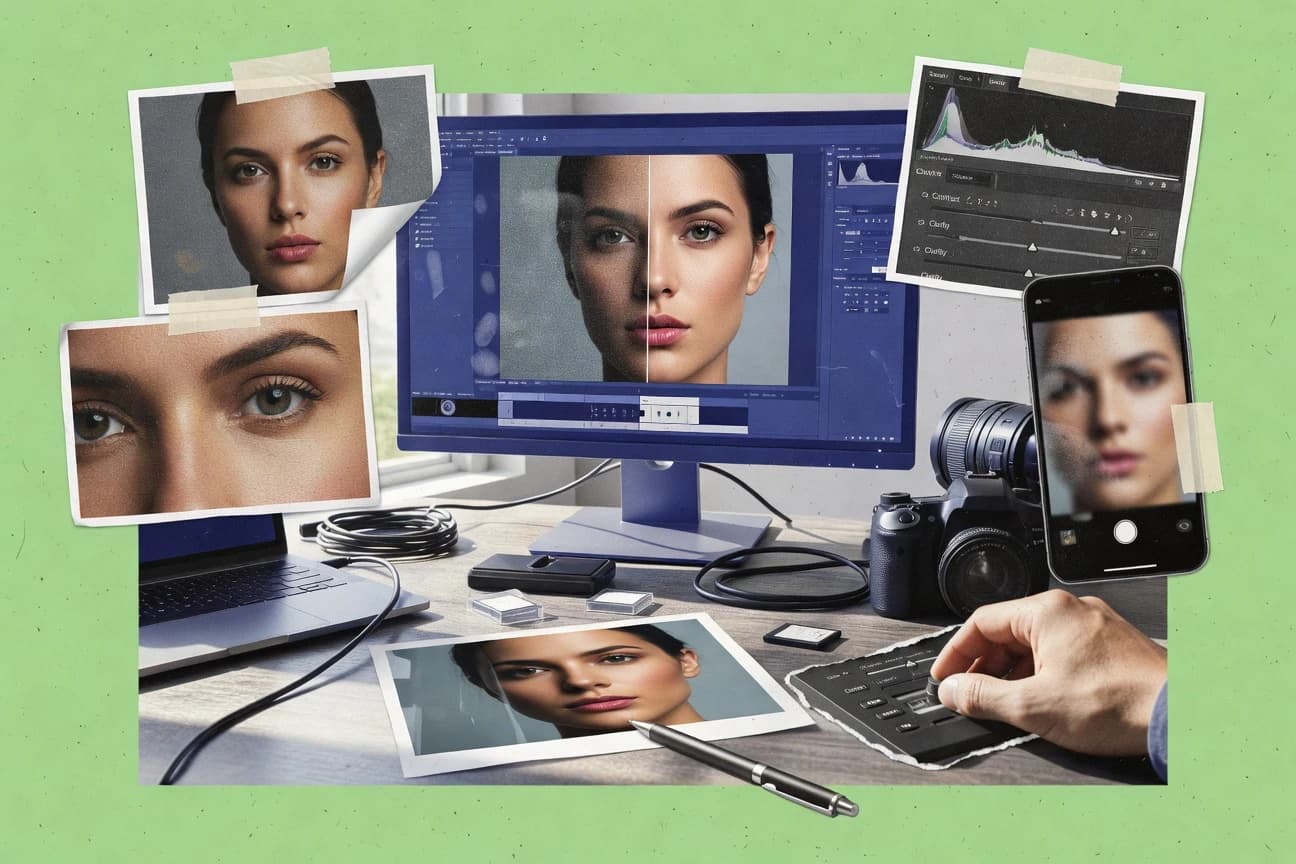
Technology Digital MediaTop 10 Best Photo Enhancer Software of 2026
Ranked roundup of top photo enhancer software with side-by-side evaluations, including Gigapixel AI, Radiant Photo, and Adobe Lightroom for editors.

How we ranked these tools
Core product claims cross-referenced against official documentation, changelogs, and independent technical reviews.
Analyzed video reviews and hundreds of written evaluations to capture real-world user experiences with each tool.
AI persona simulations modeled how different user types would experience each tool across common use cases and workflows.
Final rankings reviewed and approved by our editorial team with authority to override AI-generated scores based on domain expertise.
Score: Features 40% · Ease 30% · Value 30%
Gitnux may earn a commission through links on this page — this does not influence rankings. Editorial policy
Gigapixel AI is the go-to pick for teams that need consistent, low-fuss upscaling across large photo libraries, whereas Adobe Lightroom fits when you want repeatable RAW enhancement with catalog management across desktop and mobile devices.
Editor’s top 3 picks
Three quick recommendations before you dive into the full comparison below — each one leads on a different dimension.
Gigapixel AI
Device-ready upscaling with EXIF preservation, tuned denoising, and sharpening controls in a batch workflow.
Built for fits when teams need consistent photo upscaling for large libraries with minimal manual retouching..
Radiant Photo
Editor pickGuided enhancement steps combine noise reduction and sharpening in a single interactive tuning workflow for RAW files.
Built for fits when photographers need consistent RAW enhancement and quick batch outputs without deep compositing..
Adobe Lightroom
Editor pickCatalog-driven non-destructive editing that syncs adjustments across devices while keeping source files intact for later re-edits.
Built for fits when photographers need repeatable RAW enhancement with catalog management across desktop and mobile devices..
Comparison Table
Gigapixel AI
professionalDedicated AI image upscaler for enlarging photos up to 600 percent.
Device-ready upscaling with EXIF preservation, tuned denoising, and sharpening controls in a batch workflow.
Gigapixel AI is built around high-resolution enlargement where the core output is an upscaled raster image generated from the input, not an edit stack. It offers adjustable noise reduction and sharpening so outputs can be tuned for portraits, architecture, and scanned textures. Batch processing supports repeated enhancement across folders with consistent settings, which reduces operator time for bulk jobs. EXIF preservation helps maintain original capture context when sending enhanced results downstream for cataloging.
A key tradeoff is that the tool is optimized for single-pass enhancement rather than granular, non-destructive editing with layers or masks. Artists who need local edits, tonal region isolation, or complex compositing will still need a dedicated editor after upscaling. Gigapixel AI fits well when a production pipeline needs consistent super-resolution output for many similar inputs, such as ecommerce thumbnails scaled to larger viewing sizes.
- +High-quality super-resolution upscales that preserve edge detail
- +Batch processing supports consistent results across large photo sets
- +GPU acceleration reduces wait time for high-resolution inputs
- +EXIF metadata preservation helps maintain capture context
- –Limited control for localized edits compared with layer-based editors
- –Results may need parameter tuning to avoid oversharpening
- –Workflow depends on a two-stage process when heavy retouching is required
- –Best output often requires adequate GPU resources
Ecommerce photo ops teams
Upscale product images for larger views
Faster image pipeline throughput
Photo restoration specialists
Improve scans and low-detail portraits
More usable restored photos
Show 2 more scenarios
Print production teams
Prepare web photos for print resizing
Sharper print-ready masters
Generates higher-resolution outputs to reduce visible softness during print scaling.
Drone and survey photographers
Upscale distant subjects for review
Better detail visibility
Applies super-resolution to enlarge far details for faster qualitative assessment.
Best for: Fits when teams need consistent photo upscaling for large libraries with minimal manual retouching.
Radiant Photo
professionalAI photo enhancer with adaptive scene detection and color grading.
Guided enhancement steps combine noise reduction and sharpening in a single interactive tuning workflow for RAW files.
Radiant Photo is a desktop-focused photo enhancer that emphasizes repeatable enhancement steps rather than layer-based compositing. Core controls cover noise reduction, edge sharpening, and tone and color adjustments that can be tuned for portraits, landscapes, and product images. EXIF metadata preservation and non-destructive editing support keep workflow outputs usable for downstream cataloging.
A tradeoff appears in automation depth and integration surface. Batch processing helps throughput, but Radiant Photo does not provide the same level of external integration or API-driven pipelines that some higher-governance imaging stacks offer. It fits best when photographers need consistent enhancement for daily deliveries without building a custom render pipeline.
- +RAW-focused enhancement workflow with clear, adjustable detail controls
- +Batch processing maintains consistent output across image sets
- +Noise reduction and sharpening tuning for handheld and mixed-light files
- +Non-destructive editing preserves EXIF metadata
- –Limited automation beyond batch processing for large multi-service pipelines
- –No documented plugin architecture for third-party enhancement modules
- –Does not support advanced masking workflows expected in layer editors
- –Some high-end correction tasks rely on manual parameter tuning
Event photographers
Batch edit mixed indoor lighting
Faster delivery with uniform look
Portrait retouchers
Refine clarity while reducing grain
Cleaner portraits with stable detail
Show 2 more scenarios
Real estate photographers
Standardize exposures across shoots
Consistent listings for marketing
Use repeatable enhancements to improve tone and color consistency per property set.
Photo archivists
Preserve metadata during enhancement
Searchable archives with improved renders
Refine images while keeping camera EXIF fields intact for catalog searches.
Best for: Fits when photographers need consistent RAW enhancement and quick batch outputs without deep compositing.
Adobe Lightroom
enterpriseCloud photo editor with AI denoise, super resolution, and enhancement tools.
Catalog-driven non-destructive editing that syncs adjustments across devices while keeping source files intact for later re-edits.
Adobe Lightroom’s core strength is non-destructive RAW processing paired with a catalog workflow that preserves edits as instructions rather than overwriting image pixels. Standard develop controls cover exposure, white balance, histogram-based tone adjustments, lens correction, and localized masking so edits can be applied selectively across a series. Batch processing works through presets and synchronized settings across selected images, which helps when producing consistent looks for events and product sets.
A key tradeoff is that Lightroom’s editing and asset management live in a catalog model that can feel restrictive compared with file-first editors when the workflow needs frequent external round-trips. A strong usage situation is a photographer or small studio that processes many RAW files, applies a repeatable look, and reviews selects on mobile before exporting for client delivery.
- +Non-destructive edits keep RAW sources untouched
- +Local masking enables targeted contrast, color, and cleanup
- +Presets and synchronized edits speed up series processing
- +Cloud sync supports cross-device review and exports
- –Catalog-based organization can complicate non-Lightroom file workflows
- –Advanced output controls can require extra steps for custom deliverables
- –GPU-dependent performance varies by hardware and file size
- –Some deeper retouching tasks are better handled in specialist editors
Wedding photographers
Consistent look across large photo sets
Faster curation and delivery
E-commerce teams
Consistent product image enhancement
More uniform catalog imagery
Show 2 more scenarios
Freelance portrait editors
Selective enhancement with masks
Cleaner portraits with less rework
Local masking supports targeted contrast and noise reduction on skin and backgrounds.
Event media teams
Bulk RAW processing for delivery
Higher throughput under deadlines
Batch workflows streamline edits for hundreds of RAW captures before exporting selects.
Best for: Fits when photographers need repeatable RAW enhancement with catalog management across desktop and mobile devices.
HitPaw Photo Enhancer
consumerAI photo enhancer for upscaling, denoising, and colorizing images.
Face-focused enhancement that improves portrait detail during automated batch upscaling.
HitPaw Photo Enhancer focuses on image upscaling and face-focused enhancement workflows for improving clarity without manual retouching. It runs batch jobs for folders and supports common output formats for handing results back to common photo and imaging pipelines.
The app emphasizes local adjustments like sharpening and noise handling, with EXIF preservation options for keeping camera metadata intact. Export controls target consistent results across many photos, rather than single-image, layered editing.
- +Batch processing lets whole folders finish with one settings pass
- +Face enhancement improves portrait detail when faces are the main focus
- +EXIF preservation keeps camera metadata for downstream cataloging
- +Sharpness and noise controls cover common clarity complaints
- –Less suitable for precise, layered edits and masking-heavy workflows
- –Advanced color workflows like LUT-driven grading are not the focus
- –Small photos can still show enhancement artifacts in smooth gradients
- –GPU acceleration can require hardware compatibility for best throughput
Best for: Fits when photographers need fast batch upscaling and face enhancement for large photo sets.
Luminar Neo
prosumerAI-driven photo editor with enhancement tools for noise, structure, and detail.
AI-powered guided tools for sky and subject refinement with mask-aware controls inside the main editor.
Luminar Neo turns photos into refined results through guided editing and targeted AI adjustments for sky, skin, and overall look.
Core capabilities include one-click enhancement, advanced controls for color and tone, and batch processing for consistent exports across large sets.
The workflow centers on non-destructive editing so changes remain editable after export settings are finalized.
Luminar Neo also supports EXIF preservation and offers both raw-capable processing and high-detail finishing tools for local contrast and edge clarity.
- +AI adjustments target sky, skin, and subject separation with dedicated controls
- +Non-destructive workflow keeps prior edits editable through export
- +Batch processing supports consistent enhancement across large photo libraries
- +EXIF preservation maintains camera metadata through editing and export
- –Limited governance tools for teams compared with admin-first photo pipelines
- –Some high-end retouch workflows depend on careful masking setup
- –GPU acceleration benefits vary by hardware and project complexity
- –Plugin and automation coverage is narrower than systems built for studio integration
Best for: Fits when solo creators or small teams need AI-guided enhancement plus editable finishing for photo sets.
ON1 Photo RAW
professionalPhoto editor with NoNoise AI and AI-enhanced detail recovery.
Non-destructive layer editing combined with a RAW-centric workflow, so masking and retouching stay integrated in one project.
ON1 Photo RAW is a single application for organizing, developing, and enhancing RAW photos with non-destructive edits that stay tied to the original files. It includes RAW development controls plus specialty enhancement tools such as noise reduction and image upscaling.
Batch processing tools support running edits across large sets, and the editor can preserve or read EXIF metadata during workflows. ON1 Photo RAW also offers layer-based compositing so retouching and masking can live inside the same project file.
- +Non-destructive workflow keeps RAW and edits consistently linked
- +Integrated layer masking enables detailed retouching without switching tools
- +Batch processing runs the same enhancement steps across image sets
- +Noise reduction and upscaling tools target common enhancement gaps
- –Interface complexity can slow down setup for mixed workflows
- –GPU acceleration availability depends on system capabilities
- –Some advanced looks require more manual parameter tuning
- –Project-style editing can increase file management overhead
Best for: Fits when photographers need one app for RAW development, enhancement, and retouching in batch workflows.
Fotor
consumerOnline photo editor with AI enhancement, upscaling, and restoration tools.
Integrated edit-to-design canvas that turns enhanced photos into social graphics without a separate layout tool.
Fotor pairs a browser-first photo editor with an automated enhancement workflow that suits quick turnaround edits. Core tools include one-click fixes, manual color and tone adjustments, and guided retouching for common photo issues.
A major differentiator is its integrated design-canvas experience that lets enhanced photos move directly into social and graphic layouts without switching tools. Image output supports standard export controls for resolution and file format while keeping edits accessible in the same working session.
- +One-click enhancement plus manual tone and color controls in one workspace
- +Fast UI flow for both edits and social-style exports
- +Retouching tools cover common blemish and detail cleanups
- +Browser editing avoids desktop setup for quick projects
- –Limited depth for high-end RAW workflows and pixel-level control
- –Batch enhancement options are weaker than dedicated bulk processing tools
- –Fewer advanced masking and compositing workflows than pro editors
- –Export controls can feel constrained for production pipelines
Best for: Fits when individuals or small teams need fast web-based enhancement and ready-to-post exports.
PicWish
SMBAI photo tool for background removal, upscaling, and enhancement.
EXIF metadata preservation during enhancement helps keep camera and timing data with improved outputs.
PicWish targets photo enhancement with a web-based editor that focuses on improving clarity, fixing common quality issues, and producing share-ready exports. The tool supports batch-oriented workflows for multi-image improvement and includes automated enhancement functions aimed at reducing manual tuning.
Output quality emphasizes denoising, sharpening, and color adjustments with a workflow built around previews and quick iteration. EXIF retention is a key part of its editing behavior for users who want metadata to survive after enhancement.
- +Fast enhancement passes with preview-driven refinement
- +Batch processing covers multi-photo improvement without per-image setup
- +Denoising and sharpening controls suit quick realism recovery
- +EXIF metadata preservation helps maintain original capture context
- –Limited control depth compared with editor suites that support layer workflows
- –Some corrections rely on automated detection and can misfire on atypical images
- –Fewer export and color-management options than pro color pipelines
- –Less suited for repeatable, parameter-locked production runs
Best for: Fits when teams need quick web photo enhancement for product shots, portraits, and social media sets.
Cutout.pro
SMBAI visual design platform with photo enhancement and upscaling tools.
Edge-focused background removal tuned for difficult boundaries like hair strands in one-click cutouts.
Cutout.pro performs automated background removal and photo cutouts to produce clean, edge-safe subjects for downstream editing. It also supports image upscaling to improve perceived detail on smaller or compressed inputs.
Batch workflows are geared toward high-volume processing, with options aimed at preserving usable edges around hair and fine structures. The tool is most practical when cutout quality and bulk throughput matter more than deep, layer-based compositing.
- +Automated cutout edges for hair and thin details
- +Batch-friendly workflow for high-volume image processing
- +Upscaling improves perceived clarity on small images
- +Fast export pipeline for ready-to-use cutouts
- –Limited control for multi-step masks and local retouching
- –Fewer advanced color and tone controls than editor-grade tools
- –No visible automation surface like an API for external pipelines
- –Complex scenes sometimes need manual cleanup for perfect edges
Best for: Fits when e-commerce and creative teams need batch cutouts with occasional upscaling, not full retouching control.
Upscale.media
consumerOnline AI image upscaler for enhancing resolution up to 4x.
Web-driven upscaling pipeline that returns higher-resolution downloads with minimal configuration.
Upscale.media focuses on automated image enhancement with an upscaling-first workflow for outputs that stay usable at larger sizes. The service performs AI-based restoration steps such as denoising and sharpening, then returns enhanced files for download.
It is distinct for routing enhancements through a web workflow with selectable output sizes and consistent batch-style processing expectations. The tool’s core value is turning low-resolution or soft images into higher-resolution results with minimal manual editing.
- +Upscaling-centric workflow fits common low-resolution image upgrade tasks
- +Batch-style processing behavior reduces repeated manual enhancement work
- +Download-ready results make integration into simple pipelines straightforward
- +Consistent enhancement output reduces the need for iterative parameter tweaking
- –Limited control over advanced edit decisions like local masking
- –Fine-grained workflow automation via API is not clearly documented for integration
- –Artifact behavior can vary on heavy compression and extreme zoom crops
- –Project management features like layers and versioning are not apparent
Best for: Fits when teams need fast AI upscaling for large image deliverables with minimal manual retouching.
Conclusion
After evaluating 10 technology digital media, Gigapixel AI stands out as our overall top pick — it scored highest across our combined criteria of features, ease of use, and value, which is why it sits at #1 in the rankings above.
Use the comparison table and detailed reviews above to validate the fit against your own requirements before committing to a tool.
How to Choose the Right photo enhancer software
Photo enhancer software is a practical set of engines and workflows for denoising, sharpening, and upscaling, with Gigapixel AI leading the lineup for batch-ready super-resolution.
This buyer’s guide covers Radiant Photo, Adobe Lightroom, Luminar Neo, ON1 Photo RAW, and the upscaling and enhancement tools HitPaw Photo Enhancer, Fotor, PicWish, Cutout.pro, and Upscale.media, with emphasis on how each approach handles RAW development, EXIF preservation, and batch consistency.
Photo enhancer software for RAW enhancement, upscaling, and batch consistency
Photo enhancer software improves image quality through workflows that can include noise reduction, edge sharpening, and image upscaling, often paired with preview-driven or batch execution modes. Gigapixel AI is tuned for device-ready upscaling with EXIF preservation plus tuned denoising and sharpening controls that run consistently across large libraries.
Some tools also shift the enhancement model toward non-destructive editing and retouching layers, which changes how teams control localized fixes. Adobe Lightroom uses catalog-driven non-destructive editing with local masking for targeted contrast, color, and cleanup, while Radiant Photo focuses on guided enhancement steps for RAW files that combine noise reduction and sharpening in a single interactive workflow.
Evaluation features that determine enhancement quality, control, and repeatability
Photo enhancer software quality depends on whether the tool delivers consistent denoising and sharpening across an entire batch rather than on single images only. That consistency shows up in how each app couples upscaling, edge detail, and noise control inside a batch workflow or an interactive tuning loop.
EXIF and batch-ready upscaling behavior
Gigapixel AI provides device-ready upscaling with EXIF preservation plus tuned denoising and sharpening in batch workflows. PicWish also highlights EXIF metadata preservation during enhancement while keeping batch processing centered on preview-driven refinement.
RAW enhancement workflow structure and output consistency
Radiant Photo uses guided enhancement steps that combine noise reduction and sharpening in one interactive workflow for RAW files and still supports batch outputs. Adobe Lightroom keeps RAW sources untouched through catalog-driven non-destructive editing and then applies local masking for targeted contrast, color, and cleanup.
Localized editing model: masks, layers, and targeted retouching
ON1 Photo RAW integrates non-destructive layer editing with a RAW-centric project model so masking and retouching stay inside one place. Adobe Lightroom supports local masking that targets contrast, color, and cleanup when localized fixes must stay editable for later re-edits.
Editor guidance and selective AI refinement for common subjects
Luminar Neo uses AI-guided tools for sky and subject refinement with mask-aware controls inside the main editor. HitPaw Photo Enhancer focuses on face-focused enhancement during automated batch upscaling when portraits dominate the input set.
Integration surface for pipelines and automation depth
Upscale.media is web-driven with a minimal-configuration upscaling pipeline designed for batch-style delivery work, while API surface for deeper automation is not clearly documented. Radiant Photo positions itself around RAW enhancement and batch consistency but limits automation beyond batch execution and does not present a documented plugin architecture for third-party enhancement modules.
Single-purpose batch processing versus multi-step editing control
Cutout.pro emphasizes edge-focused background removal tuned for hair-strand boundaries and batch-friendly cutouts, with limited multi-step mask and local retouching control. Gigapixel AI and HitPaw are more aligned to batch upscaling, while Cutout.pro shifts the tool’s center of gravity toward cutouts rather than pixel-level finishing.
How to choose photo enhancer software by enhancement workflow and control requirements
The right selection starts with whether the workflow needs batch-upscaling consistency or editable localized retouching with masks and non-destructive history. The second axis is whether the enhancement layer should preserve camera metadata and deliver output that stays stable across libraries, deliveries, and re-edits.
Pick a batch-upscaling engine when the job is library-wide delivery
Choose Gigapixel AI when batch consistency and EXIF preservation matter alongside tuned denoising and sharpening controls that aim for device-ready upscales. Choose HitPaw Photo Enhancer when face-focused enhancement during automated batch upscaling is the main differentiator for portrait-heavy sets.
Pick a non-destructive editor when localized fixes must remain revisable
Choose Adobe Lightroom when catalog-driven non-destructive editing and local masking for targeted contrast, color, and cleanup fits the repeatable RAW enhancement workflow across devices. Choose ON1 Photo RAW when layer-based masking and retouching must stay integrated with the RAW-centric project model inside a single app.
Pick guided AI refinement when the main edits follow common subject patterns
Choose Luminar Neo when sky and subject refinement uses AI-guided tools with mask-aware controls inside the primary editor. Choose Radiant Photo when RAW enhancement needs guided steps that bundle noise reduction and sharpening into one tuning workflow for quick consistent batch outputs.
Choose depth of control over quick enhancement when output requires precise pixel decisions
Choose ON1 Photo RAW or Adobe Lightroom when masking-heavy workflows need more control than automated enhancement passes. Avoid relying on Cutout.pro for deliverables that require multi-step masks and detailed local retouching beyond its edge-focused cutout workflow.
Choose pipeline fit when automation must go beyond a simple batch run
Choose tools with clear batch workflows tied to your enhancement model, and treat limited automation claims as a constraint for multi-service pipelines like Radiant Photo’s lack of automation beyond batch processing. Choose web-driven upscaling tools like Upscale.media only when minimal configuration is the priority and fine-grained workflow automation via API is not required.
Choose the right tool class for cutouts versus full photo enhancement
Choose Cutout.pro when the core deliverable is background removal for difficult boundaries like hair strands and batch cutouts at scale. Choose upscalers like Gigapixel AI, HitPaw, PicWish, or Upscale.media when the deliverable is resolution improvement with enhancement decisions focused on upscaling and detail recovery.
Who should use each approach to photo enhancer software
Selection depends on whether teams need consistent bulk enhancement with minimal manual rework or an editor that keeps localized changes revisable over time. It also depends on whether workflows are portrait and subject heavy, catalog-centric across devices, or centered on deliverable formats like social graphics and cutouts.
Photo teams upscaling large libraries for consistent delivery
Gigapixel AI fits when device-ready upscaling must run across large photo sets with EXIF preservation and tuned denoising and sharpening controls. HitPaw Photo Enhancer fits when portrait faces are the primary enhancement target inside automated batch upscaling.
Photographers who require non-destructive RAW editing with localized masking
Adobe Lightroom fits when catalog-driven non-destructive editing and local masking need to stay tied to later re-edits. ON1 Photo RAW fits when layer-based masking and retouching must remain integrated with a RAW-centric workflow for batch projects.
Creators who want guided edits for common scenes without deep compositing
Luminar Neo fits when sky and subject refinement needs AI guidance with mask-aware controls inside the editor. Radiant Photo fits when RAW enhancement needs guided steps that combine noise reduction and sharpening in one interactive tuning loop.
E-commerce and creative teams shipping batch cutouts
Cutout.pro fits when hair-strand and difficult boundary background removal needs a one-click cutout workflow that runs on batches. This segment benefits from Cutout.pro’s edge-focused automation without requiring editor-grade multi-step local retouching.
Small teams and individuals converting enhanced photos into ready-to-post outputs
Fotor fits when enhanced photos must move into an edit-to-design canvas for social graphics without switching to a separate layout tool. PicWish fits when quick web enhancement batches are prioritized, including EXIF preservation for product shots and portraits.
Common pitfalls when buying photo enhancer software
Many buying errors come from mixing upscaling-first tools with editor-first tools when localized retouching is the real requirement. Other errors come from assuming automation and integration depth exist beyond batch runs, even when the tool centers on guided enhancement or web-based processing.
Choosing a batch upscaler when the workflow needs masking-heavy, localized retouching
Gigapixel AI and HitPaw prioritize upscaling consistency and tuned sharpening and denoising controls, so they fall short when precise layer-based edits are required. ON1 Photo RAW and Adobe Lightroom stay better aligned because masking and localized adjustments are core to their non-destructive editing models.
Assuming every tool preserves camera metadata through enhancement
Gigapixel AI explicitly targets EXIF preservation during device-ready upscaling, and PicWish emphasizes EXIF metadata preservation during enhancement. Tools that focus on other deliverables like cutouts can prioritize edge segmentation over metadata handling, so metadata needs should guide the choice.
Buying for deep pipeline automation without checking automation limits and integration documentation
Radiant Photo limits automation beyond batch processing and does not document a plugin architecture for third-party enhancement modules. Upscale.media provides web-driven upscaling but does not clearly document fine-grained workflow automation via API, which constrains integration-heavy pipelines.
Expecting cutout software to behave like a full retouching editor
Cutout.pro excels at edge-focused background removal for difficult boundaries and batch cutouts. It provides limited control for multi-step masks and local retouching, so it is a mismatch for projects that need editor-grade color and tone control.
How We Selected and Ranked These Tools
We evaluated photo enhancer software on batch enhancement quality using the reported feature and overall scores, plus on ease and value using the reported ease and value scores. Features accounted for 40% of the ranking, while ease and value each accounted for 30%.
Gigapixel AI separated itself by combining device-ready upscaling with EXIF preservation, tuned denoising and sharpening controls, and batch processing that produced consistent results across large photo sets. Radiant Photo scored strongly for RAW-guided enhancement that bundles noise reduction and sharpening into one workflow with batch outputs, while Adobe Lightroom scored highest among the catalog-first editors due to non-destructive RAW editing and local masking for targeted fixes.
Frequently Asked Questions About photo enhancer software
How do Gigapixel AI and HitPaw Photo Enhancer handle EXIF metadata during upscaling?
Which tool is better for guided RAW enhancement with consistent batch outputs: Radiant Photo or Adobe Lightroom?
When does ON1 Photo RAW's layer-based retouching matter versus using a face-focused batch workflow like HitPaw Photo Enhancer?
What breaks if a team needs integrated image enhancement plus in-app layout output, and chooses Fotor instead of Luminar Neo?
Which approach fits a browser-first workflow for quick enhancement: Fotor or PicWish?
How do Cutout.pro and Upscale.media differ when batch throughput targets edge quality versus pure upscaling?
Where does Luminar Neo fall short for teams that need catalog-wide, non-destructive history across devices like Adobe Lightroom?
Which tool supports layer masking as part of a RAW-centric enhancement workflow: ON1 Photo RAW or Lightroom?
What technical setup constraints should be considered for GPU acceleration and speed: Gigapixel AI versus Upscale.media?
Tools reviewed
Primary sources checked during evaluation.
Referenced in the comparison table and product reviews above.
- Technology Digital MediaTop 10 Best Photo Edit Software of 2026
- Technology Digital MediaTop 10 Best Image Enhancement Software of 2026
- Technology Digital MediaTop 10 Best Photo Slide Show Software of 2026
- Technology Digital MediaTop 10 Best Photo Retouching Software of 2026
- Digital Products And SoftwareTop 10 Best Photo Selection Software of 2026
Keep exploring
Comparing two specific tools?
Software Alternatives
See head-to-head software comparisons with feature breakdowns, pricing, and our recommendation for each use case.
Explore software alternatives→In this category
Technology Digital Media alternatives
See side-by-side comparisons of technology digital media tools and pick the right one for your stack.
Compare technology digital media tools→