
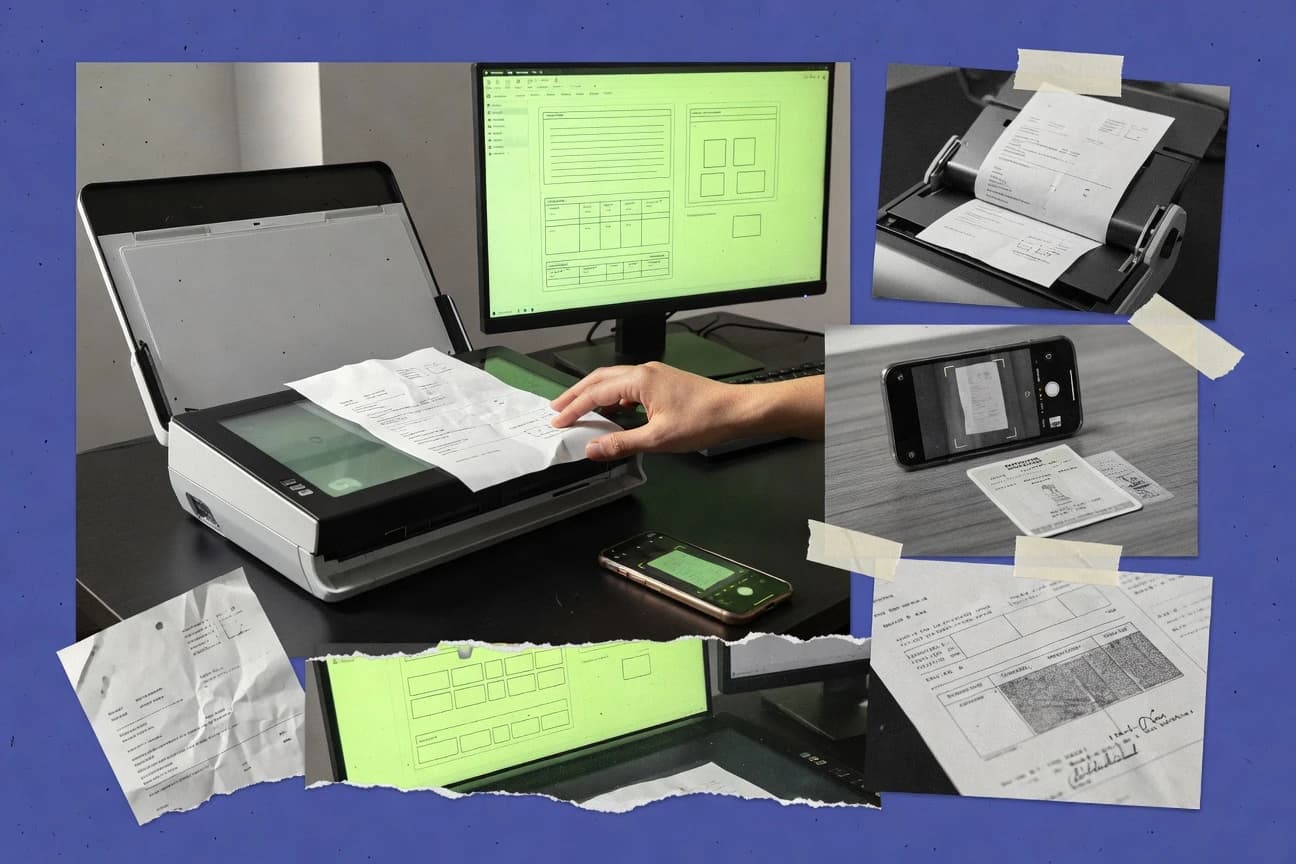
GITNUXSOFTWARE ADVICE
Technology Digital MediaTop 10 Best OCR Scanning Software of 2026
Top 10 ocr scanning software ranked by accuracy and format support, with comparisons of ABBYY FineReader PDF, Adobe Acrobat, and Google Cloud Vision OCR.

How we ranked these tools
Core product claims cross-referenced against official documentation, changelogs, and independent technical reviews.
Analyzed video reviews and hundreds of written evaluations to capture real-world user experiences with each tool.
AI persona simulations modeled how different user types would experience each tool across common use cases and workflows.
Final rankings reviewed and approved by our editorial team with authority to override AI-generated scores based on domain expertise.
Score: Features 40% · Ease 30% · Value 30%
Gitnux may earn a commission through links on this page — this does not influence rankings. Editorial policy
If you need document teams to turn mixed scans into layout-aware, searchable PDFs with exports you can reuse, ABBYY FineReader PDF is the strongest pick, whereas Adobe Acrobat fits when your PDF-first workflow also depends on straightforward OCR and review tools without moving files elsewhere.
Editor’s top 3 picks
Three quick recommendations before you dive into the full comparison below — each one leads on a different dimension.
ABBYY FineReader PDF
Exporting ALTO XML with structural annotations for columns and reading order.
Built for fits when document teams need layout-aware searchable PDFs and structured exports from mixed scans..
Adobe Acrobat
Editor pickSearchable text layer generation directly within Adobe Acrobat’s PDF review and edit workflow.
Built for fits when PDF-first teams need OCR plus document review tools without exporting to another system..
Google Cloud Vision OCR
Editor pickConfidence scores returned with OCR output enable automated quality gating per image request.
Built for fits when teams need API-driven OCR automation inside Google Cloud workflows..
Comparison Table
ABBYY FineReader PDF
desktopDesktop PDF software with OCR, document conversion, editing, and comparison features.
Exporting ALTO XML with structural annotations for columns and reading order.
FineReader PDF focuses on document conversion workflows that need more than basic text extraction, including layout-aware recognition for pages with mixed headings and body text. It also supports export formats such as hOCR and ALTO XML, which helps when downstream systems require machine-readable annotations. Handwritten text recognition is included for documents where notes or signatures must become searchable text.
A key tradeoff is that higher accuracy output depends on page quality and correct settings for the document type, so complex scans may require manual review of confidence hotspots. FineReader PDF fits best when a team processes recurring document layouts like invoices, contracts, and printed forms into searchable PDFs for later retrieval.
- +Layout analysis preserves reading order for multi-column page designs
- +Exports include hOCR and ALTO XML for structured downstream workflows
- +Deskew and noise removal improve OCR results on typical office scans
- +Batch processing supports consistent conversion across large document sets
- –Manual tuning can be needed for highly irregular layouts and edge cases
- –Programmatic OCR integration relies more on workflow automation than deep API use
Legal operations teams
Convert scanned pleadings to searchable PDFs
Faster retrieval during review
Accounts payable teams
OCR invoices with consistent reading order
Reduced manual retyping
Show 2 more scenarios
Records management teams
Batch process archival scans
Lower effort for indexing
Runs batch conversion to generate consistent searchable PDF outputs.
Accessibility coordinators
Create searchable text from image-only PDFs
Improved document accessibility
Generates a text layer that supports search and screen-reader use.
Best for: Fits when document teams need layout-aware searchable PDFs and structured exports from mixed scans.
Adobe Acrobat
SMBPDF software with searchable text recognition, document editing, and scanning workflows.
Searchable text layer generation directly within Adobe Acrobat’s PDF review and edit workflow.
Adobe Acrobat focuses on turning scanned pages into searchable PDFs and then keeping those PDFs editable for downstream review and sharing. The OCR step integrates directly into the PDF toolset, which reduces the handoff friction seen with OCR outputs that require a separate merge step. Batch processing supports turning multiple files into searchable outputs for document collections.
A key tradeoff is that accuracy depends heavily on scan quality and layout complexity, so dense forms and low-contrast images often need preprocessing or manual cleanup. Acrobat fits best when an organization already standardizes on PDFs and wants OCR plus document handling under one workflow.
- +Searchable text layer creation stays inside the PDF editing workflow
- +Batch conversion supports turning multiple scans into searchable PDFs
- +Consistent output in standard PDF formats for sharing and compliance
- –Handwriting recognition support is limited compared with specialized handwriting tools
- –Complex forms often require manual verification and cleanup
- –OCR accuracy drops on low-contrast scans without preprocessing
Legal teams
Search archived contract scans
Quicker document retrieval
Accounts payable teams
Make invoice scans searchable
Reduced manual retyping
Show 1 more scenario
Records management teams
Standardize scan-to-PDF processing
More uniform archives
Batch OCR keeps a consistent PDF output structure for document lifecycle workflows.
Best for: Fits when PDF-first teams need OCR plus document review tools without exporting to another system.
Google Cloud Vision OCR
API-firstCloud API that detects and extracts printed and handwritten text from images and documents.
Confidence scores returned with OCR output enable automated quality gating per image request.
Google Cloud Vision OCR is built around an API surface that fits applications needing automated OCR at scale, such as document ingestion services. It returns extracted text plus per-result confidence scores, which can be used to triage low-confidence pages to a human review queue. The integration depth is strong for teams already using Google Cloud IAM and logging for governance and traceability.
A key tradeoff is that advanced document processing like table extraction and form-specific field modeling requires additional structure or post-processing steps, which can add development time. It fits best for systems that start from images in storage and need immediate OCR results wired into search indexes, ticketing workflows, or reconciliation pipelines.
- +API responses include confidence scores for automated review routing
- +Works well inside Google Cloud IAM and audit logging setups
- +Batch OCR can be orchestrated with server-side job workflows
- +Language and script handling supports mixed-language inputs
- –Table and form field extraction requires extra logic beyond OCR text
- –Accuracy varies by image quality and relies on preprocessing upstream
- –Full-document layout interpretation needs feature-specific configuration
Customer support operations teams
OCR tickets from uploaded images
Faster case triage
Document processing engineering teams
Batch OCR for stored scans
Automated searchable text
Show 2 more scenarios
Compliance and audit teams
Trace OCR runs with logs
Improved operational accountability
Uses Google Cloud logging and access controls to maintain traceability for extracted text outputs.
KYC and onboarding teams
Extract identity text from documents
Reduced manual retyping
Pulls printed text from ID and form images and flags low-confidence fields for review.
Best for: Fits when teams need API-driven OCR automation inside Google Cloud workflows.
Readiris PDF
desktopOCR software for converting scanned paper documents and images into searchable, editable files.
Layout-aware form and table extraction designed to preserve document structure inside the output.
Readiris PDF is an OCR scanning solution from irislink.com that targets document digitization with a focus on preserving structure in the output. It supports batch processing for scanning workflows and generates searchable PDF documents with a text layer.
Recognition quality is paired with layout-focused extraction for forms and tabular content, which helps reduce manual reformatting. The product’s desktop workflow suits organizations that need controlled OCR runs on their own documents rather than cloud-only viewing.
- +Searchable PDF output with a usable text layer
- +Batch processing supports higher-volume scanning workflows
- +Layout-aware extraction improves results for forms and tables
- +Handwriting recognition support covers mixed-content documents
- –Less suitable for fully automated, API-driven OCR pipelines
- –Complex layouts may require workflow tuning for best accuracy
- –Limited governance controls compared with enterprise OCR platforms
- –Table and form extraction can require post-checking on messy scans
Best for: Fits when teams need desktop batch OCR with readable searchable PDFs and structured extraction for forms.
OCRmyPDF
open-sourceOpen-source software that adds searchable OCR text layers to scanned PDF files.
Performs OCR from a command-line pipeline with tight control over preprocessing and embedded text output formats.
OCRmyPDF runs OCR on existing PDFs to generate a searchable PDF or PDF/A output with the original page structure preserved. It can process scanned images in batch and uses its OCR pipeline to handle rotation, deskewing, and page image cleanup before text extraction.
The tool also supports extracting plain text and embedding OCR results into the PDF text layer for downstream search and reflow. Automation is driven through CLI workflows and an integration-friendly execution model that fits into document processing pipelines.
- +Preserves original PDF page layout while adding an OCR text layer
- +Batch processing fits file system or job queue workflows
- +Supports PDF/A output for archival-friendly ingestion
- +Deterministic CLI execution fits automation and reproducible runs
- –Quality tuning depends on OCR engine configuration and preprocessing choices
- –Handwritten text often needs specialized engines beyond default workflows
Best for: Fits when batch OCR must run on-prem and output must remain searchable or PDF/A.
Docsumo
API-firstIntelligent document processing software for OCR, classification, and data extraction.
Docsumo’s document-specific field extraction logic for invoices and receipts turns OCR results into normalized structured fields.
Docsumo targets document intake and automated field extraction for OCR workflows, with a focus on turning scanned inputs into structured output. It emphasizes API-driven processing with configurable extraction logic for invoices, receipts, and other common business documents.
The workflow typically pairs an OCR step with post-processing to normalize extracted fields into a predictable JSON-style structure for downstream systems. Its value is most apparent when OCR is part of a larger automation pipeline rather than a standalone “scan and read” tool.
- +Extraction workflow is designed for invoice and receipt fields, not just text capture
- +API-based automation supports batch intake into downstream systems
- +Configurable extraction reduces manual cleanup for common document layouts
- +Output is structured for ingestion into case management and workflow tools
- –Template and field coverage can lag for unusual layouts or niche document types
- –Higher OCR quality often requires image cleanup steps like deskewing and contrast fixes
- –Complex governance needs like strict tenant RBAC can require additional operational discipline
- –Handwritten content recognition is limited compared with tools focused on handwriting
Best for: Fits when teams automate invoice and receipt capture and need structured extraction via API.
Veryfi
API-firstOCR and data extraction software for receipts, invoices, bills, and business documents.
Receipt and invoice data extraction workflow that returns structured fields and line items suitable for posting systems.
Veryfi targets document processing that produces structured outputs, which reduces manual work when invoices and receipts drive accounting flows.
The OCR pipeline is paired with layout understanding for better field localization than pure text recognition.
API-based ingestion supports automation for organizations that need repeatable capture at volume.
- +API-based document capture designed for automated receipt and invoice ingestion
- +Layout-aware extraction supports field and line-item parsing for structured outputs
- +Batch OCR workflows fit high-throughput ingestion pipelines
- +Confidence scores help triage low-read documents before downstream posting
- –Accuracy varies across unusual templates and heavily damaged scans
- –Higher setup effort than generic OCR engines for consistent extraction quality
Best for: Fits when invoice and receipt documents must convert into structured fields and line items via API automation.
Tesseract OCR
open-sourceOpen-source OCR engine for converting image text into machine-readable output.
Support for hOCR and ALTO XML outputs from the core engine, enabling downstream token and word-level processing.
Tesseract OCR turns raster images into machine-readable text using an open OCR engine with language packs and a configurable recognition pipeline. It supports common document image formats and can output structured artifacts like hOCR and ALTO XML for downstream processing.
The project also integrates with automation via command-line batch runs and through wrappers in multiple programming ecosystems. Accuracy depends heavily on image preprocessing, so results often improve with deskewing and binarization before recognition.
- +Open engine with language-pack based recognition across many locales
- +Batch processing via command-line flags supports repeatable OCR runs
- +Structured outputs like hOCR and ALTO XML help layout-aware workflows
- +Configurable recognition parameters support tuning for specific document sets
- –Handwriting recognition requires extra configuration and may lag specialized models
- –Layout analysis and table extraction are limited versus document AI OCR engines
- –Searchable PDF generation and font embedding need additional workflow steps
- –Throughput tuning depends on deployment design and preprocessed input quality
Best for: Fits when teams need open, self-hosted OCR with controllable output formats for batch pipelines.
OCR.Space
API-firstOnline OCR API and web tool for extracting text from images and PDF files.
Configurable server-side image preprocessing with deskew and noise reduction exposed through the OCR API.
OCR.Space converts uploaded images and PDFs into searchable text by running an OCR engine on the server side. It supports full-page OCR with layout-aware output options, and it can return machine-friendly results such as positional data for downstream rendering.
The product also provides an API designed for batch processing and automated capture workflows. OCR.Space additionally focuses on accuracy tuning through image preprocessing controls like deskew and noise reduction.
- +API-based OCR suitable for batch ingestion and automated pipelines
- +Image preprocessing options include deskew and noise handling
- +Returns structured OCR output for mapping text back onto images
- +Layout-aware extraction improves results on multi-block pages
- –Handwriting recognition quality varies and often needs preprocessing
- –Table extraction and form structure output can require manual cleanup
- –Confidence scoring is provided but needs calibration per document type
- –Result normalization for scans with heavy skew may be inconsistent
Best for: Fits when automated OCR capture needs structured outputs for custom document workflows.
Nanonets
API-firstCloud document processing software that extracts text and structured fields from scanned files.
Confidence-score driven routing in OCR workflows to route low-certainty documents into review steps.
Nanonets is an OCR scanning solution built around automation workflows that turn captured text into structured outputs. Teams upload images or PDFs for recognition and then use configurable steps to map extracted fields into the formats their systems require.
Its API-based approach supports batch processing and document pipelines where confidence scores guide downstream handling. Admins can run OCR through controlled projects and integrate outputs into business processes without manual copy and paste.
- +API-first OCR pipeline supports batch processing and automation workflows
- +Field mapping and extraction outputs fit form and document processing use cases
- +Confidence scores help route low-certainty results to review
- +Extensible document workflows reduce manual post-processing work
- –Handwriting recognition quality varies by input quality and sample set
- –Complex layout extraction needs more workflow configuration than simple OCR
Best for: Fits when teams need API-driven OCR with structured field outputs and automated routing.
Conclusion
After evaluating 10 technology digital media, ABBYY FineReader PDF stands out as our overall top pick — it scored highest across our combined criteria of features, ease of use, and value, which is why it sits at #1 in the rankings above.
Use the comparison table and detailed reviews above to validate the fit against your own requirements before committing to a tool.
How to Choose the Right ocr scanning software
OCR scanning software is used to convert image-based documents into searchable text layers and structured outputs for downstream workflows. This guide covers ABBYY FineReader PDF, Adobe Acrobat, Google Cloud Vision OCR, Readiris PDF, OCRmyPDF, Docsumo, Veryfi, Tesseract OCR, OCR.Space, and Nanonets, each with a different balance of export formats, automation surface, and layout handling.
Across these tools, the practical differences show up in what formats are produced, how confidence scores are exposed for routing, and how much layout intelligence is preserved for multi-column pages and forms. The buying criteria in this guide focus on integration depth through automation and API behavior, along with operational control for batch throughput and governance-style workflows.
OCR scanning software that turns images into searchable PDFs and structured fields
OCR scanning software applies OCR engine processing to images such as scanned PDFs, TIFF, JPEG, and PNG, then embeds results as searchable text layers and machine-readable exports. Many tools also add layout analysis so reading order, columns, and page structure remain usable for document review and extraction workflows.
ABBYY FineReader PDF emphasizes layout-aware exporting with ALTO XML annotations and hOCR for structured downstream processing, which matters for multi-column documents and reading-order-sensitive searchable PDFs. Google Cloud Vision OCR emphasizes automation because API responses return confidence scores that support automated quality gating per image request, even when table and form extraction needs extra logic.
OCR scanning software features that decide real extraction outcomes
OCR scanning software lives or dies by what it emits after recognition, not by the text it displays. Layout-aware exports, structured XML or markup, and confidence signals determine whether teams can route documents, validate results, and feed downstream systems without manual rework.
The tools below separate along three practical lines: layout intelligence for searchable PDFs, automation surfaces for batch and API pipelines, and field or line-item extraction logic for invoices and receipts.
Layout-aware structured exports for reading order and downstream processing
ABBYY FineReader PDF exports ALTO XML with structural annotations for columns and reading order, alongside hOCR for token-level workflows. OCR results stay usable for multi-column searchable PDFs and structured post-processing when reading order matters more than plain text.
Searchable text layer generation inside a document review workflow
Adobe Acrobat focuses on creating a searchable text layer directly inside the PDF review and edit workflow, plus batch conversion for multiple scans. This keeps teams inside the same PDF editing surface instead of exporting OCR artifacts to a separate system.
API-driven OCR automation with confidence scores for quality gating
Google Cloud Vision OCR returns confidence scores in API responses, which supports automated quality gating per image request. Nanonets also uses confidence-score driven routing, but it targets OCR workflows that route low-certainty documents into review steps.
Form and table extraction that preserves document structure
Readiris PDF provides layout-aware form and table extraction designed to preserve document structure inside the output. This is positioned for readable searchable PDFs with structured extraction for forms, not just raw text capture.
Preprocessing control for on-prem batch OCR and PDF/A compliance
OCRmyPDF runs OCR through a command-line pipeline that preserves the original PDF page layout while adding an OCR text layer. It fits on-prem batch OCR needs where teams control preprocessing to keep outputs searchable or in PDF/A.
Invoice and receipt field extraction that normalizes structured data
Docsumo and Veryfi turn OCR input into normalized structured fields via document-specific extraction logic for invoices and receipts. Their outputs are designed to support downstream posting workflows that need structured fields and, for Veryfi, line items.
How to choose OCR scanning software by integration depth and workflow shape
Start by matching the output shape to the downstream system that will consume it. Teams that need layout intelligence for reading order should prioritize tools that emit structure, while automation-first teams should prioritize API responses and confidence signals.
Next, match deployment and operational control to how OCR jobs run in the organization. Command-line batch tools support job queues and file system processing, while API products fit service orchestration with governance controls and audit requirements.
Choose output structure based on whether downstream systems need layout fidelity or plain text
Select ABBYY FineReader PDF when multi-column reading order and structured exports matter because it generates ALTO XML with structural annotations plus hOCR. Select Adobe Acrobat when PDF-first review teams need searchable text layers inside the Acrobat editing workflow without exporting separate OCR structure.
Pick the automation model that fits the existing pipeline
Choose Google Cloud Vision OCR when an API-first workflow needs confidence scores for automated quality gating per image request. Choose Nanonets when the workflow needs confidence-score driven routing that pushes low-certainty documents into review steps.
Use desktop and desktop-batch tools when form and table structure must stay readable
Pick Readiris PDF when the output must preserve document structure for forms and tables inside searchable PDFs and structured extraction. Use OCRmyPDF when the goal is repeatable on-prem batch OCR from a command-line pipeline that preserves page layout while adding an OCR text layer.
Select document capture logic based on which document classes require normalized fields
Choose Docsumo for invoice and receipt capture workflows that need structured fields delivered via API automation. Choose Veryfi when invoice and receipt workflows must convert documents into structured fields and line items suitable for posting systems.
Decide how much engine-level control the workflow needs for irregular inputs
Prefer OCRmyPDF when preprocessing decisions need tight control so the OCR text layer matches a batch processing standard across different scan qualities. Prefer API-based options like OCR.Space when server-side preprocessing choices such as deskew and noise reduction must be exposed through the OCR API.
Who OCR scanning software should fit
Different OCR products fit different operational realities. The key split is whether the organization is building document review into a PDF workflow, running OCR as an automated service, or converting specific document classes like invoices into posting-ready fields.
The segments below map directly to how each shortlisted tool was described through its standout capability and typical use case.
Document teams producing layout-sensitive searchable PDFs from scanned paper
ABBYY FineReader PDF fits when reading order and column structure must survive OCR through ALTO XML structural annotations and hOCR exports. It is built for mixed scans where layout preservation drives usefulness.
PDF-first teams that need OCR plus in-PDF review and editing
Adobe Acrobat fits when OCR results must be generated and reviewed inside the same PDF workflow using searchable text layer creation and batch conversion. The workflow emphasis stays on PDF review and cleanup rather than export to separate pipelines.
Engineering teams orchestrating OCR as an API with automated QA routing
Google Cloud Vision OCR fits when confidence scores returned in API responses must drive automated review routing per image request. Nanonets fits when confidence-score driven routing must move low-certainty documents into a review step.
Accounts payable teams automating invoice and receipt ingestion into downstream systems
Docsumo fits when invoice and receipt field extraction must normalize structured fields via API-based automation. Veryfi fits when workflows must extract both structured fields and line items for posting systems.
On-prem operations running batch OCR jobs with preprocessing control
OCRmyPDF fits when batch OCR must run on-prem from a command-line pipeline that preserves page layout and outputs searchable or PDF/A documents. Tesseract OCR fits when teams want open, self-hosted OCR with controllable output formats like hOCR and ALTO XML for batch pipelines.
Common OCR scanning software mistakes that cause rework
OCR failures usually come from mismatches between the expected output and the actual operational envelope. Teams often choose by text accuracy and ignore layout fidelity, confidence signaling, and structured export requirements.
The mistakes below reflect the constraints called out by the shortlisted tools across layout handling, automation fit, and document-class extraction coverage.
Assuming plain searchable text is enough for multi-column documents
ABBYY FineReader PDF is designed to preserve reading order through layout analysis and ALTO XML structural annotations, so it avoids the downstream ambiguity that plain text layers can introduce.
Skipping quality gating even when confidence scores exist in the OCR output
Google Cloud Vision OCR returns confidence scores that support automated quality gating per image request, and Nanonets uses confidence-score driven routing to send low-certainty documents to review.
Overestimating how well generic OCR text capture covers invoice and receipt posting needs
Docsumo and Veryfi focus on invoice and receipt extraction logic that returns structured fields, and Veryfi additionally targets line items for posting systems.
Treating form and table extraction as identical to OCR text accuracy
Readiris PDF is positioned for layout-aware form and table extraction that preserves document structure, while table and form extraction can still require extra logic beyond raw OCR text in other API-first tools.
How We Selected and Ranked These Tools
We evaluated OCR scanning software based on features, operational ease, and overall value, with features contributing 40%, operational ease contributing 30%, and value contributing 30%. Layout-aware export formats carried extra weight when they directly changed downstream usability, and ABBYY FineReader PDF scored highest for exporting ALTO XML with structural annotations and providing hOCR outputs alongside layout-aware reading order preservation.
We also treated automation fit as a scoring factor when tools exposed confidence scores for gating or routing, because Google Cloud Vision OCR and Nanonets support automated review workflows via API responses and confidence-driven routing. Final ordering followed the observed balance across OCR output structure, workflow integration behavior, and practical ease for batch or review-based operations.
Frequently Asked Questions About ocr scanning software
Which tools generate a searchable PDF text layer without exporting to another system?
How does ABBYY FineReader PDF support layout preservation beyond plain OCR text?
How should teams handle confidence scores when OCR output quality varies by page?
When does OCRmyPDF become a better choice than running OCR on images separately?
What breaks if a workflow needs structured fields rather than just extracted text?
Which tools integrate cleanly into automation pipelines via an API-first model?
Where does Tesseract OCR fall short compared with commercial engines for document layout?
How do teams choose between desktop OCR runs and server-side OCR for throughput?
Which tool outputs format artifacts designed for downstream parsing and word-level processing?
Tools reviewed
Primary sources checked during evaluation.
Referenced in the comparison table and product reviews above.
- Technology Digital MediaTop 10 Best OCR AI Software of 2026
- Digital Products And SoftwareTop 10 Best Document Scanning OCR Software of 2026
- Technology Digital MediaTop 10 Best Optical Character Recognition (OCR) Software of 2026
- Technology Digital MediaTop 10 Best Card Scanning Software of 2026
- Business FinanceTop 10 Best OCR Invoice Scanning Software of 2026
Keep exploring
Comparing two specific tools?
Software Alternatives
See head-to-head software comparisons with feature breakdowns, pricing, and our recommendation for each use case.
Explore software alternatives→In this category
Technology Digital Media alternatives
See side-by-side comparisons of technology digital media tools and pick the right one for your stack.
Compare technology digital media tools→