
GITNUXSOFTWARE ADVICE
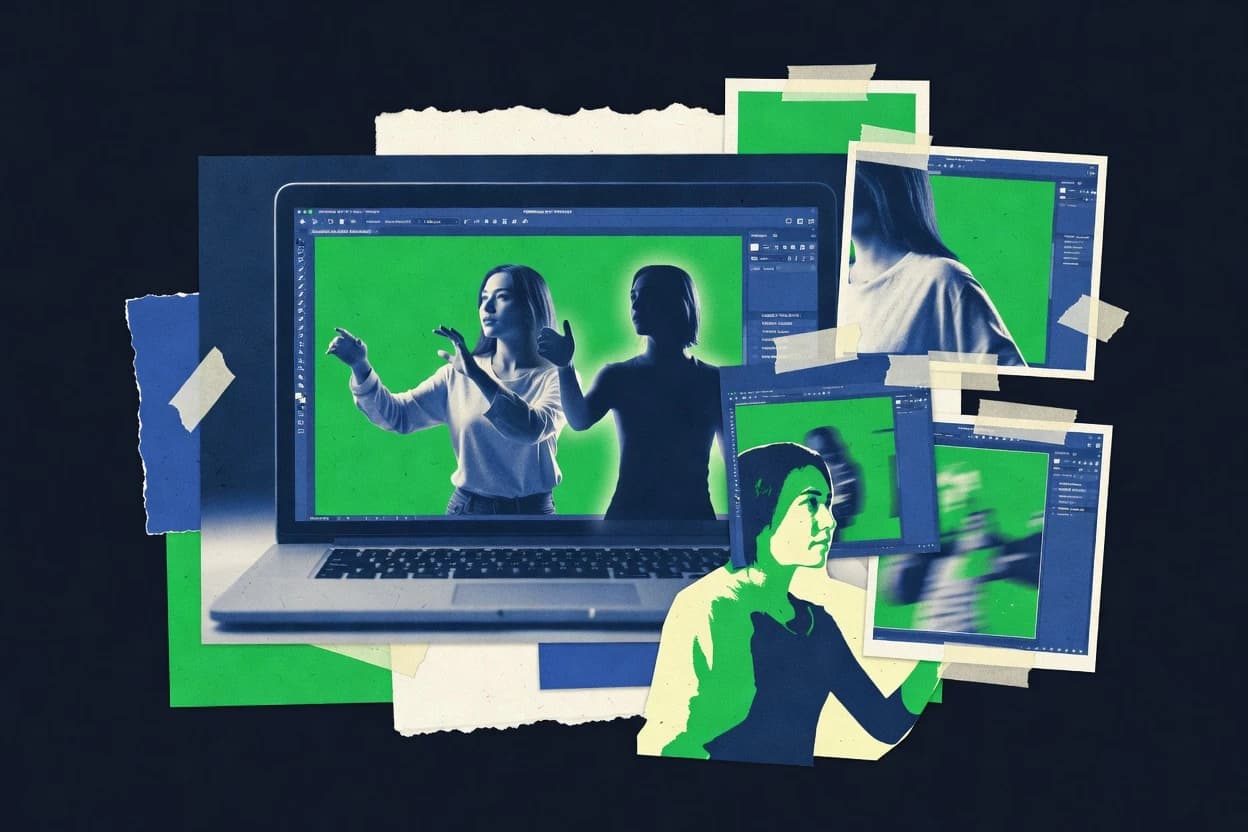
Arts Creative ExpressionTop 10 Best Green Screen Photo Software of 2026
Top 10 green screen photo software ranked for clean cutouts and fast edits, with side-by-side comparisons of Pixlr, AKVIS Chroma Key, and PhotoScissors.

How we ranked these tools
Core product claims cross-referenced against official documentation, changelogs, and independent technical reviews.
Analyzed video reviews and hundreds of written evaluations to capture real-world user experiences with each tool.
AI persona simulations modeled how different user types would experience each tool across common use cases and workflows.
Final rankings reviewed and approved by our editorial team with authority to override AI-generated scores based on domain expertise.
Score: Features 40% · Ease 30% · Value 30%
Gitnux may earn a commission through links on this page — this does not influence rankings. Editorial policy
Pixlr is the most reliable pick for teams that need quick still-image green-screen cutouts with mask refinement and reusable layered exports, whereas AKVIS Chroma Key works best when you want controllable compositing and transparent cutouts, and GIMP is the budget way in if you’re happy with manual edge control.
Editor’s top 3 picks
Three quick recommendations before you dive into the full comparison below — each one leads on a different dimension.
Pixlr
Non-destructive, layer-based editing that keeps refined masks editable for later background swaps.
Built for fits when teams need still-image green-screen cutouts with quick mask refinement and reusable layered exports..
AKVIS Chroma Key
Editor pickTransparent PNG export preserves alpha channel for layered background replacement.
Built for fits when small photo sets need controllable green-screen compositing and transparent cutouts..
PhotoScissors
Editor pickAutomatic edge refinement that tightens alpha boundaries after background removal for cleaner compositing edges.
Built for fits when teams need fast, repeatable still-image cutouts for background replacement..
Comparison Table
Pixlr
SMBBrowser-based image editor with cutout and background replacement tools.
Non-destructive, layer-based editing that keeps refined masks editable for later background swaps.
Pixlr’s core workflow for green-screen compositing starts with chroma key-like selection and converts the subject into a mask that can be refined. Edge refinement controls help reduce green contamination, and the editor lets users iterate on transparency using layered composition and non-destructive adjustments. The tool’s strengths show up when the input images have stable lighting and when the output needs a transparent background for reuse across multiple background scenes.
A tradeoff appears with motion footage because Pixlr is centered on still-image compositing and rotoscoping workflows are not its main focus. Pixlr fits best for one-off marketing images, thumbnail cutouts, or batch background removal tasks where multiple frames share similar subject and lighting conditions.
- +Mask-first editing improves control after initial green-screen separation
- +Layered compositing supports repeated background changes without rebuilding edits
- +Edge refinement tools help clean halos around higher-contrast subjects
- +Transparent PNG and TIFF exports support downstream layout workflows
- –Optimized for still-image compositing instead of motion tracking sequences
- –Hair and fine-detail preservation often requires more manual mask refinement
- –Complex scenes with uneven spill can need multiple correction passes
- –Workflow depends on consistent capture lighting for best matte quality
Social media editors
Make transparent PNG cutouts fast
Cleaner composites for posts
E-commerce photo teams
Batch background removal for product images
Consistent cutouts across catalog
Show 2 more scenarios
Creative agencies
Replace virtual backgrounds for campaigns
Faster background iteration
Use layered composites to swap backgrounds without redoing the entire matte each version.
Photographers
Refine hair edges on still frames
Improved fine-detail edges
Iterate mask strokes and edge cleanup until fine strands look natural against new scenes.
Best for: Fits when teams need still-image green-screen cutouts with quick mask refinement and reusable layered exports.
AKVIS Chroma Key
vertical specialistStandalone and plugin software for removing solid-color backgrounds from photographs.
Transparent PNG export preserves alpha channel for layered background replacement.
AKVIS Chroma Key focuses on still-image chroma keying workflows with interactive masking and edge refinement, which helps when hair or semi-transparent details need adjustment. The editor workflow supports matte cleanup using refinement tools before output, which reduces the need for downstream cleanup. For background replacement, it generates an output that can be composited with a new background while preserving the alpha channel for layering.
A practical tradeoff is that complex spill and lighting mismatches still require manual tuning of keying and edge settings, especially around fine detail. It fits best when a small batch of photos needs consistent subject isolation and transparent-cutout exports for design or compositing work.
- +Interactive matte editing supports careful edge refinement
- +Transparent PNG export fits layered compositing workflows
- +Keying controls help reduce green spill artifacts in outputs
- +Designed for still-image keying with direct foreground separation
- –Automation is limited on complex lighting gradients
- –Manual tuning is often required for fine hair detail
Freelance photo editors
Create cutouts for magazine compositing
Cleaner composites with less rework
Ecommerce content teams
Replace studio backgrounds consistently
More consistent listings
Show 1 more scenario
Social media designers
Batch background removal for posts
Faster background replacement
Outputs with alpha channel support rapid virtual background swaps in design documents.
Best for: Fits when small photo sets need controllable green-screen compositing and transparent cutouts.
PhotoScissors
SMBImage background removal software for isolating subjects and placing them on new backgrounds.
Automatic edge refinement that tightens alpha boundaries after background removal for cleaner compositing edges.
PhotoScissors targets still-image chroma keying workflows with foreground segmentation that produces usable alpha channels for compositing. Edge refinement and cleanup controls are geared toward hair and fine-detail preservation compared with simple background erasure. Export options commonly used for compositing include transparent PNG and layered image formats that keep cutouts editable. Automation centers on batch background removal so teams can process many photos with consistent settings.
A tradeoff appears in motion work. PhotoScissors focuses on single-image cutout quality rather than camera tracking or rotoscoping sequences, so it fits still-image pipelines better than video chroma key. It is a good fit when product teams need consistent subject isolation for rapid background replacement across catalog photos.
- +Automatic edge refinement reduces manual masking time for detailed subjects
- +Despill correction helps keep bright greens from tinting edges
- +Batch background removal supports consistent cutouts across large photo sets
- +Transparent PNG export works directly in layered compositing tools
- –Limited support for motion tracking and video rotoscoping workflows
- –Hair edge results can still require manual cleanup on complex backgrounds
- –Advanced keylight-style controls are narrower than dedicated compositors
- –Iterating results across many variants requires careful batch setting management
E-commerce catalog operators
Batch cutouts for many product photos
Faster catalog background updates
Marketing creative teams
Cut subjects for still-image campaigns
Cleaner subject isolation
Show 2 more scenarios
Photography freelancers
Quick chroma keying for client edits
Less manual retouching
Generate layered exports that plug into downstream compositing for transparent PNG-ready workflows.
Content teams producing web visuals
Background replacement for web-ready images
Higher throughput per shoot
Process multiple stills with consistent cutout settings and publish composites with minimal rework.
Best for: Fits when teams need fast, repeatable still-image cutouts for background replacement.
Green Screen Wizard
vertical specialistDedicated photo software for replacing green-screen backgrounds with custom images.
Despilled edge handling that reduces green spill while keeping thin hair detail usable for alpha exports.
Green Screen Wizard focuses on still-image chroma keying with a guided workflow for creating clean cutouts and alpha-ready outputs. It emphasizes edge refinement controls designed for hair and fine-detail preservation and includes despill correction to reduce green contamination.
The editor supports background replacement for virtual scene composites and exports layered results for later compositing. Batch processing is geared toward repeating the same keying settings across multiple photos.
- +Guided masking steps reduce time spent on first-pass cutouts
- +Edge refinement tools target fine strands and boundary blur
- +Despills help stabilize color near subject borders
- +Batch background removal supports consistent results across sets
- –Motion tracking and rotoscoping workflows are not the focus
- –Advanced keylight-style tuning can be limited for heavy spill scenes
- –Large exports may need external compositing for full grading control
- –No clear API surface for automation beyond batch editing
Best for: Fits when creators need repeatable still-image cutouts with edge cleanup and batch output consistency.
Canva
SMBWeb-based design platform with a background remover tool for green screen compositing.
Layered design canvas workflow that outputs transparent PNG for later compositing in other tools.
Canva creates still-image green screen composites by combining subject masking tools with layer-based background replacement and exportable image assets. Editing happens inside a template-driven canvas that supports transparent output for compositing and layered exports for iterative refinements.
Canva also supports importing camera photos for retouching workflows and arranging keylight-style adjustments through its built-in image editing controls. It is distinct for moving from cutout to finished graphics without leaving the same design workspace.
- +Layer-based background replacement keeps compositing changes easy to iterate
- +Transparent PNG export supports alpha-based reuse in other editors
- +Template canvas speeds up consistent post-cutout layouts
- +Simple photo import and cropping tools reduce setup friction
- –Chroma keying controls are limited compared with dedicated keying editors
- –Edge refinement for hair and fine detail is less precise than masking specialists
- –Batch background removal and automation options are not geared for high-volume workflows
- –No motion tracking or camera tracking tools for video chroma keying
Best for: Fits when graphic designers need quick still-image green screen cutouts and layered exports inside one workspace.
Luminar Neo
SMBAI-driven photo editor with background removal and layering capabilities.
Subject selection plus edge refinement controls tuned for matte cleanup, producing export-ready alpha without forcing full manual rotoscoping.
Luminar Neo targets green-screen compositing workflows with a focus on subject isolation using automated selection and edge refinement tools built for still-photo edits. It supports background replacement and exports alpha-aware outputs like transparent PNG and layered TIFF to preserve matte-based editing.
Color spill suppression and despill correction tools aim to reduce green contamination around hair and high-contrast edges. The editor also provides non-destructive adjustment layers so keying decisions can be revisited without redoing the whole cutout.
- +Automated subject selection reduces manual masking time for stills
- +Edge refinement tools help stabilize thin hair and high-contrast boundaries
- +Transparent PNG and layered TIFF exports keep alpha for later compositing
- +Non-destructive adjustment layers support iterative keying fixes
- –Motion-oriented compositing features are not the focus for moving footage
- –Fine matte cleanup still requires manual brush and path work
- –Keying controls can feel indirect compared with dedicated chroma-key editors
- –Batch background removal coverage is limited for large multi-scene sets
Best for: Fits when still-photo green-screen work needs quick cutouts, adjustable mattes, and alpha export for downstream compositing.
Fotor
SMBOnline photo editor with an AI background remover and replacement feature.
One-click background replacement plus interactive edge refinement for still green-screen photos, tuned for manual cleanup speed.
Fotor focuses on quick chroma keying and straightforward background replacement for still images, with editor controls built around cutout cleanup. The workflow centers on subject isolation for green-screen photos, then continued refinement using edge-focused adjustments.
Fotor also supports exporting transparent PNG and layered formats for compositing into other design tools. For frequent iterations, it is oriented toward fast manual edits rather than a fully automated, API-driven pipeline.
- +Fast green-screen background replacement with straightforward controls
- +Transparent PNG export supports alpha channel compositing workflows
- +Edge cleanup tools help recover hair and fine-detail areas
- +Layered image outputs fit design tool handoff
- –Limited automation for batch background removal compared with pipeline-first tools
- –Motion tracking and camera tracking features are not geared toward moving video
- –Web-only editing can slow repeated refinements on high-volume sets
- –Beziers and masking precision controls feel less granular than pro editors
Best for: Fits when teams need quick still-photo chroma key edits and transparent PNG outputs for compositing.
Adobe Photoshop
professionalProfessional image editor with color-range selection, masking, and layer compositing tools.
Color Range and Select and Mask tools enable fine control over edge transitions for difficult strands and semi-transparent areas.
Adobe Photoshop is used for green-screen compositing because it combines layered editing, precise masking, and color management in one workspace. For still-image workflows, it supports matte refinement with control via selection tools, layer masks, and non-destructive adjustments that protect the original photo.
It also handles practical production needs like exporting transparent PNGs and creating layered TIFF files for handoff to other artists. The workflow is highly capable for hair and fine-detail preservation when edge blending and despill-style cleanup are applied with care.
- +Non-destructive layer masks support iterative matte refinement
- +High-precision selection and bezier paths for edge-focused cleanup
- +RAW import plus color-managed edits for consistent chroma results
- +Exports layered TIFF and transparent PNG for downstream compositing
- –Green-screen cleanup takes manual tuning rather than dedicated one-click keys
- –Batch background removal is limited compared with photo-focused editors
- –Workflow complexity increases for multi-subject scenes with overlapping edges
- –No native motion-tracking for moving green-screen footage
Best for: Fits when individual artists need meticulous still-image chroma keying with maximum manual control.
GIMP
SMBFree desktop image editor with color selection, layer masks, and compositing features.
The Select by Color tool plus advanced mask and layer workflow enables hands-on matte extraction for tricky edges.
GIMP performs green-screen compositing by building alpha mattes with masking tools and chroma key workflows, then compositing the cutout over a new background. It supports layered image files and exports transparent PNG or TIFF for still-image workflows.
Core editing includes non-destructive layer operations, bezier-based selections, and iterative edge refinement for hair and fine detail. Extensibility through plugins and scripted actions supports repeatable cutout steps across batches of photos.
- +Layer-based masking with bezier paths supports precise matte shapes
- +Transparent PNG and TIFF exports preserve alpha for compositing
- +Non-destructive layer workflow helps refine edges without flattening
- +Batch processing via scripts supports repeatable background replacement
- –Chroma keying often needs manual tweaking for clean subject edges
- –No native motion tracking or camera tracking tools for video workflows
- –Keylight-style spill controls are limited compared with dedicated tools
- –Complex projects take longer setup to keep consistent color and edges
Best for: Fits when still-image green screens need manual edge control and reusable batch cutout steps.
Photopea
SMBBrowser-based image editor with layer masking and color range selection for chroma keying.
Non-destructive layer masking with brush refinement and transparency export for repeatable still cutouts.
Photopea is a web-based image editor built around layers, masks, and export controls for green-screen compositing workflows. It supports chroma keying-style cutouts using adjustable selection and masking tools, then refines edges with zoom and brush-based mask edits.
Layered results let users place a new background behind a subject while preserving transparency in the final export. It also handles common still-image formats through a Photoshop-like interface that keeps edits editable after cutout creation.
- +Layer and mask workflow keeps cutouts editable after initial separation
- +Bezier selection and brush masking support precise edge refinement
- +Transparent PNG export preserves alpha for background replacement
- +Quick keyboard-driven editing supports fast still-image iterations
- –Chroma-key cleanup tools are limited versus dedicated keying suites
- –No motion tracking or camera tracking for video green-screen work
- –Hair and fine detail often needs manual mask painting
- –Browser-based editing can hit performance limits on large files
Best for: Fits when teams need still-image green-screen composites with editable masks and transparent exports.
Conclusion
After evaluating 10 arts creative expression, Pixlr stands out as our overall top pick — it scored highest across our combined criteria of features, ease of use, and value, which is why it sits at #1 in the rankings above.
Use the comparison table and detailed reviews above to validate the fit against your own requirements before committing to a tool.
How to Choose the Right green screen photo software
Green screen photo software focuses on chroma keying for still images, matte extraction into an alpha channel, and clean compositing into new backgrounds as transparent PNG or TIFF outputs. This guide covers Pixlr, Adobe Photoshop, and GIMP alongside AKVIS Chroma Key, PhotoScissors, Green Screen Wizard, Canva, Luminar Neo, Fotor, and Photopea.
The tools in this set differ most in how they refine edges for hair and fine strands and how they keep masks editable for later background swaps. Pixlr leads for non-destructive, layer-based editing that preserves refined masks for repeated background replacement, while Adobe Photoshop emphasizes manual precision through Color Range and Select and Mask.
Green screen photo software for still-image cutouts, alpha export, and layered background replacement
Green screen photo software removes or suppresses the green background, then produces an edge-refined matte that supports compositing while minimizing green spill around thin details. Pixlr is built around non-destructive, layer-based editing so refined masks stay editable for later background swaps.
Other tools such as PhotoScissors emphasize automatic edge refinement that tightens alpha boundaries after background removal for faster still-photo cutouts. AKVIS Chroma Key focuses on interactive matte editing with transparent PNG export designed to preserve alpha channel output for layered compositing workflows.
Edge control and export behavior for clean still-image compositing
Green screen photo software lives or dies by how it turns separation into an usable matte. The matte needs stable edge refinement so hair strands and semi-transparent areas do not pick up green tint when backgrounds change.
Non-destructive, editable mask workflows
Pixlr keeps refined masks editable with layer-based, non-destructive editing so the same cutout can drive repeated background swaps. Photopea also preserves editable masks through a layer and mask workflow with brush refinement and transparency export.
Transparent PNG or alpha-preserving output for compositing reuse
AKVIS Chroma Key exports transparent PNG to preserve the alpha channel for layered background replacement workflows. Canva, PhotoScissors, and Fotor also center transparent PNG output so cutouts can be reused as composited layers.
Automatic edge refinement after background removal
PhotoScissors performs automatic edge refinement that tightens alpha boundaries after background removal for cleaner compositing edges. Luminar Neo provides subject selection plus edge refinement controls tuned for matte cleanup in still photos.
Manual edge precision for difficult strands and semi-transparent areas
Adobe Photoshop uses Color Range and Select and Mask for fine control over edge transitions around difficult strands. GIMP relies on Select by Color plus advanced mask and layer tools to support hands-on matte extraction where auto separation struggles.
Despill and edge cleanup tuned for green spill control
Green Screen Wizard includes despilled edge handling that reduces green spill while keeping thin hair detail usable for alpha exports. PhotoScissors adds despill correction to prevent bright green from tinting edges on bright subjects.
Batch output consistency for still-photo cutouts
Green Screen Wizard is positioned for guided masking steps and batch output consistency for repeatable still-image cutouts. GIMP can reuse batch cutout steps via advanced masking workflows across sets of still images.
Choose by matte workflow philosophy and how the software handles edge cleanup
Different tools optimize for different editing loops. Some tools prioritize quick first-pass separation plus automatic boundary tightening, while others push manual edge shaping for precision around complex hair.
Select a workflow loop: non-destructive mask iteration versus one-pass cleanup
Pick Pixlr or Photopea when the cutout needs continued refinement after initial separation because both keep layered masks editable for later background swaps. Pick PhotoScissors or Luminar Neo when the workflow goal is fast, repeatable still cutouts using automatic edge refinement to tighten matte boundaries.
Match output needs to compositing reuse format
Choose AKVIS Chroma Key or PhotoScissors when transparent PNG output with alpha preservation is central to downstream compositing. Choose Canva when layered design canvas workflows matter because it outputs transparent PNG directly from the same workspace.
Plan for difficult edges based on the tool’s manual control depth
Choose Adobe Photoshop when difficult strands and semi-transparent areas require the most direct control using Color Range and Select and Mask. Choose GIMP when the workflow can absorb hands-on matte extraction and reusable batch cutout steps using Select by Color and bezier mask shapes.
Decide based on green spill behavior and hair edge tolerance
Choose Green Screen Wizard when despilled edge handling is required to reduce green spill while keeping thin hair detail usable for alpha exports. Choose PhotoScissors when despill correction is needed to stop bright greens from tinting edges after automatic refinement.
Confirm the tool’s fit for still-image versus motion workflows
Choose still-photo-focused editors like Fotor or Pixlr when the deliverable is still-image compositing and alpha export for later layering. Avoid expecting motion tracking or rotoscoping workflows from tools that focus on still-image chroma keying such as Fotor and Pixlr.
Use an edit target: layered iteration count versus per-subject tuning time
Choose Pixlr when repeated background changes and later matte adjustments are expected because layer-based compositing supports iterating backgrounds without rebuilding edits. Choose AKVIS Chroma Key when controllable interactive matte editing is needed and transparent PNG export is the main handoff into layered compositing.
Who green screen photo editors serve best
Green screen photo software fits teams who regularly swap backgrounds into a single consistent subject cutout and who want edge quality to hold across multiple replacements. It also fits creators who treat matting as an editable asset rather than a one-time effect.
Photo teams and production designers shipping repeat background variations
Pixlr supports non-destructive, layer-based editing so refined masks remain editable for later background swaps. Canva also supports a layered workflow that outputs transparent PNG for reuse in other editors.
Creators who need fast still-photo cutouts with fewer manual masking steps
PhotoScissors targets fast still-image chroma key edits with automatic edge refinement and despill correction for cleaner edges. Fotor emphasizes one-click background replacement plus interactive edge refinement tuned for manual cleanup speed.
Artists who demand manual precision around difficult strands and semi-transparent edges
Adobe Photoshop provides Color Range and Select and Mask tools to shape edge transitions at the strand level. GIMP supports hands-on matte extraction using Select by Color and advanced mask and layer workflows with bezier paths.
Teams compositing in layered image stacks that require alpha-preserving handoff
AKVIS Chroma Key exports transparent PNG specifically to preserve alpha channel output for layered background replacement workflows. Photopea also exports transparency and keeps non-destructive layer masks editable for repeatable still cutouts.
Creators working with visible green spill and thin hair detail that must remain usable
Green Screen Wizard targets despilled edge handling designed to keep thin hair detail usable in alpha exports. Luminar Neo includes edge refinement controls aimed at stabilizing thin hair and high-contrast boundaries for still compositing.
Common green screen photo compositing pitfalls
Edge quality issues show up as halos, missing strands, and green tint when the subject gets placed over new backgrounds. These failures usually come from choosing a tool that optimizes for speed instead of editable matte control, or from skipping despill and edge refinement steps.
Treating separation as a one-time effect instead of an editable matte
Pixlr and Photopea keep layer masks editable so edge refinement can happen after the first cutout. Tools optimized for single-pass cleanup often require new tuning when backgrounds change.
Expecting advanced motion tracking and rotoscoping from still-image chroma key editors
PhotoScissors limits motion tracking and video rotoscoping workflows, so it is not suited for moving subject matte sequences. GIMP and Photopea also omit native motion tracking and camera tracking for video green-screen work.
Skipping despill correction on bright green backgrounds
Green Screen Wizard despills edge handling to reduce green spill while keeping thin hair detail usable for alpha exports. PhotoScissors includes despill correction to prevent bright greens from tinting edges after automatic refinement.
Using a tool with limited keying controls on complex lighting gradients
AKVIS Chroma Key can require manual tuning on complex lighting gradients, which can slow down edge cleanup for fine hair detail. Adobe Photoshop and GIMP provide stronger manual control paths when strand-level separation is the bottleneck.
How We Selected and Ranked These Tools
We evaluated each tool on still-image cutout workflow quality, edge refinement reliability, and how usable exported alpha-backed layers are for background replacement. Features received 40% of the weighting because clean edges and editable mattes determine compositing success, ease and value each received 30% because quick iteration time and workflow fit affect day-to-day throughput. Pixlr stood apart because non-destructive, layer-based editing preserves refined masks for later background swaps and reduces repeated retouch work across multiple compositing variations.
Frequently Asked Questions About green screen photo software
How do Pixlr and Luminar Neo handle edge refinement for hair and fine detail in still-photo cutouts?
What tradeoff appears when choosing PhotoScissors over AKVIS Chroma Key for matte extraction control?
When is batch processing in Green Screen Wizard more efficient than manual workflows in Adobe Photoshop?
Which tool exports transparent cutouts suitable for layered background replacement across a multi-step pipeline?
Where does browser-based editing in Photopea fall short compared with desktop workflows in GIMP for complex matte work?
How do Canva and Photopea differ in supporting non-destructive editing after a cutout is created?
What breaks if an organization needs API-driven chroma key automation and sandboxed execution?
How do AKVIS Chroma Key and Green Screen Wizard address green spill and despill correction around edges?
When is GIMP the better fit than Fotor for repeated background removal across many still images?
Tools reviewed
Primary sources checked during evaluation.
Referenced in the comparison table and product reviews above.
Keep exploring
Comparing two specific tools?
Software Alternatives
See head-to-head software comparisons with feature breakdowns, pricing, and our recommendation for each use case.
Explore software alternatives→In this category
Arts Creative Expression alternatives
See side-by-side comparisons of arts creative expression tools and pick the right one for your stack.
Compare arts creative expression tools→