
GITNUXSOFTWARE ADVICE
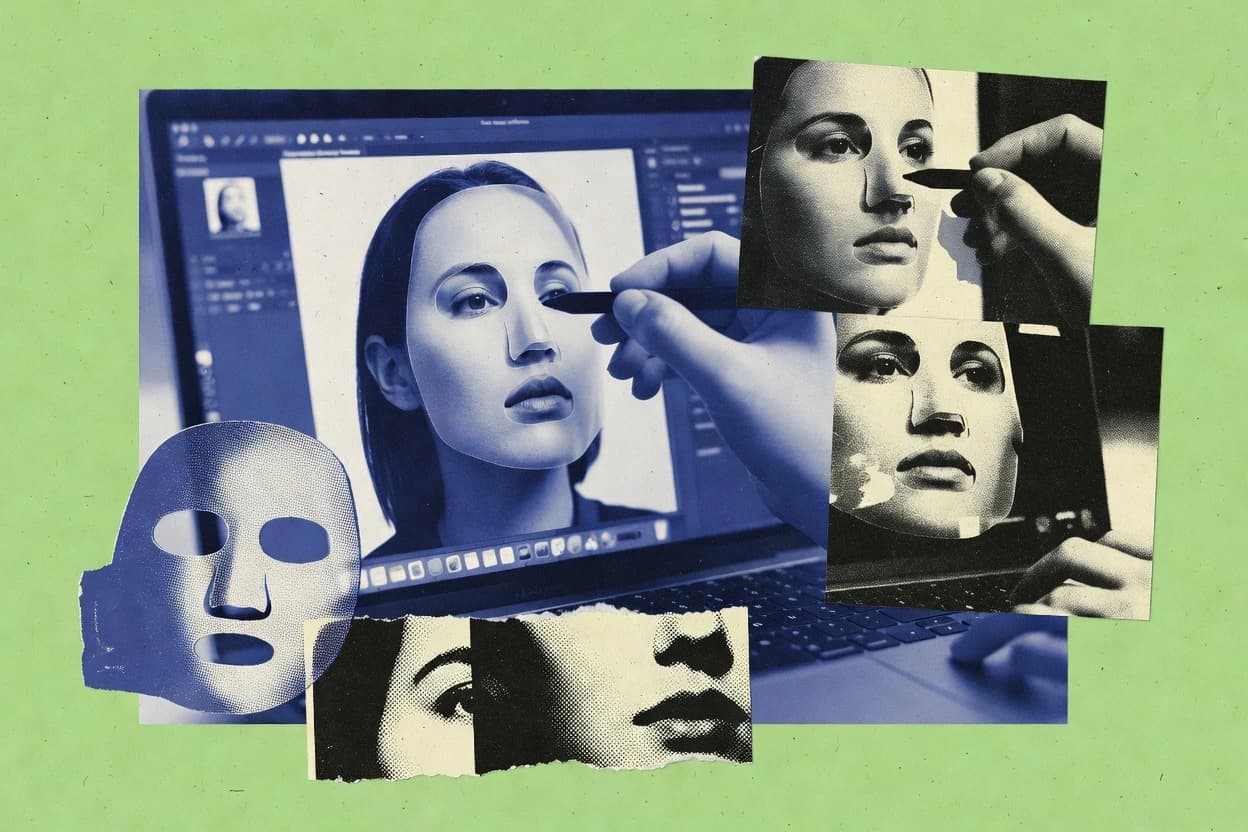
Art DesignTop 10 Best Face Editing Software of 2026
Top 10 face editing software ranked for face retouching and smoothing, with tool comparisons and key tradeoffs for quick shortlisting.

How we ranked these tools
Core product claims cross-referenced against official documentation, changelogs, and independent technical reviews.
Analyzed video reviews and hundreds of written evaluations to capture real-world user experiences with each tool.
AI persona simulations modeled how different user types would experience each tool across common use cases and workflows.
Final rankings reviewed and approved by our editorial team with authority to override AI-generated scores based on domain expertise.
Score: Features 40% · Ease 30% · Value 30%
Gitnux may earn a commission through links on this page — this does not influence rankings. Editorial policy
Fotor is the best pick when you need quick, repeatable portrait face retouching that scales, whereas AirBrush suits creators editing on mobile for fast, face-aware blemish and reshaping, and if you want PSD-style masks in a browser workflow, Photopea is the budget-friendly entry.
Editor’s top 3 picks
Three quick recommendations before you dive into the full comparison below — each one leads on a different dimension.
Fotor
Face-guided retouching applies skin and facial adjustments to detected regions inside the main editor.
Built for fits when portrait retouching needs quick, repeatable smoothing and cleanup at scale..
AirBrush
Editor pickOne-tap portrait retouch presets combined with face-aligned smoothing and whitening controls.
Built for fits when creators need fast, face-aware retouching for portraits and social profile images..
Photopea
Editor pickLayered PSD-style editing in-browser with mask-based control for localized face cleanup and blend-safe adjustments.
Built for fits when still-portrait face retouching needs PSD-style layers and masks in a browser workflow..
Comparison Table
Fotor
SMBOnline photo editor with portrait retouching, face reshaping, and beauty tools.
Face-guided retouching applies skin and facial adjustments to detected regions inside the main editor.
Fotor’s face editing experience starts with face detection that lets adjustments apply to detected regions instead of manual masking. Core tools cover common retouching tasks like wrinkle smoothing, acne and spot reduction, and overall skin tone cleanup, plus eye and facial feature enhancements through intensity sliders. The editor also includes enhancement features like color and exposure tuning that reduce the need to pre-correct images before retouching.
A key tradeoff is limited control over geometry-level changes, because Fotor focuses on 2D retouch operations rather than landmark-based mesh deformation. It fits best when processing portrait sets for marketing or social use where consistent smoothing and skin cleanup matter more than identity-preserving warps. It can be less suitable for face swapping, expression transfer, or video frame-by-frame temporal consistency work.
- +Automatic face detection keeps retouching scoped to portraits
- +Slider-based skin smoothing and blemish removal support quick iteration
- +Batch editing helps apply the same look across multiple images
- +Background removal reduces extra masking work
- –Geometry-level edits like non-rigid warping are not the focus
- –Fine-grain masks require extra manual steps on edge cases
- –Face-swapping quality is limited versus dedicated identity workflows
- –Video temporal consistency tools are not designed for frame sequences
Social media marketers
Batch portrait retouch for campaigns
More uniform portrait appearance
Photographers
Fast client-ready headshot refinement
Less manual masking time
Show 2 more scenarios
Ecommerce content teams
Product-linked staff profile cleanup
Higher visual consistency
Improve portrait clarity and skin tone so staff images match brand color.
Small studios
One editor for portrait selects
Faster turnaround edits
Combine face retouch controls with background removal in one workflow.
Best for: Fits when portrait retouching needs quick, repeatable smoothing and cleanup at scale.
AirBrush
vertical specialistMobile face editing app for blemish removal, skin smoothing, and feature reshaping.
One-tap portrait retouch presets combined with face-aligned smoothing and whitening controls.
AirBrush is a face editing solution that centers on face detection and face-aligned edits for skin cleanup and facial shaping. It includes sliders for smoothing and texture correction, plus tools for whitening and tone balancing that affect visible skin regions. Preset filters help standardize output for profile pictures and promotional images that need consistent aesthetics.
A key tradeoff is limited control granularity for landmark-level warping and expression-preserving editing, which matters for precise facial geometry work. AirBrush fits best when the goal is a fast, aesthetically consistent retouch for still images rather than controlled face morphing.
- +Face-aligned smoothing reduces spillover across non-face regions
- +Preset filters speed up consistent retouching across many photos
- +Targeted blemish removal keeps edits focused on skin areas
- +Fast export flow supports quick social-ready deliverables
- –Less precise landmark-based warping controls than specialist editors
- –Heavy smoothing can blur skin texture in high-detail portraits
- –Background handling is basic for complex hair and edges
- –Video consistency controls for multi-frame edits are not the focus
Social media creators
Produce cleaner profile photos quickly
Fewer manual edits
Marketing teams
Standardize spokesperson images
More uniform visuals
Show 1 more scenario
Portrait photographers
Fix minor blemishes between shoots
Faster turnaround
Removes spots and reduces uneven skin appearance without full retouch sessions.
Best for: Fits when creators need fast, face-aware retouching for portraits and social profile images.
Photopea
SMBFree browser-based Photoshop alternative with liquify and retouching tools for face editing.
Layered PSD-style editing in-browser with mask-based control for localized face cleanup and blend-safe adjustments.
Photopea supports layered editing with selections and masks, which matches common face retouching workflows like wrinkle smoothing, blemish cleanup, and hairline refinement using targeted brush and selection work. Healing and clone tools help remove spot defects, and adjustment layers support skin tone matching and illumination normalization without permanently painting over pixels. Image handling is practical for manual workflows, including resizing, retargeted cropping, and export from a composed layer stack.
A tradeoff is that Photopea lacks specialized face-specific modules such as landmark-based tracking or 3D face reconstruction, so expression transfer and video temporal consistency require manual per-frame work outside the tool. It fits situations where quick still-image face retouching is needed inside a browser environment, such as fixing a set of portrait photos before client review.
- +Layer and mask workflow supports non-destructive face retouching
- +Healing and clone tools handle localized blemish removal
- +Adjustment layers support skin tone matching across edits
- +Browser editing avoids file-format conversion steps for PSD work
- –No landmark-based tracking for automatic feature-aligned retouching
- –Expression transfer and relighting require manual, tool-by-tool work
- –Large batch processing is limited to manual or basic file handling
Freelance portrait editors
Blemish cleanup with layer masks
Fewer visible retouch artifacts
Small creative teams
Skin tone matching across variants
More consistent skin appearance
Show 2 more scenarios
Marketing photographers
Wrinkle smoothing by manual masking
Cleaner texture with control
Selection-based painting and controlled opacity prevent over-smoothing around facial contours.
Client proofing workflows
Quick export of layered edits
Faster review-and-revision cycles
Layer composition supports rapid iteration between face tweaks and final portrait delivery exports.
Best for: Fits when still-portrait face retouching needs PSD-style layers and masks in a browser workflow.
GIMP
SMBOpen-source desktop photo editor with healing tools and warp transform for face editing.
Python-driven batch actions plus non-destructive layer masks for repeatable facial retouch routines.
GIMP is a desktop photo editor that handles facial retouching through pixel-based layers, masks, and non-destructive adjustment workflows.
It supports common face-edit tasks like wrinkle smoothing, skin tone correction, blemish removal, and localized color changes using selection tools and blend modes.
The workflow is extended through Python scripting and a plugin ecosystem, which can add repeatable routines for recurring photo sets.
Video frame stabilization and landmark-based tracking are not built-in, so face alignment and expression transfer typically require external tools.
- +Layer masks and blend modes enable controlled, reversible retouching
- +Python scripting automates repetitive edits across image batches
- +Plugin and filter stack covers many skin cleanup and enhancement needs
- +Open file formats and scriptable actions fit offline photo workflows
- –No native facial landmark tracking or landmark-based warping tools
- –Face swapping and expression transfer require manual alignment work
- –UI complexity slows first-time adoption compared with guided editors
- –Real-time relighting and neural portrait editing are not native
Best for: Fits when manual, layer-driven face retouching needs automation via scripting.
Perfect365
vertical specialistVirtual makeup and face editing app for trying cosmetics and retouching selfies.
Preset-driven portrait enhancement with face-targeted controls designed for rapid before-after iteration.
Perfect365 performs facial retouching in a browser workflow for smoothing, blemish reduction, and style-based enhancements. It includes one-click filters and face-specific controls that target common portrait issues without requiring landmark or mesh inputs.
Output quality depends on the front-end alignment it uses for face-region effects, rather than on 3D reconstruction. The tool is geared toward still-photo improvement where fast iteration matters more than deep model customization.
- +Fast retouch controls for skin cleanup and tone adjustment
- +Filter-style presets for consistent portrait looks
- +Browser-based workflow that avoids local plugin setup
- +Good results for common blemish and smoothness edits
- –Limited control over artifacts from extreme face angles
- –No exposed API for automation of batch edits
- –Weak suitability for identity-critical retouching needs
- –Fewer deep controls than landmark or mesh-based editors
Best for: Fits when marketing and creators need quick, repeatable portrait touch-ups without automation or deep 3D controls.
FaceApp
vertical specialistAI-powered face transformation app for age, gender, hairstyle, and expression changes.
Age progression and aging artifacts removal presets that apply consistent facial transformations per portrait.
FaceApp focuses on fast facial retouching workflows like age progression, wrinkle smoothing, and face rejuvenation for single portraits. The editor relies on facial landmark detection and segmentation to localize changes while keeping hair and background mostly intact.
It also includes expression and style transformations designed for still photos with a one-click preview loop. Exported images keep common formats for downstream sharing, but deeper automation like batch orchestration and API integration is not the product’s primary surface.
- +Age progression and wrinkle smoothing work from a single portrait upload
- +Facial feature localization uses landmarks and segmentation for targeted edits
- +One-click previews support quick iteration without manual masking
- +Common export formats fit typical social and catalog workflows
- –Batch automation controls are limited for high-throughput editing pipelines
- –Landmark-based edits can introduce artifacts around hairlines and accessories
- –No documented public API or workflow automation surface for integrations
- –Video frame-by-frame temporal consistency controls are not a focus
Best for: Fits when solo creators need quick age and skin retouching on single portraits with minimal manual work.
Meitu
vertical specialistPhoto and video beauty app with face slimming, skin smoothing, and AR makeup features.
Guided face beautification presets with intensity sliders that stay editable after background removal.
Meitu focuses on fast, mobile-first facial retouching with effect stacks designed for self portraits. Core tools cover smoothing and beautification, face reshaping, and color and lighting adjustments for a more uniform skin look.
Meitu also includes background removal and cutout style effects that help keep attention on the face without manual masking. Scene-ready outputs are supported through templates and guided editing flows rather than model training or custom pipeline assembly.
- +Mobile editing flow keeps facial retouch steps in a single session
- +Effect stacking with adjustable intensity supports quick A/B iterations
- +Background removal and cutout styles reduce mask work for portraits
- +Face reshaping controls help refine proportions without manual warping
- –Limited control for landmark-based tracking workflows across many frames
- –Finer texture preservation controls are weaker than professional retouch tools
- –Export settings for color management and output metadata are basic
- –Automation options for batch processing are narrower than desktop editors
Best for: Fits when creators need fast portrait beautification and background cutouts without pro-grade pipeline control.
Luminar Neo
SMBAI photo editor with face enhancement, skin retouching, and portrait bokeh tools.
AI-based portrait adjustments that target facial regions to maintain alignment during retouching.
Luminar Neo from Skylum focuses on face retouching and portrait enhancement inside a single editing workflow rather than a patchwork of specialized tools. It provides AI-driven face-related tools for smoothing, skin retouching, and overall image quality improvements like relighting-style enhancements and texture control.
Face-aware processing helps keep edits aligned with facial regions instead of relying only on manual masking. Results export cleanly for photo pipelines that need consistent look control across many portraits.
- +AI face-aware retouching reduces the need for heavy manual masking
- +Portrait-focused controls make skin smoothing and texture tuning quick
- +Batch-friendly workflow supports consistent look across multiple images
- +Non-destructive editing keeps original details available for adjustment
- –Face-specific tooling is strong for still portraits but thin for complex identity edits
- –Advanced localization and edge refinement can lag behind mask-first editors
- –Automation depth and external API hooks for custom pipelines are limited
- –Over-smoothing risks plastic skin when strength is pushed too far
Best for: Fits when photographers need fast, face-aware retouching for large portrait batches without custom tooling.
Remini
vertical specialistAI face enhancement app for restoring blurry or low-quality portrait photos.
High-throughput face enhancement for low-resolution images and short video with a focus on face-focused regeneration.
Remini applies automated face enhancement and retouching workflows to low-resolution photos, with results optimized for clearer skin texture and sharper facial detail. The software focuses on image-based processing that targets faces using facial parsing and recognition signals, rather than manual landmark-based warping controls.
It also supports portrait-style improvements for both still images and short video, with temporal smoothing aimed at reducing frame-to-frame flicker. The editing output is delivered as regenerated images that prioritize visual plausibility over preserving every original pixel-level detail.
- +Fast one-click enhancement tuned for faces in blurry or low-resolution photos
- +Video face enhancement workflow aimed at reducing flicker across frames
- +Consistent skin and facial-detail regeneration across a batch
- +Minimal manual controls keep typical retouching steps short
- –Limited control over facial geometry compared with landmark-based editing tools
- –Regeneration can introduce artifacts on extreme lighting or occlusions
- –Background changes are less granular than dedicated compositing pipelines
- –Fine-grained identity preservation controls are not exposed at editing time
Best for: Fits when teams need automated face retouching for large photo sets without manual landmark editing.
Pixlr
SMBWeb-based photo editor with face retouching tools including blemish removal and skin smoothing.
Layer-based masking plus adjustment controls for localized skin and tone fixes without committing to full-image filters.
Pixlr is a web-based face editing editor used for quick facial retouching and photo touch-ups without installing dedicated software. It provides layered photo editing with common skin and portrait adjustments plus selection tools for isolating facial areas before applying changes.
Pixlr also supports non-destructive workflows through undo history and export controls, which helps when correcting artifacts from smoothing or color changes. It is best suited to still-photo retouching tasks where speed and iterative refinement matter more than deep 3D or identity-preserving modeling.
- +Layer-based editing supports targeted facial adjustments
- +Selection and masking tools help limit skin changes to faces
- +Iteration is fast with undo history and adjustable adjustment layers
- +Export controls support common portrait workflows
- –Face-specific tools are limited for advanced retouching needs
- –Smoothing can create plasticky texture if pushed too far
- –Web-only editing can constrain large, high-resolution batches
- –No built-in face landmark tracking for consistent multi-image edits
Best for: Fits when photographers need quick still-photo face retouching with layered controls and fast iteration.
Conclusion
After evaluating 10 art design, Fotor stands out as our overall top pick — it scored highest across our combined criteria of features, ease of use, and value, which is why it sits at #1 in the rankings above.
Use the comparison table and detailed reviews above to validate the fit against your own requirements before committing to a tool.
How to Choose the Right face editing software
This guide compares face editing software for facial retouching, face rejuvenation, and photo enhancement with tools that target faces through detection, face-aligned smoothing, or layered masking workflows. Coverage includes Fotor, AirBrush, Photopea, and GIMP for different mixes of automation, edit control, and batch handling.
The selection set also includes Perfect365, FaceApp, Meitu, Luminar Neo, Remini, and Pixlr so buyers can match face-aware presets and landmark-driven features against mask-first workflows and scripting-driven batch automation.
Face editing software for landmark-aware retouching, face-aligned smoothing, and localized cleanup
Face editing software uses face-guided detection, face-aligned smoothing, or layered masking to apply targeted facial cleanup like blemish removal, skin tone matching, and wrinkle smoothing without changing background regions. Some tools focus on quick portrait enhancement with preset controls, while others enable finer control through layer masks, selection workflows, and batch processing.
Fotor uses face-guided retouching that scopes skin and facial adjustments to detected regions, and it pairs that with slider-based skin smoothing for repeatable portrait cleanup. Photopea and Pixlr instead emphasize layered, mask-driven editing so localized face fixes stay blend-safe through non-destructive layer control.
Face-editing feature checklist for retouch control and automation
Face editing software matters most for controlling where changes land on skin and facial features. The tools in this guide differ in whether they use face-guided region detection, face-aligned smoothing, or layered masking workflows.
For buyers, the key differentiators are how edits stay localized and how repeatable the workflow is across many portraits. Fotor focuses on face-guided retouching scoped to detected regions and pairs it with slider-based smoothing, while Photopea and Pixlr lean on layered masking for blend-safe localization.
Face-guided region targeting
Fotor applies face-guided retouching to detected regions inside the main editor so skin and facial adjustments stay scoped to portraits. AirBrush uses face-aligned smoothing and whitening controls aimed at face regions to reduce spillover.
Landmark-aware vs mask-first localization
FaceApp uses landmark and segmentation localization for targeted edits like age progression and wrinkle smoothing. Photopea and Pixlr instead rely on layered masking and selection tools, which keeps edits localized without automatic feature alignment.
Layered, non-destructive editing workflows
Photopea provides a layered PSD-style editing workflow with mask-based control for localized face cleanup and blend-safe adjustments. GIMP matches that layer-driven approach with non-destructive layer masks and gives repeatable retouch routines via blend modes.
Smoothing without texture collapse
Fotor pairs face detection with slider-based skin smoothing and blemish removal designed for quick iteration. Pixlr supports localized skin and tone fixes with selection and masking, but smoothing can look plasticky if pushed too far.
Automation and batch throughput
GIMP supports Python scripting plus batch actions for automated face retouch routines across image batches. Remini focuses on high-throughput face enhancement for large photo sets and a short video workflow aimed at reducing flicker.
Video face enhancement behavior
Remini targets short video with a face-focused regeneration workflow designed to reduce flicker across frames. Meitu emphasizes a guided mobile beautification session with effect stacking that stays editable, not a dedicated multi-frame stabilization workflow.
Choose by workflow philosophy: face-aware automation or layer-controlled retouching
The first choice is whether face editing should be driven by face detection and face-aligned behavior, or whether it should be controlled through layers and masks for manual localization. Fotor and AirBrush bias toward face-aware automation, while Photopea and Pixlr bias toward mask-first workflows.
The second choice is repeatability at scale. Tools like GIMP and Remini target batch throughput differently, and FaceApp adds aging-style transformations that can reduce manual steps for single portraits.
Pick face-guided automation when most portraits share similar framing
Choose Fotor when the workflow needs face-guided retouching that scopes adjustments to detected regions plus slider-based smoothing for quick, repeatable cleanup. Choose AirBrush when one-tap portrait presets combine with face-aligned smoothing and whitening controls for fast edits on social profile images.
Pick mask-first editing when edges and hairlines need manual control
Choose Photopea when layered, PSD-style editing and mask-based control are required for localized face cleanup without automatic feature alignment. Choose Pixlr when layer-based masking and selection tools are needed for targeted skin and tone fixes and when limiting skin changes to faces matters more than face-aligned warping.
Select scripting-based batch automation when a pipeline needs repeatable transforms
Choose GIMP when Python-driven batch actions must apply the same retouch routine across many image sets with reversible layer masks. Avoid landmark-based automation expectations in GIMP because it does not provide native facial landmark tracking for automatic feature-aligned warping.
Select one-click face enhancement when throughput matters more than geometry control
Choose Remini when large photo sets need fast one-click face enhancement for blurry or low-resolution inputs and when a short video workflow should reduce flicker. Accept that Remini offers limited control over facial geometry compared with landmark-based editing tools.
Choose aging and rejuvenation presets for fast single-portrait transformations
Choose FaceApp when face rejuvenation workflows focus on age progression and aging artifacts removal from a single portrait upload. Plan for possible artifacts near hairlines and accessories because landmark-based edits can introduce localized issues.
Who benefits from face editing software with face-aware detection or mask-first control
Creators benefit when face edits target skin and facial features without unintentionally changing background regions. The tools in this guide also diverge on how much manual control exists around landmark-aligned behavior.
Buyers should match their production format to each tool’s workflow shape. Fotor and AirBrush optimize for face-aware portrait cleanup at speed, while Photopea and GIMP serve layer-driven users who need non-destructive control and automation through scripting.
Social media creators retouching many portrait photos
Fotor fits when quick repeatable skin and blemish cleanup must stay localized through face-guided detection. AirBrush fits when one-tap presets must combine with face-aligned smoothing and whitening for fast iteration.
Editors who rely on layers for blend-safe results
Photopea fits when PSD-style layering and mask control are needed for localized face cleanup with non-destructive adjustments. Pixlr fits when localized skin and tone fixes must be limited through selection and masking rather than face-aligned warping.
Teams building batch retouch automation pipelines
GIMP fits when scripting-driven batch actions are needed and layer masks must keep edits reversible. Remini fits when throughput matters for large sets and when a video workflow should focus on reducing flicker.
Solo portrait users focused on rejuvenation and aging looks
FaceApp fits when age progression and wrinkle smoothing should run from a single portrait upload with landmark and segmentation targeting. Meitu fits when guided beautification with adjustable intensity is needed inside a mobile session, plus background removal that keeps effect stacking editable.
Photographers handling large portrait batches with minimal manual masking
Luminar Neo fits when AI-based portrait adjustments should target facial regions to reduce the need for heavy manual masking. Accept that complex identity edits get thin coverage because face-specific tooling is stronger for still portraits than for edge refinement-heavy workflows.
Common face editing mistakes that lead to artifacts or wasted retouch time
Face editing mistakes usually come from pushing smoothing and enhancements beyond what the input supports. They also happen when buyers expect landmark-driven behavior from tools that prioritize layer masks and manual localization.
Another pattern is over-reliance on one-click enhancement when geometry control and artifact-free edges matter most. Remini can regenerate faces for low-resolution inputs, but that regeneration can introduce artifacts under extreme lighting or occlusions.
Expecting landmark-aligned warping from browser layer editors
Photopea supports layer and mask workflows for localized face cleanup, but it lacks landmark-based tracking for automatic feature-aligned retouching. Pixlr also limits face-specific tooling, so advanced landmark-based expectations will force extra manual alignment work.
Pushing skin smoothing until texture collapses
AirBrush can blur skin texture in high-detail portraits when smoothing is applied heavily. Pixlr can create plasticky texture if smoothing is pushed too far even when masking is used to limit the change.
Using one-click enhancement on inputs with occlusions or extreme lighting
Remini can introduce artifacts on extreme lighting or occlusions because regeneration focuses on face enhancement rather than geometry-preserving warping. When hair, glasses, or partial occlusion dominates, manual layered control in tools like Photopea often produces fewer edge failures.
Assuming face-aligned smoothing handles edge cases without manual refinement
Fotor scopes retouching through face detection and uses slider-based smoothing, but edge cases can still require extra manual steps when fine-grain masks are needed. Meitu keeps edits in a single mobile session, but fine texture preservation controls are weaker than professional retouch tools.
How We Selected and Ranked These Tools
We evaluated face editing tools across feature depth, localization mechanics, and workflow control over face regions. Features were weighted at 40% to reflect face-guided region targeting, landmark-aware behavior, and layer-mask localization that controls where edits land.
Ease and value each received 30% weight to reflect practical iteration speed from presets and controls as well as the ability to handle single portraits versus batch sets. Fotor separated from the pack by combining face-guided retouching scoped to detected regions with slider-based skin smoothing and blemish removal that support repeatable portrait cleanup at scale.
Frequently Asked Questions About face editing software
How do Fotor and AirBrush handle face alignment for smoothing and whitening?
Which tool best supports PSD-style layered workflows in a browser for face retouching?
Which desktop tool supports repeatable, automated face retouch routines through scripting?
When does FaceApp become a better fit than tools focused on simple smoothing?
What breaks if a face-edit pipeline requires deep identity preservation and 3D mesh deformation?
How do Remini and Luminar Neo differ for handling low-resolution faces in bulk?
How does Perfect365 manage face retouching without landmark or mesh controls?
Where does Pixlr fall short compared with editors that provide stronger pipeline control for portraits?
What security or governance capabilities should be checked before processing sensitive faces in browser tools like Fotor and Photopea?
Tools reviewed
Primary sources checked during evaluation.
Referenced in the comparison table and product reviews above.
Keep exploring
Comparing two specific tools?
Software Alternatives
See head-to-head software comparisons with feature breakdowns, pricing, and our recommendation for each use case.
Explore software alternatives→In this category
Art Design alternatives
See side-by-side comparisons of art design tools and pick the right one for your stack.
Compare art design tools→