GITNUXSOFTWARE ADVICE
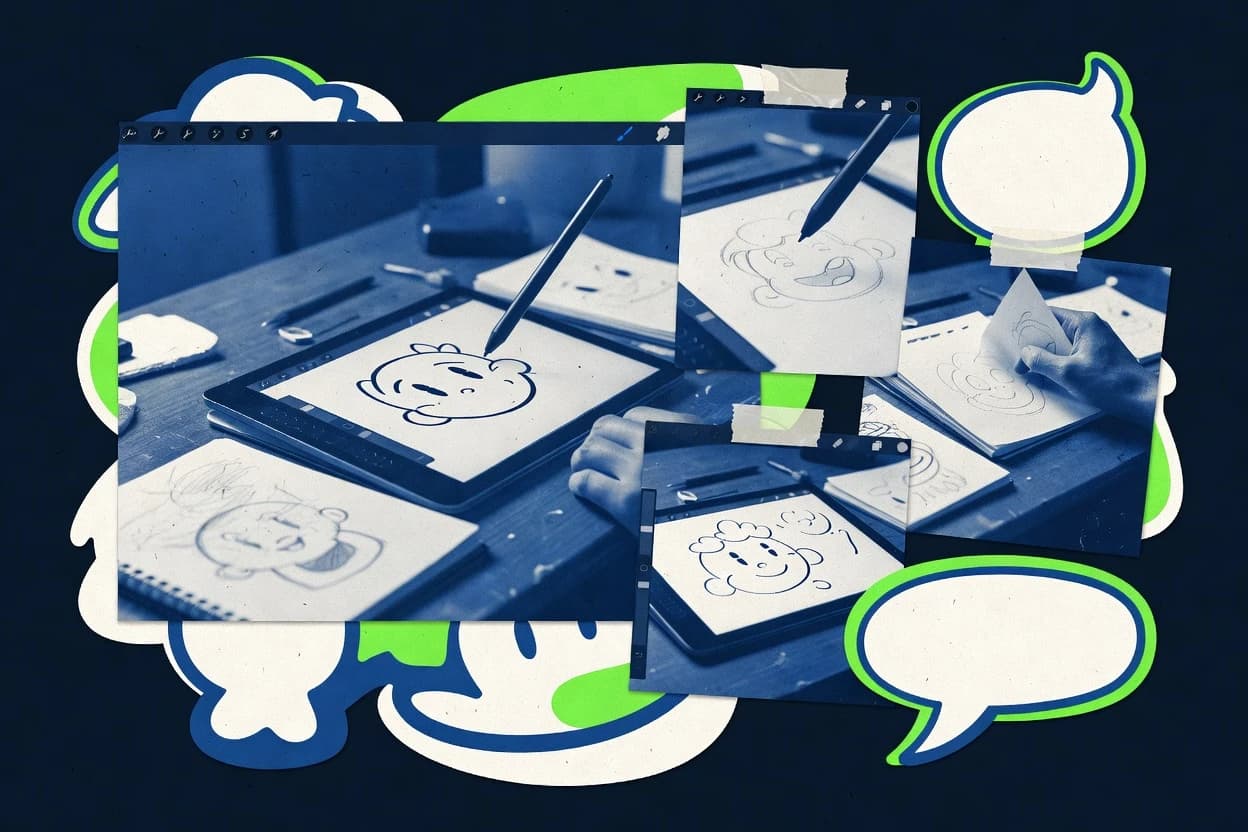
Art DesignTop 10 Best Cartoon Sketching Software of 2026
Top 10 best cartoon sketching software ranked for artists and illustrators, with criteria and tradeoffs for tools like Krita.

How we ranked these tools
Before any source is gathered, an editor locks the question, what qualifies, and how the piece will be judged.
Search agents gather the source set and the review record, including transcriptions of video reviews and podcasts.
Framework: Features 40% · Ease 30% · Value 30%
Gitnux may earn a commission through links on this page — this does not influence rankings. Editorial policy
Krita is the best pick for cartoon sketching when you want repeatable brushes and layered, frame-by-frame edits, whereas Clip Studio Paint fits better if you’re refining sketch-to-ink with panel consistency and light animation in one workflow.
Editor’s top 3 picks
Three quick recommendations before you dive into the full comparison below — each one leads on a different dimension.
Krita
Brush Studio for building and sharing custom brush presets with detailed stroke and texture parameters.
Best for: Fits when cartoon sketching needs repeatable brushes and layered edits over vector precision.
Procreate
Editor pickBrush Studio lets custom brushes and stamp behaviors be tuned for a repeatable cartoon line look.
Best for: Fits when cartoon artists need pen-first sketching and rapid iteration on iPad.
Sketchbook
Editor pickDedicated pen workspace with symmetry and perspective guides designed for quick construction passes.
Best for: Fits when artists need fast sketch-to-ink iterations with guide-assisted accuracy.
Comparison Table
Krita
SMBKrita is a free digital painting application with comic panels, stabilizers, brushes, and frame-by-frame animation.
Brush Studio for building and sharing custom brush presets with detailed stroke and texture parameters.
Krita provides a full raster painting workflow with layer groups, alpha locking, and blend modes that make sketching refinements easy without flattening. Brush customization is a core workflow tool, including spacing, scattering, and texture controls that make line work feel consistent across sessions. The canvas supports stabilization options for inking and lasso selection tools for targeted edits. For comic layouts, it also supports guides and ruler-assisted perspective sketching to keep panel and environment roughs aligned.
A tradeoff appears in vector work, because shape drawing and path editing are limited compared with Illustrator and CorelDRAW. Krita fits best for artists who want rapid brush-driven sketching and layered iteration more than parametric vector output. It also works well when a team needs consistent penciling across many frames, because the same brush presets can be reused for animation key drawings and in-between passes.
- +Brush customization controls spacing, texture, and dynamics for repeatable sketch feel
- +Layer workflow supports clipping and non-destructive adjustments during line refinement
- +Inking tools include stabilization and quick selection paths for clean edits
- +Frame-by-frame timeline supports storyboard pacing and export-ready animations
- –Vector path editing is weaker than dedicated vector editors
- –Advanced automation is mostly add-on based rather than built-in scripting
- –Large brush preset libraries can slow switching on low-memory systems
- –Some comic panel automation tools are less mature than specialized comic suites
Comic artists
Ink roughs with consistent line weight
Faster redraw cycles
Storyboard artists
Block motion for short scenes
Clearer shot timing
Show 1 more scenario
Illustrators
Iterate character designs across layers
More variations per day
Clipping and blend modes support paint-over refinements without rebuilding the sketch structure.
Best for: Fits when cartoon sketching needs repeatable brushes and layered edits over vector precision.
Procreate
SMBProcreate provides a raster drawing workspace with brushes, layers, animation assist, and time-lapse recording.
Brush Studio lets custom brushes and stamp behaviors be tuned for a repeatable cartoon line look.
Procreate delivers a scratchpad-to-finished-asset workflow for cartoon sketching, with pressure-sensitive brushes, pen tilt recognition, and line stabilization for cleaner ink lines. The layer system supports clipping masks and alpha lock-style editing patterns that fit common comic coloring and shading passes. Export supports common raster deliverables, and projects can be managed as self-contained canvases that travel well between sessions.
The main tradeoff is limited vector editing compared with illustration suites, which makes logo-like shape refinement and SVG-style workflows less practical. Procreate fits storyboard sketches and inking drafts where pen-first responsiveness and quick iteration matter more than parametric shape editing. It also fits short frame animations where timeline setup stays light and onion skinning guides spacing.
- +Pressure and tilt driven brushes feel natural for sketch and ink passes
- +Layer workflows support clipping-style coloring without constant redraws
- +Onion skinning makes short frame animation spacing easy to judge
- +Custom brush creation supports repeatable cartoon styles
- –Vector path editing is not a strong substitute for Illustrator workflows
- –Animation timelines favor short sequences over full production pipelines
Freelance cartoon artists
Inking drafts from quick thumbnails
More usable panels per session
Comic colorists
Layered cel shading and masks
Less cleanup between passes
Show 1 more scenario
Storyboard artists
Short animation beats
Faster shot iteration
Onion skinning guides pose changes for tight timing sketches on the same canvas.
Best for: Fits when cartoon artists need pen-first sketching and rapid iteration on iPad.
Sketchbook
SMBSketchbook provides a focused digital sketchpad with customizable brushes, layers, symmetry, and perspective tools.
Dedicated pen workspace with symmetry and perspective guides designed for quick construction passes.
Sketchbook covers core raster illustration tasks like layering, reordering, and non-destructive adjustments that fit daily sketch and inking work. Symmetry and perspective guides help maintain consistent line language and horizon structure while iterating quickly on thumbnails and roughs. The brush engine is designed around pen input, including pressure sensitivity and tilt behavior, so stroke feel stays consistent during long sessions.
A key tradeoff is that Sketchbook prioritizes sketch and study workflows over deep vector editing and page layout automation found in comic-centric rivals. For character designers, the best fit is tight iteration loops like gesture-to-cleanup passes, then exporting the finished raster for downstream lettering and panel assembly in another tool.
- +Pen-first interface reduces time spent navigating tools
- +Symmetry and perspective guides speed up construction sketches
- +Layer workflow supports non-destructive refinement
- +Pressure and tilt input improve stroke control
- –Vector path editing is not its focus for comic production
- –Timeline tools suit simple animation, not full rigged pipelines
Concept artists
Gesture to cleaned character turnaround
Faster refinement cycles
Comics inkers
Line cleanup on imported sketches
Cleaner ink deliveries
Show 1 more scenario
Storyboard artists
Quick thumbnail sequences
More usable thumbnails
Frame-based animation supports short scene beats without heavy production overhead.
Best for: Fits when artists need fast sketch-to-ink iterations with guide-assisted accuracy.
Clip Studio Paint
vertical specialistClip Studio Paint supports raster drawing, vector lines, comics, and frame-by-frame animation.
Brush Studio and comic-focused inking tools support fast sketch-to-line iteration for manga-style panels.
Clip Studio Paint is built for comic and manga style drawing workflows with a brush engine tuned for inking and sketch-to-line refinement. The app supports frame-by-frame animation with onion skinning, plus layered art tools like clipping masks, alpha lock, and blend modes.
- +Inking and line workflows feel purpose-built for comic sketch refinement
- +Onion skinning and timeline tools support frame-by-frame animation
- +Layer controls like clipping masks and alpha lock speed up color passes
- +Perspective and symmetry guides help keep panel layouts consistent
- –Animation timeline workflows take time to learn for storyboard-heavy users
- –Advanced automation and extensibility depend on feature sets rather than a public API
Best for: Fits when comic artists need sketch-to-ink refinement with panel consistency and light animation in one app.
MediBang Paint
vertical specialistMediBang Paint supports comic creation with brushes, panels, screentones, layers, and cloud collaboration.
Perspective and symmetry guide controls tuned for manga-style construction during inking and rendering.
MediBang Paint turns sketch inputs into finished comic pages with a brush workflow designed for clean line work. It supports layered raster editing for coloring, panel-style layouts for page assembly, and common import and export formats used in 2D pipelines.
- +Comic page workflow tools align panels, crops, and exports for finished layouts
- +Layered raster editing makes non-destructive changes practical during line and color passes
- +Perspective and symmetry guides reduce redraws for consistent manga-style angles
- +Brush engine supports pressure sensitivity and tablet workflows for smoother line weight
- –Vector path editing is limited compared with Illustrator and CorelDRAW
- –Frame-by-frame animation features are basic versus dedicated animation toolchains
- –Asset organization relies more on project structure than deep asset management layers
- –Automation and API access are not exposed for scriptable pipeline control
Best for: Fits when independent comic artists need a raster-first sketch workflow with panel layout tools.
ibisPaint
SMBibisPaint offers mobile and desktop drawing tools with brushes, stabilizers, layers, rulers, and video recording.
Integrated onion-skin frame view for quick sketch-to-animation timing checks inside the same drawing workflow.
ibisPaint targets cartoon sketching with a brush-focused canvas that supports pressure sensitivity, tilt recognition, and pen tablet workflows. The app’s layer stack, blending controls, and comic-ready tools support panel-style art and inking passes with repeatable brush behavior.
- +Pressure and tilt-aware brush behavior improves line control for cartoons
- +Layer blending and non-destructive editing workflows support iterative sketch refinement
- +Storyboard frame workflow with onion-skin view speeds animation timing checks
- +Community-shared references help standardize brush styles across drawings
- –Advanced vector path editing is limited compared with vector-centric drawing apps
- –File interoperability for complex PSD projects can require manual rework
Best for: Fits when cartoon artists need a sketch-first workflow with frame-by-frame support and pen control.
Adobe Animate
enterpriseAdobe Animate creates vector cartoons and interactive 2D animations with drawing, rigging, and timeline tools.
Flash-era compatible authoring workflow with timeline-centric authoring and interactive-oriented export paths.
Adobe Animate is a frame-based 2D animation tool with deep integration into Adobe Creative Cloud workflows. It delivers timeline-based keyframing, layered art boards, and export paths geared toward web and interactive animation.
- +Timeline and keyframe workflow are built for frame-by-frame cartoon production
- +Vector shape and line work tools support clean, editable cartoon assets
- +Creative Cloud asset reuse supports consistent styles across animation scenes
- +Export targets interactive and web workflows using established Adobe pipelines
- –Cartoon sketching iteration can feel slower than dedicated raster-first sketch tools
- –Rigging and character reuse require more setup than simpler cutout workflows
- –Brush and stroke controls lack some specialized comic inking ergonomics
- –Panel-first layout features are less central than animation-first workflows
Best for: Fits when cartoon creators need timeline-based production with Creative Cloud asset reuse.
Moho
vertical specialistMoho provides vector drawing, bone rigging, lip sync, and frame-by-frame tools for 2D animation.
Layer-linked 2D rigging that preserves character structure while redrawing parts across frames.
Moho is a sketching and 2D animation tool aimed at building character-driven cartoons from concept to timeline. It blends frame-by-frame animation with rigging workflows, then carries drawing layers into animated output without forcing a separate pipeline.
- +2D rigging workflow ties sketch layers to character motion quickly
- +Timeline-centered animation editing keeps changes tied to frames
- +Vector and bitmap layer handling supports mixed comic and style assets
- +Onion-skin style view supports iterative line refinement during animation
- –Animation concepts can slow down users focused only on static illustration
- –Advanced rig controls require careful setup for consistent redraws
Best for: Fits when cartoon artists need sketching plus character motion planning in one authoring workflow.
OpenToonz
vertical specialistOpenToonz is an open-source 2D animation program with drawing, scanning, compositing, and production tools.
Toonz node-based compositing pipeline that ties drawing and rendering steps into a single, controllable graph.
OpenToonz runs a frame-by-frame animation workflow with a node-based pipeline for drawing, compositing, and color management. It supports both raster and vector drawing, with tools oriented toward inking, coloring, and timeline-based output.
- +Frame-by-frame timeline that supports production-style animation delivery
- +Node-based pipeline for compositing and color steps
- +Raster and vector drawing tools for mixed animation assets
- +Production-oriented brush and line workflow for inking passes
- –Workflow complexity rises quickly compared with single-window illustration tools
- –Advanced compositing control can feel less intuitive than typical layer stacks
- –Brush and tool customization needs more setup discipline to stay consistent
- –Integration with external asset tools can be more manual than in Adobe-style ecosystems
Best for: Fits when animation-heavy sketching needs a timeline workflow and node-based compositing.
RoughAnimator
vertical specialistRoughAnimator is a hand-drawn animation application with brushes, layers, timeline editing, and video export.
Timeline-first frame control designed for turning sketch sequences into animations with minimal workflow switching.
RoughAnimator is a cartoon sketching and frame-by-frame animation tool built around drawing-first workflows and quick iteration. It provides a timeline-based animation approach with frame control, plus sketching tools suited to inking and layered character draft stages.
- +Frame-by-frame timeline workflow fits cartoon sketch-to-animation loops
- +Drawing tools stay centered on line work and quick sketch revisions
- +Layered scene building supports iterative character drafts
- +Export options support practical sharing of animated results
- –Less suitable for heavy vector layout or precision typography
- –Animation controls can feel limited versus dedicated animation suites
Best for: Fits when cartoon artists need a sketch-first timeline workflow for short animations and revisions.
Conclusion
After evaluating 10 cartoon sketching software, Krita stands out as our overall top pick — it scored highest across our combined criteria of features, ease of use, and value, which is why it sits at #1 in the rankings above.
Use the comparison table and detailed reviews above to validate the fit against your own requirements before committing to a tool.
How to Choose the Right Cartoon Sketching Software
Cartoon sketching software covers raster sketching, brush-driven inking, and layer workflows that keep line and color iterations editable. This guide covers Krita, Procreate, Sketchbook, Clip Studio Paint, MediBang Paint, ibisPaint, Adobe Animate, Moho, OpenToonz, and RoughAnimator.
The ten tools split between sketch-first illustration apps and timeline-first animation authoring tools. The selection also tracks how each app handles repeatable brush presets, guide-assisted construction, and frame-by-frame onion skinning inside the same workflow.
Cartoon Sketching Software for brush-driven line work and sketch-to-animation workflows
Cartoon sketching software is drawing software built around pen input, adjustable brushes, and layered editing so artists can refine sketch lines, inks, and colors without rebuilding the file each pass. Krita supports repeatable brush creation through Brush Studio brush presets with configurable spacing, texture, and dynamics. Procreate also focuses on repeatable cartoon line feel with a Brush Studio workflow tuned for pressure and tilt-driven strokes.
Some tools push deeper into comic and animation tasks like panel consistency, onion skinning, and timelines. Clip Studio Paint adds comic-focused inking tools plus onion skinning and a timeline for frame-by-frame animation, while ibisPaint keeps an integrated onion-skin frame view in the same sketching workflow.
Cartoon sketching essentials that change real drawing outcomes
Repeatable brushes determine how consistent line weight feels across sketch, ink, and color passes. Krita’s Brush Studio focuses on tunable stroke feel through configurable spacing, texture, and dynamics, while Procreate’s Brush Studio uses pressure and tilt-driven behavior to keep pen-first line work stable across sessions.
Guide-assisted construction and frame-first workflows reduce rework when shapes, panels, or timing shift. Sketchbook uses symmetry and perspective guides for fast construction, while Clip Studio Paint and ibisPaint keep onion skinning close to the sketch process to check motion timing without switching tools.
Brush preset repeatability for sketch-to-ink consistency
Krita builds reusable brush presets in Brush Studio with controllable spacing, texture, and stroke dynamics. Procreate also centers repeatable cartoon line feel on custom brushes with pressure and tilt-aware behavior.
Pen-first guide tools for construction speed
Sketchbook uses a dedicated pen workspace with symmetry and perspective guides for quick construction sketches. MediBang Paint mirrors that construction focus with perspective and symmetry guide controls tuned for manga-style inking and rendering.
Comic panel and page workflow alignment
Clip Studio Paint provides comic-focused inking and a panel workflow that supports onion skinning and frame-by-frame animation in one app. MediBang Paint aligns panels, crops, and exports for finished layouts as part of its raster-first comic page flow.
Onion skinning integrated into sketching
ibisPaint keeps an integrated onion-skin frame view inside the same sketching workflow for timing checks. Clip Studio Paint provides onion skinning plus a timeline for frame-by-frame animation directly alongside comic sketch refinement.
Timeline workflows for frame-by-frame cartoon production
Adobe Animate uses timeline and keyframe workflows designed for frame-by-frame cartoon production with vector shape and line work tools. RoughAnimator uses a timeline-first frame control that keeps cartoon sketch-to-animation loops centered on line work.
Character planning with 2D rigging across frames
Moho ties sketch layers to character motion through layer-linked 2D rigging that preserves character structure across frames. OpenToonz targets animation-heavy sketching through a node-based compositing pipeline that links drawing and rendering steps into a controllable graph.
Choose based on the sketch loop that matters most
Cartoon sketching software should match the loop artists repeat most often: sketch-to-ink refinement, comic panel preparation, or frame-by-frame motion planning. The right choice changes which features stay close to the pen and which tasks get pushed into separate workflows.
The decision path below splits tools by where the work happens. Illustration-first apps keep iteration fast on brush and guides, while animation-first apps keep timing and frames in the authoring loop.
Start with the repeat cycle: brush iteration or frame timing
Choose Krita or Procreate when the primary loop is sketch and ink refinement using repeatable brushes. Choose Clip Studio Paint, ibisPaint, or RoughAnimator when onion skinning and frame-by-frame timing checks must sit inside the sketch workflow.
Match construction needs to guide depth
Choose Sketchbook when a pen-first interface with symmetry and perspective guides drives quick construction sketches. Choose MediBang Paint when manga-style construction during inking needs tightly tuned perspective and symmetry guide controls.
Pick comic page workflow if panels and exports drive the project
Choose Clip Studio Paint when comic sketch refinement and panel consistency needs inking tools plus onion skinning and a timeline. Choose MediBang Paint when independent comic artists prioritize panel alignment, crops, and exports within the raster page workflow.
Decide between sketch-first animation loops and timeline-first authoring
Choose ibisPaint when an integrated onion-skin frame view supports sketch-first iteration with pen control inside the same drawing workflow. Choose Adobe Animate when timeline and keyframe production needs vector shape and editable cartoon assets to travel through interactive-oriented export paths.
Add rigging or node compositing only if the project demands it
Choose Moho when character structure must be preserved by layer-linked 2D rigging while redrawing parts across frames. Choose OpenToonz when animation-heavy sketching needs a node-based compositing pipeline that ties drawing and rendering steps into a single controllable graph.
Set expectations for vector editing and automation depth
Choose Krita when brush preset depth matters most, but plan around weaker vector path editing compared with dedicated vector editors. Choose Clip Studio Paint when comic sketch workflows are the priority, but expect advanced automation and extensibility to depend on available feature sets rather than a public API.
Who benefits from specific cartoon sketching workflows
Cartoon sketching tools reward different habits, especially when brush presets and timing checks are used daily. The products below map to artists whose workflows match the strongest native loop in each app.
Illustration-first users often prioritize guide-assisted construction and editable layered sketches, while animation-focused users prioritize onion skinning, timeline editing, and frame control tied to drawing.
Artists who repeat sketch-to-ink passes using the same line feel
Krita and Procreate prioritize brush preset repeatability so line behavior stays consistent across sketch and inking iterations, with Krita emphasizing Brush Studio spacing, texture, and dynamics and Procreate emphasizing pressure and tilt-driven brush behavior.
Comic artists planning panels and exports as part of inking
Clip Studio Paint and MediBang Paint keep panel consistency and page delivery close to line refinement, with Clip Studio Paint combining inking workflows and onion skinning plus a timeline and MediBang Paint aligning panels and exports inside its raster page process.
Animators who need onion skinning while sketching frames
ibisPaint integrates onion-skin frame view directly in the sketching workflow, while Clip Studio Paint pairs onion skinning with a timeline for frame-by-frame animation in the same app.
Storyboard and short-sequence cartoon creators
RoughAnimator keeps frame-by-frame timing centered on sketch revisions through a timeline-first frame control designed for short animation loops. Adobe Animate supports timeline-based cartoon production with built-in keyframe workflow and vector shape and line work tools for editable cartoon assets.
Artists building character motion plans alongside sketching
Moho supports sketch plus character motion planning by tying sketch layers to 2D rigging across frames, while OpenToonz targets animation-heavy delivery through a node-based compositing pipeline that links drawing and rendering steps.
Common cartoon sketching mistakes that cause rework
Mistakes usually come from mismatched authoring loops. Picking a tool that keeps timing elsewhere or brushes less controllable leads to repeated redraw and delayed line refinement.
Other errors happen when vector precision expectations are carried into raster-first workflows or when automation needs are treated as a given across apps.
Choosing a vector-centric workflow expectation for tools that prioritize brush presets
Krita’s advanced line work comes from brush preset control, but vector path editing is weaker than dedicated vector editors. Procreate similarly treats vector editing as not a strong substitute for Illustrator workflows.
Assuming the animation timeline will feel intuitive without dedicated learning time
Clip Studio Paint’s animation timeline supports onion skinning and frame-by-frame work, but storyboard-heavy users may take time to learn its timeline workflows. RoughAnimator keeps sketch-to-animation loops centered, but animation controls can feel limited versus dedicated animation suites.
Relying on advanced automation and API integration without checking how it is implemented
Krita’s advanced automation is mostly add-on based rather than built-in scripting, which can limit automation depth for some setups. Clip Studio Paint’s advanced automation and extensibility depend on feature sets rather than a public API.
Buying an app that lacks the character planning model the project needs
Moho’s strongest fit is sketching plus character motion planning through layer-linked 2D rigging, which needs careful setup for consistent redraws across frames. OpenToonz can handle animation-heavy sketching via node-based compositing, but its workflow complexity rises quickly compared with single-window illustration tools.
Overestimating interoperability for complex PSD-based projects
ibisPaint can require manual rework for complex PSD interoperability, which slows down color and layer refinement when files travel between tools. Clip Studio Paint and MediBang Paint focus on their own comic and raster workflows, so complex interchange may still require cleanup.
How We Selected and Ranked These Tools
We evaluated Krita, Procreate, Sketchbook, Clip Studio Paint, MediBang Paint, ibisPaint, Adobe Animate, Moho, OpenToonz, and RoughAnimator using features at 40%, ease of use at 30%, and value at 30%. Features scoring emphasized brush preset control, guide-assisted construction, comic page support, and onion skinning depth inside the sketch workflow. Ease scoring emphasized pen-first navigation for sketching and learning curve for timeline or node-based production.
Value scoring emphasized how well each app’s native workflow matched repeat cartoon tasks like sketch-to-ink refinement, panel alignment, and frame-by-frame revision. Krita stood out for brush preset repeatability through Brush Studio configuration and for layered editing workflows that support non-destructive line refinement during line work.
Frequently Asked Questions About Cartoon Sketching Software
Which tool is better for inking and sketch-to-line refinement with comic panel consistency?
How does Krita compare with Clip Studio Paint for custom brushes and repeatable line styles?
When does frame-by-frame animation work best in a cartoon sketching tool?
What breaks if a workflow depends on vector path editing instead of raster layers?
How do onion skinning and frame timing controls differ between ibisPaint and RoughAnimator?
Which app is better for sketching with symmetry and perspective guides for fast construction passes?
How do character motion planning and rigging workflows differ between Moho and OpenToonz?
Which tool supports data handoff formats for cartoon pipelines that include PSD and vector exports?
When collaborative review or admin-style control matters, what is the practical limitation across these sketch tools?
Tools reviewed
Primary sources checked during evaluation.
Referenced in the comparison table and product reviews above.
Funding and competing interests
This study was co-funded by several of the vendors assessed in it. No single vendor funded it. Funders could propose the market studied.
They had no role in selecting vendors, setting or weighting criteria, analysing data or drawing conclusions, and they received the same factual-accuracy check as every other vendor assessed.
Market definition, inclusion rules and criteria weights were fixed by an editor before research began and did not change afterwards. Editorial process →
- Art DesignTop 10 Best 3D Sketching Software of 2026
- Arts Creative ExpressionTop 10 Best Cartoon Creation Software of 2026
- Art DesignTop 10 Best Cartoon Drawings Software of 2026
- Art DesignTop 10 Best Cartoon Illustration Software of 2026
- Technology Digital MediaTop 10 Best Doodle Animation Software of 2026
Keep exploring
Comparing two specific tools?
Software Alternatives
See head-to-head software comparisons with feature breakdowns, pricing, and our recommendation for each use case.
Explore software alternatives→In this category
Art Design alternatives
See side-by-side comparisons of art design tools and pick the right one for your stack.
Compare art design tools→