
GITNUXSOFTWARE ADVICE
AI In IndustryTop 10 Best AI Photo Editing Software of 2026
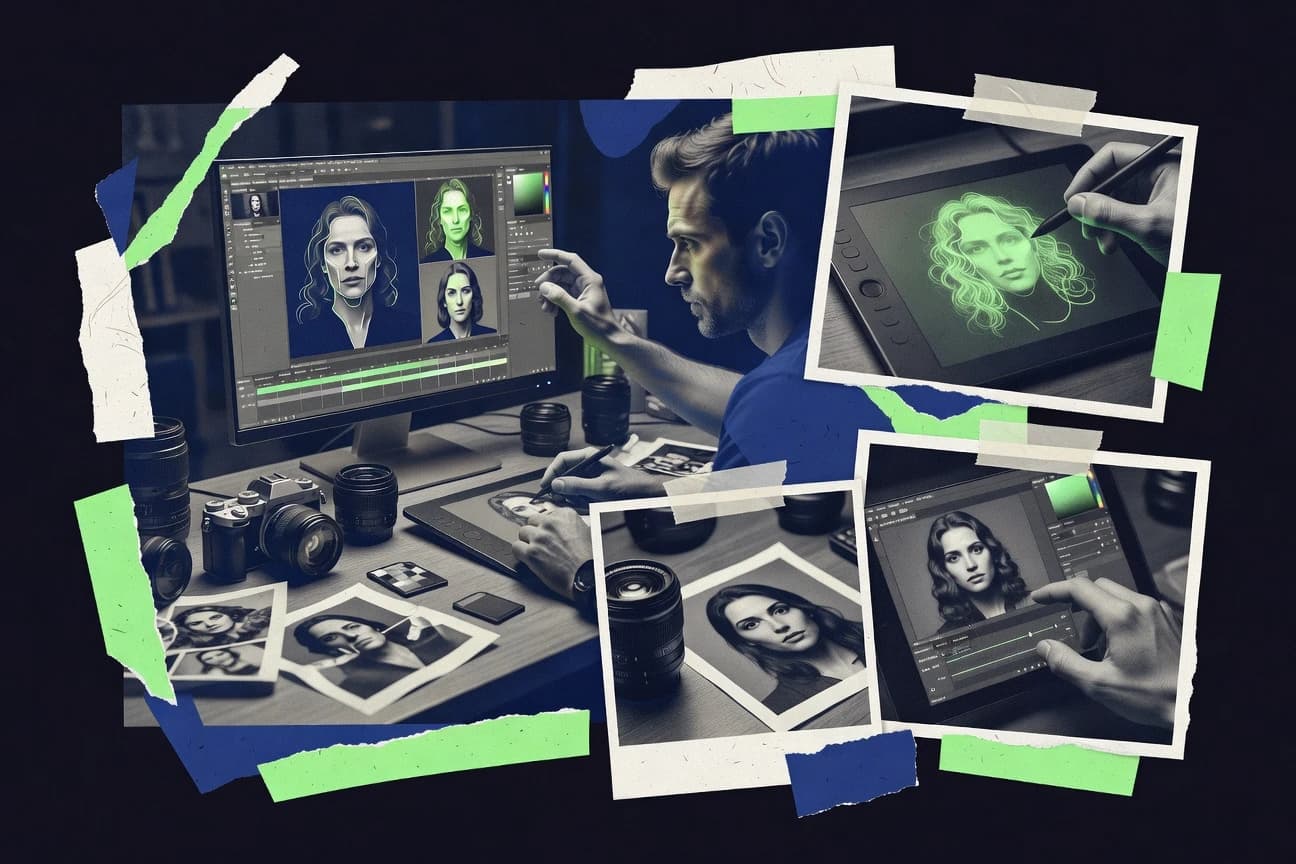
Compare ai photo editing software tools using ranked criteria, feature analysis, and tradeoffs for photographers, creators, and marketing teams.

How we ranked these tools
Before any source is gathered, an editor locks the question, what qualifies, and how the piece will be judged.
Search agents gather the source set and the review record, including transcriptions of video reviews and podcasts.
Framework: Features 40% · Ease 30% · Value 30%
Gitnux may earn a commission through links on this page — this does not influence rankings. Editorial policy
BeFunky is the strongest overall choice for individuals and small teams that want fast AI enhancement, cutouts, and branded graphics, while VanceAI suits creators who need automated image cleanup and batch preparation without committing to a full desktop editing suite.
Editor’s top 3 picks
Three quick recommendations before you dive into the full comparison below — each one leads on a different dimension.
BeFunky
AI Image Enhancer combines clarity improvement and detail recovery in a single guided adjustment.
Best for: Fits when individuals and small teams need fast AI photo enhancement, cutouts, collages, and branded graphics.
VanceAI
Editor pickA broad set of dedicated AI processors covers restoration, enlargement, denoising, portraits, backgrounds, and anime images in one service.
Best for: Fits when creators need automated enhancement and batch preparation without a full desktop editing suite.
Canva
Editor pickMagic Edit generates or replaces selected image content while keeping the result inside Canva’s template and brand workflow.
Best for: Fits when teams need quick AI photo edits inside branded social, presentation, and marketing designs.
Comparison Table
BeFunky
consumerWeb-based photo editor with AI portrait retouching, background remover, and one-click enhancement.
AI Image Enhancer combines clarity improvement and detail recovery in a single guided adjustment.
BeFunky groups AI-powered photo tools with conventional editing controls in a single browser workflow. Background Remover separates subjects from backgrounds, AI Image Enhancer improves image clarity, and Object Remover supports targeted cleanup. The editor also includes portrait retouching, batch processing for selected workflows, collage templates, and design templates for common publishing formats.
The interface favors guided adjustments over detailed professional control, so it does not replace software built around RAW pipelines, advanced layer masking, or extensive color-management settings. BeFunky works well for marketers, small businesses, educators, and creators preparing social images, product graphics, profile photos, or quick photo corrections.
- +AI Image Enhancer improves clarity with minimal manual adjustment
- +Background Remover isolates subjects quickly for composites and product graphics
- +Collage Maker offers automatic layouts and reusable templates
- +Graphic Designer supports social, print, and presentation dimensions
- –Advanced RAW development and color-management controls are limited
- –Complex selections lack the depth of professional desktop editors
- –Some specialized editing workflows depend on preset-based automation
- –Large projects can feel constrained by the browser workspace
Small business marketers
Prepare product images for social campaigns
Consistent campaign visuals
Real estate professionals
Clean listing photos and create collages
Faster listing preparation
Show 2 more scenarios
Content creators
Create thumbnails and profile graphics
Quicker content production
Preset dimensions, portrait retouching, effects, and cutouts support repeatable graphics for publishing channels.
Teachers and community groups
Build event flyers and photo collages
Accessible visual materials
Templates and guided editing controls support flyers, announcements, class projects, and informal photo collections.
Best for: Fits when individuals and small teams need fast AI photo enhancement, cutouts, collages, and branded graphics.
VanceAI
SMBAI photo editing toolkit offering image upscaling, denoising, background removal, and retouching.
A broad set of dedicated AI processors covers restoration, enlargement, denoising, portraits, backgrounds, and anime images in one service.
VanceAI fits users who need automated improvements without building a manual editing workflow. AI Image Enlarger increases resolution, AI Image Sharpener targets soft details, AI Image Denoiser reduces visible noise, and AI Photo Restorer repairs scratches and aging artifacts. Portrait Retoucher, Background Remover, and Toongineer provide separate pipelines for common commercial and creative outputs. The product also includes tools for image compression, background generation, and anime-focused processing.
VanceAI handles one-off browser edits and repeated image preparation through batch workflows and API access for supported functions. Its automation reduces manual correction for product catalogs, profile images, scanned photographs, and marketplace listings. Users requiring layer masking, RAW development, local adjustment brushes, or complex compositing will need another editor. Results can also vary with source quality, especially on heavily compressed images or photographs containing fine text.
- +Separate AI modules target enlargement, denoising, sharpening, restoration, portraits, and background removal
- +Batch workflows reduce repetitive image preparation
- +API access supports integration into custom image pipelines
- +Dedicated anime and illustration processing expands creative coverage
- –No full layer-based editing workspace for complex compositions
- –RAW development and advanced color grading are limited
- –Output quality depends heavily on source resolution and compression
- –Some specialized functions require separate workflow selection
Marketplace catalog teams
Enlarge product images for listings
Larger catalog-ready images
Photographers restoring archives
Repair damaged scanned photographs
Cleaner restored portraits
Show 2 more scenarios
Social media creators
Prepare portraits for profile campaigns
Consistent campaign assets
Portrait Retoucher improves facial presentation while Background Remover isolates subjects for reusable campaign layouts.
Creative software developers
Automate image enhancement workflows
Programmatic image processing
API access connects supported VanceAI processing functions with applications, upload systems, or internal production tools.
Best for: Fits when creators need automated enhancement and batch preparation without a full desktop editing suite.
Canva
SMBDesign platform with Magic Studio AI photo editing features including background removal and text-to-image.
Magic Edit generates or replaces selected image content while keeping the result inside Canva’s template and brand workflow.
Canva suits marketers, social teams, educators, and small businesses that edit images inside broader design projects. Its AI tools include Magic Edit, Magic Eraser, Background Remover, image expansion, automatic enhancement, and text-to-image generation. Designs can combine edited photos with templates, stock media, brand kits, presentations, social posts, and print layouts.
The editor favors speed and layout context over detailed photographic control. It does not match specialist software for RAW processing, frequency separation, advanced layer masking, or extensive local adjustment brushes. Canva works well when a social campaign needs fast subject cleanup, background changes, and channel-specific exports in one shared workspace.
- +Magic Edit adds or replaces selected image areas from text prompts
- +Background Remover separates subjects with minimal manual selection
- +Photo edits connect directly to templates and brand kits
- +Collaborative comments and shared designs support team review
- –Limited RAW workflow and advanced color management
- –Generative results can distort hands, text, and fine details
- –Detailed retouching lacks specialist brush and layer controls
- –Large asset libraries can make project organization harder
Social media teams
Campaign image variations
Faster campaign production
Small business marketers
Product photo cleanup
Cleaner product visuals
Show 2 more scenarios
Content agencies
Client design revisions
Centralized review process
Shared designs, comments, templates, and brand assets keep photo edits connected to client approval workflows.
Educators and creators
Visual lesson materials
More consistent visuals
AI editing turns ordinary photos into annotated slides, worksheets, thumbnails, and classroom graphics.
Best for: Fits when teams need quick AI photo edits inside branded social, presentation, and marketing designs.
Adobe Photoshop
professionalIndustry-standard photo editor with Generative Fill, AI selection tools, and neural filters.
Generative Fill combines Firefly-generated content with Photoshop layers, selections, and masks for editable image reconstruction.
AI photo editors often prioritize fast corrections, while Adobe Photoshop combines generative tools with extensive manual control. Generative Fill and Generative Expand use Adobe Firefly to add, remove, or extend image content from text prompts.
Layer-based compositing, adjustment layers, RAW processing through Camera Raw, masking, and retouching support detailed production workflows. Its desktop depth suits photographers and designers who need precise revisions, but the interface and workflow require sustained practice.
- +Generative Fill removes objects and creates contextual replacements from text prompts.
- +Camera Raw provides detailed exposure, color, lens, and sharpening controls.
- +Layer-based compositing supports precise revisions across complex image projects.
- +Adobe Libraries and Creative Cloud support asset reuse across Adobe applications.
- –The dense interface creates a steep learning curve for casual photo editors.
- –Generative features depend on Adobe account access and available generative credits.
- –Batch workflows are less approachable than in dedicated photo management applications.
- –Advanced retouching often requires manual masking and repeated layer adjustments.
Best for: Fits when photographers and creative teams need AI-assisted edits alongside detailed compositing and retouching control.
Luminar Neo
professionalAI-first photo editor with sky replacement, structure enhancement, and portrait bokeh tools.
Relight AI reshapes foreground and background illumination from a single image using separate depth-aware controls.
Luminar Neo applies AI-assisted retouching, relighting, sky replacement, and object removal through a desktop editor designed for fast visual changes. Its catalog supports RAW files, layers, masking, local edits, and batch adjustments for common photo workflows.
Generative Erase and GenErase remove selected objects, while Relight AI separates foreground brightness from background depth. Extensions add features such as HDR merging, focus stacking, panorama stitching, and upscale processing, but the product offers limited API access, administrative controls, and collaborative workflow support.
- +Relight AI adjusts foreground and background illumination separately.
- +GenErase removes unwanted objects with brush-based selection and generated replacement areas.
- +Layer-based editing supports compositing, masking, blend modes, and reusable adjustments.
- +Extensions cover HDR merging, focus stacking, panorama stitching, and image upscaling.
- –No documented public API supports external automation or custom workflow integrations.
- –Advanced retouching lacks the depth of dedicated frequency-separation workflows.
- –Some specialist features require separate extensions instead of the core editor.
- –Large catalogs can feel slower during previews, batch processing, and AI operations.
Best for: Fits when photographers need fast AI retouching and compositing without a complex professional post-production suite.
Topaz Photo AI
professionalAI-powered denoising, sharpening, and upscaling standalone application for photographers.
Autopilot combines image analysis with Topaz enhancement models to suggest noise, sharpness, and enlargement adjustments.
Photographers handling soft, noisy, or low-resolution files get the clearest fit from Topaz Photo AI. Its Autopilot analyzes each image and recommends enhancement settings for noise reduction, sharpening, face recovery, and enlargement.
The application processes JPEG, TIFF, PNG, and RAW files, supports batch workflows, and can run as a plugin within Adobe Photoshop and Lightroom Classic. Editing depth remains narrower than full photo editors because it lacks layers, masks, local adjustment brushes, generative fill, and broad color-grading controls.
- +Autopilot recommends enhancement settings from image analysis.
- +Gigapixel enlargement preserves recognizable detail in undersized images.
- +Face Recovery improves facial definition in portraits and group photos.
- +Photoshop and Lightroom Classic plugins fit existing editing workflows.
- –It lacks layers, masks, and local adjustment brushes.
- –High-quality processing can require a capable GPU and substantial memory.
- –RAW editing controls are narrower than dedicated development applications.
- –Batch processing offers less workflow automation than API-enabled systems.
Best for: Fits when photographers need fast noise reduction, sharpening, face recovery, or enlargement for individual images and batches.
Pixlr
consumerOnline photo editor with AI background removal, smart cutout, and generative fill tools.
Pixlr’s browser suite combines generative fill, background removal, image expansion, and text-to-image creation in one accessible workflow.
Pixlr combines browser-based photo editing with a separate AI image-generation workflow, giving casual creators quick access to automated edits without installing desktop software. Its editor supports layers, masks, blend modes, retouching tools, filters, templates, and common image formats.
AI features include generative fill, background removal, object removal, image expansion, and text-to-image generation. The browser-first design improves accessibility, but advanced color management, RAW processing, batch automation, and integration controls remain limited.
- +Browser editor combines layers, masks, filters, retouching, and templates.
- +Generative fill removes or replaces selected objects with short text prompts.
- +Background removal works quickly for product images and social graphics.
- +Pixlr Express provides a simpler workflow than the full editor.
- –No documented public API for custom editing pipelines or batch orchestration.
- –RAW support and professional color management are thinner than desktop alternatives.
- –AI results can show texture repetition, edge artifacts, or inconsistent object geometry.
- –Advanced retouching workflows lack dedicated frequency separation and local adjustment controls.
Best for: Fits when social creators and small teams need quick browser-based AI edits without desktop installation.
ON1 Photo RAW
professionalRaw editor with AI noise reduction, subject masking, and adaptive preset technology.
NoNoise AI combines dedicated noise reduction with Tack Sharp detail recovery inside the same RAW editing workflow.
AI photo editors typically combine cataloging, RAW development, masking, and retouching in one desktop workflow. ON1 Photo RAW combines those functions with local processing, layered editing, and AI-assisted selection tools.
Its NoNoise AI module reduces luminance and chroma noise, while NoNoise AI Tack Sharp supports detail recovery for selected images. ON1 also includes portrait retouching, HDR merging, focus stacking, panoramas, LUT application, and batch processing.
- +Combines cataloging, RAW development, layers, masking, and retouching in one desktop application
- +NoNoise AI handles luminance and chroma noise reduction with adjustable strength
- +AI-powered masking identifies subjects, skies, people, and backgrounds for targeted edits
- +Includes HDR, focus stacking, panoramas, portrait retouching, and batch processing
- –Large catalogs can feel slower during previews, browsing, and background processing
- –The interface exposes many panels and tools that require a deliberate workspace setup
- –Cloud collaboration and multi-user administration are limited compared with browser-based editors
- –Some advanced workflows remain less integrated than dedicated tools for tethered capture or publishing
Best for: Fits when photographers need a desktop RAW workflow with AI masking, noise reduction, layers, and catalog management.
Polarr
consumerAI-powered photo editor with deep facial recognition, sky detection, and intelligent filters.
Custom filter publishing lets users create, save, and share reusable looks through Polarr’s filter ecosystem.
Polarr applies browser-based and mobile edits through adjustable filters, local masks, and automated enhancement controls. Its filter marketplace and custom filter creation support repeatable color treatments across personal photo libraries.
AI features can assist with subject, sky, and background adjustments, but the editing model remains lighter than desktop applications built around RAW processing and complex layer workflows. Polarr suits creators who need fast visual corrections without an extensive asset-management or integration layer.
- +Custom filter creation supports repeatable looks across multiple images.
- +AI masking can target subjects, skies, and backgrounds for localized adjustments.
- +Browser and mobile access support editing across common devices.
- +Batch editing applies selected adjustments to multiple photos.
- –RAW workflow depth is limited compared with desktop-focused editors.
- –No documented public API supports external automation or provisioning.
- –Layer and masking controls remain less extensive than professional compositing software.
- –Advanced catalog management and team governance features are limited.
Best for: Fits when creators need quick AI-assisted corrections, custom filters, and cross-device editing without desktop complexity.
Evoto
vertical specialistAI portrait retouching software with automatic skin smoothing, blemish removal, and batch processing.
AI portrait retouching groups face, skin, body, hair, and background controls into a single batch-oriented workflow.
Photographers handling high-volume portraits and event galleries get Evoto’s strongest workflow benefits from AI-assisted batch retouching. Face retouching, skin smoothing, body reshaping, background changes, hair adjustments, and color correction are organized into targeted controls.
Evoto supports RAW files, presets, batch application, and export workflows for repeated edits across large collections. Its desktop-focused design is accessible, but advanced compositing, layer-based editing, and documented API automation are limited.
- +AI face retouching handles skin, eyes, teeth, and facial structure with separate adjustment controls
- +Batch processing applies selected edits across large portrait and event galleries
- +Preset creation supports consistent retouching across recurring client workflows
- +Background removal and replacement reduce manual masking work for common portrait jobs
- –Layer masking and advanced compositing are limited compared with Photoshop and Affinity Photo
- –Documented API access is not a central part of the workflow
- –AI results can require manual correction around hair, hands, clothing, and complex edges
- –RAW editing controls do not match the depth of specialist desktop developers
Best for: Fits when portrait and event photographers need fast batch retouching with repeatable AI presets.
Conclusion
After evaluating 10 ai photo editing software, BeFunky stands out as our overall top pick — it scored highest across our combined criteria of features, ease of use, and value, which is why it sits at #1 in the rankings above.
Use the comparison table and detailed reviews above to validate the fit against your own requirements before committing to a tool.
How to Choose the Right Ai Photo Editing Software
AI photo editing software now spans guided enhancement, generative reconstruction, portrait retouching, RAW development, and browser-based design workflows. BeFunky, VanceAI, Canva, Adobe Photoshop, Luminar Neo, Topaz Photo AI, Pixlr, ON1 Photo RAW, Polarr, and Evoto cover distinct combinations of automation, compositing depth, batch processing, and integration control.
BeFunky ranks highest for combining guided clarity improvement with cutouts, collages, and branded graphics. Adobe Photoshop and ON1 Photo RAW provide deeper layer, masking, and RAW workflows, while VanceAI, Topaz Photo AI, and Evoto focus on specialized automated processing.
How AI Photo Editing Software Handles Enhancement, Retouching, and Reconstruction
AI photo editing software applies trained image models to tasks such as denoising, enlargement, subject isolation, object removal, portrait retouching, and content generation. BeFunky places clarity improvement and detail recovery in a guided adjustment, while VanceAI separates restoration, enlargement, denoising, portrait, background, and anime processing into dedicated modules.
Product differences center on how automation interacts with manual control and existing workflows. Adobe Photoshop combines Generative Fill with layers, selections, and masks, while ON1 Photo RAW combines cataloging, RAW development, AI masking, layers, and retouching in a desktop application. Browser tools such as Canva and Pixlr prioritize edits inside design and template workflows, while Evoto applies portrait controls across batches.
Core Capabilities for AI Photo Editing Workflows
AI photo editing software differs in how it balances guided automation, manual control, image quality, and workflow scope. BeFunky combines guided clarity improvement with cutouts and branded graphics, while Adobe Photoshop connects generative reconstruction to detailed layer editing.
Enhancement model specialization
VanceAI separates restoration, enlargement, denoising, portrait, and background processors into dedicated modules. Topaz Photo AI uses Autopilot to recommend noise, sharpness, and enlargement settings from image analysis.
Generative reconstruction control
Adobe Photoshop places Generative Fill inside a layer, selection, and mask workflow for editable object removal and replacement. Canva keeps Magic Edit inside templates and branded marketing designs, while Pixlr combines generative fill with browser-based image expansion.
RAW and desktop post-production depth
ON1 Photo RAW combines cataloging, RAW development, layers, masking, and retouching in one desktop application. BeFunky, VanceAI, and Canva provide faster enhancement workflows but offer less advanced RAW development and color management.
Portrait and batch automation
Evoto groups face, skin, body, hair, and background controls for batch portrait retouching. VanceAI supports batch image preparation through separate processors, while Topaz Photo AI handles individual images and batches through its enhancement workflow.
Lighting and localized correction
Luminar Neo uses Relight AI to adjust foreground and background illumination separately from one image. Polarr applies AI masking to subjects, skies, and backgrounds, while ON1 Photo RAW combines masking with layers and retouching.
Integration and automation surface
Luminar Neo, Pixlr, Polarr, and Evoto do not center documented public API access in their workflows. BeFunky and Canva prioritize guided editing or design production rather than external pipeline orchestration.
Choose by Editing Depth, Automation Model, and Workflow Scope
Selection should start with the image workflow that must remain intact after AI processing. Desktop editors such as Adobe Photoshop and ON1 Photo RAW suit projects that require layered revisions, while VanceAI and Topaz Photo AI suit repeatable enhancement without a full composition workspace.
Choose guided enhancement or editable reconstruction
BeFunky and Topaz Photo AI reduce manual decisions through guided enhancement and Autopilot recommendations. Adobe Photoshop suits users who need generated content to remain editable within layers, selections, and masks.
Choose a design canvas or a photo workspace
Canva and Pixlr place AI edits beside templates, text, filters, and browser-based design tools. ON1 Photo RAW and Adobe Photoshop suit photography workflows where RAW files, compositing, and detailed retouching take priority.
Match the tool to batch volume and subject type
Evoto targets large portrait and event galleries with repeatable face, skin, body, and hair controls. VanceAI handles varied image preparation through separate processors, while Topaz Photo AI focuses on noise, sharpening, face recovery, and enlargement.
Decide how much manual selection depth is required
Luminar Neo and Polarr provide targeted AI masking or lighting controls for faster localized adjustments. Adobe Photoshop offers deeper selection and compositing control, while Topaz Photo AI lacks layers, masks, and local adjustment brushes.
Check integration requirements before choosing a desktop or browser tool
Documented API access is not central to Luminar Neo, Pixlr, Polarr, or Evoto. Teams that need external automation should treat API availability as a selection constraint rather than assuming that batch processing provides system integration.
Audience Fit Across Enhancement, Design, RAW, and Portrait Workflows
The strongest choice depends on the source images, required editing depth, and number of files processed together. BeFunky serves fast enhancement and branded output, while Adobe Photoshop and ON1 Photo RAW support more involved desktop production.
Individuals and small teams producing fast visual content
BeFunky combines guided clarity improvement, subject cutouts, collages, and branded graphics. Canva adds Magic Edit inside social, presentation, and marketing templates.
Photographers requiring RAW development and layered revisions
ON1 Photo RAW combines cataloging, RAW development, layers, masking, and retouching. Adobe Photoshop adds Generative Fill to a detailed compositing workflow and connects with Camera Raw controls.
Creators preparing large sets of enhanced images
VanceAI offers separate processors for restoration, enlargement, denoising, portraits, and backgrounds. Topaz Photo AI supports batch enhancement for noise reduction, sharpening, face recovery, and enlargement.
Portrait and event photographers
Evoto applies separate controls for skin, eyes, teeth, facial structure, hair, body, and backgrounds across batches. Its workflow targets repeatable portrait treatment rather than complex layered composites.
Browser-first social and design creators
Pixlr combines generative fill, background removal, image expansion, layers, masks, and templates in a browser suite. Polarr adds reusable custom filters and AI masking across devices.
Common Errors in Selecting AI Photo Editing Software
A high feature count does not indicate that a tool matches a specific image workflow. BeFunky, VanceAI, and Topaz Photo AI can process enhancement tasks quickly, but they do not replace the layered control found in Adobe Photoshop or the catalog and RAW workflow in ON1 Photo RAW.
Choosing an enhancer for layered compositing
VanceAI and Topaz Photo AI focus on specialized image processing and do not provide full layer-based editing workspaces. Adobe Photoshop or ON1 Photo RAW is required for editable composites with masks and multiple adjustment stages.
Assuming generative edits preserve fine details
Canva Magic Edit and Pixlr generative fill can distort hands, text, and small features. Adobe Photoshop provides more control through selections, masks, and layer-based review, but generated results still require inspection.
Ignoring RAW and color-management limits
BeFunky, VanceAI, Canva, Pixlr, and Polarr offer thinner RAW workflows than ON1 Photo RAW and Adobe Photoshop. Photographers working with camera originals should test lens, exposure, sharpening, and color controls before adopting a browser-first tool.
Treating batch processing as external automation
Evoto, VanceAI, and Topaz Photo AI can apply edits across image groups, but Luminar Neo, Pixlr, Polarr, and Evoto lack documented public API workflows. Batch controls do not provide provisioning, orchestration, or application-level integration.
Selecting portrait software for general image restoration
Evoto concentrates on face, skin, body, hair, and background retouching. VanceAI covers restoration and enlargement through dedicated processors, while Topaz Photo AI targets denoising, sharpening, face recovery, and enlargement.
How We Selected and Ranked These Tools
We evaluated BeFunky, VanceAI, Canva, Adobe Photoshop, Luminar Neo, Topaz Photo AI, Pixlr, ON1 Photo RAW, Polarr, and Evoto across AI editing features, workflow coverage, ease of use, and overall value. Features contributed 40% of each score, while ease of use contributed 30% and value contributed 30%.
BeFunky ranked first because its AI Image Enhancer combines clarity improvement and detail recovery with background removal, cutouts, collages, and branded graphics. The ranking also considered differences between dedicated processors, browser design tools, portrait batch workflows, and desktop RAW editors.
Frequently Asked Questions About ai photo editing software
Which AI photo editor is strongest for detailed compositing and manual control?
How do AI photo editors handle batch enhancement workflows?
Which tools integrate with established desktop editing workflows?
When is a browser-based AI photo editor a better choice than desktop software?
What technical requirements matter for RAW processing and local editing?
Where do lightweight AI editors fall short compared with full photo applications?
How do these tools address privacy and administrative control?
Which AI photo editor fits high-volume portrait and event work?
What tradeoff separates creative generation from repeatable photo correction?
Tools reviewed
Primary sources checked during evaluation.
Referenced in the comparison table and product reviews above.
- Technology Digital MediaTop 10 Best Photo-Editing Software of 2026
- AI In IndustryTop 10 Best AI Video Enhancement Software of 2026
- Fashion ApparelTop 10 Best AI Retouching Product Photo Generator of 2026
- Arts Creative ExpressionTop 10 Best AI Proofreading Software of 2026
- AI In IndustryTop 10 Best AI Content Writing Software of 2026
Keep exploring
Comparing two specific tools?
Software Alternatives
See head-to-head software comparisons with feature breakdowns, pricing, and our recommendation for each use case.
Explore software alternatives→In this category
AI In Industry alternatives
See side-by-side comparisons of ai in industry tools and pick the right one for your stack.
Compare ai in industry tools→