GITNUXSOFTWARE ADVICE
Technology Digital MediaTop 10 Best Android Recovery Software of 2026
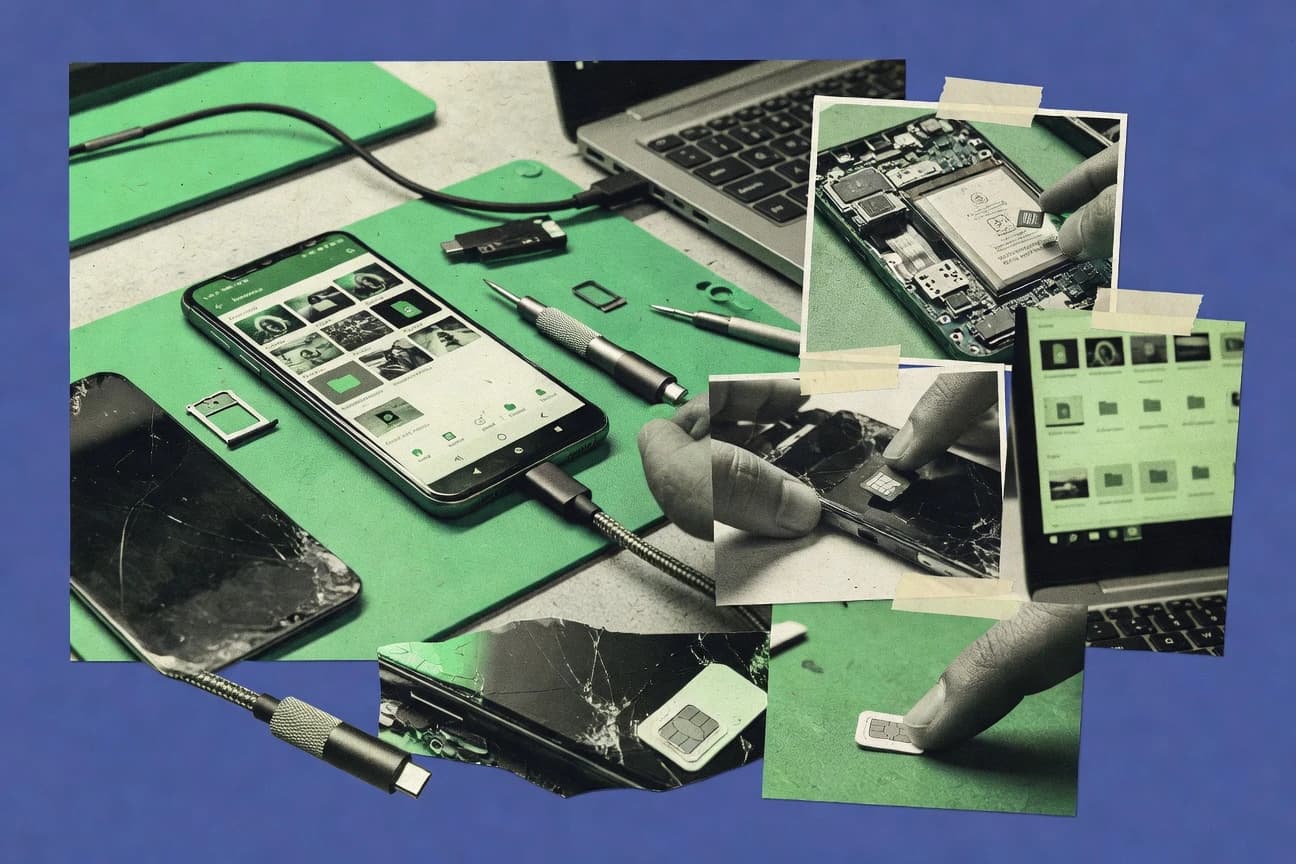
Ranking roundup of android recovery software for Android data recovery, comparing top tools like Aiseesoft FoneLab, Dr.Fone, and DiskDigger.

How we ranked these tools
An editor sets the topic, the inclusion criteria, and the evaluation framework before research starts.
AI search agents find sources, extract figures with provenance, and aggregate written reviews. They also transcribe video reviews and podcasts.
Framework: Features 40% · Ease 30% · Value 30%
Gitnux may earn a commission through links on this page — this does not influence rankings. Editorial policy
Aiseesoft FoneLab for Android is the best pick when you have USB access and want straightforward, preview-driven recovery focused on deleted photos, messages, and contacts, whereas DiskDigger fits when you need quick scan-based recovery for accidental deletions on an unlocked or bootable Android device.
Editor’s top 3 picks
Three quick recommendations before you dive into the full comparison below — each one leads on a different dimension.
Aiseesoft FoneLab for Android
Integrated selective preview that filters recoverable items before export, reducing unnecessary file retrieval.
Best for: Fits when USB access is available and recovery needs focus on deleted photos, messages, and contacts.
Dr.Fone - Data Recovery (Android)
Editor pickWhatsApp recovery extracts recoverable chat database content and media from connected Android devices.
Best for: Fits when users need fast recovery of photos and chats from a reachable Android device.
DiskDigger
Editor pickOn-device scanning with in-app selection and restore of deleted files without requiring external imaging tools.
Best for: Fits when accidental deletion needs quick photo or document recovery on an unlocked, bootable Android device.
Comparison Table
Aiseesoft FoneLab for Android
consumer desktopDesktop software to recover text messages, contacts, photos, and documents from Android.
Integrated selective preview that filters recoverable items before export, reducing unnecessary file retrieval.
Aiseesoft FoneLab for Android is geared toward logical recovery workflows that produce readable files and app records, including media thumbnails and message content when supported by the underlying storage state. Recovery targets include internal storage artifacts and removable media when the phone or its card can be accessed over USB. The interface guides users through device connection, scan stages, and selective preview before exporting results.
A tradeoff appears in advanced recovery depth, because the product does not position itself around block-level cloning, evidence imaging, or hash-verified forensic acquisition for chain-of-custody use. The workflow fits situations where accidental deletion occurred or the device still allows USB access for logical extraction, and it fits triage when a quick export is the priority over low-level reconstruction.
- +Preview-first workflow narrows exports before writing any recovered data
- +Exports recover readable contact and message records into common formats
- +Handles both internal storage artifacts and connected SD media
- +USB-connected scanning reduces reliance on custom recovery environments
- –Forensic-grade imaging and evidence bundles are not the core workflow
- –Deep recovery for heavily corrupted partitions is inconsistent by device
- –Encrypted backup handling coverage varies across Android versions
Personal users
Accidental photo deletions on phone
Restores usable gallery photos
Customer support teams
Phone replaced after data loss
Exports customer communication history
Show 2 more scenarios
Small investigations
SD card unreadable after overwrite
Recovers partial SD media
Scans connected removable storage and recovers supported media artifacts for review.
Android QA staff
Regression test for deletion recovery
Verifies recovery behavior
Produces repeatable exports of deleted-item results for sanity checks and comparisons.
Best for: Fits when USB access is available and recovery needs focus on deleted photos, messages, and contacts.
Dr.Fone - Data Recovery (Android)
consumer desktopDesktop software for recovering contacts, messages, photos, and files from Android phones.
WhatsApp recovery extracts recoverable chat database content and media from connected Android devices.
For everyday recovery after deletion or an unexpected loss, Dr.Fone - Data Recovery (Android) provides guided steps that lead to previews and export of recoverable content. The scan flow is oriented around Android logical acquisition and file-level recovery, which fits scenarios like missing gallery items or lost document files. The WhatsApp recovery path is built around recovering app databases and media, not around building a full message store dossier.
A tradeoff appears in internal storage forensics depth, because Dr.Fone prioritizes recoverable artifacts over strict acquisition reporting and chain of custody controls. The tool also depends on device accessibility, so locked-down states and severe physical failures often reduce scan success. This makes it most practical when the phone can still be connected over USB and the goal is to restore personal data rather than validate disk-level integrity.
- +USB-connected scanning workflow reduces time to first preview
- +WhatsApp database and media recovery fits common chat-loss scenarios
- +SD card recovery covers frequent photo and video loss cases
- +Export of recovered files supports offline review and re-storage
- –Evidence-grade imaging controls are limited for forensic workflows
- –Severely damaged or non-detectable devices often yield partial results
- –Recovery quality can drop when Android storage encryption restricts access
- –Deep partition reconstruction steps are not the focus
Personal users
Accidental photo deletion from gallery
Gallery restored to usable state
Small teams and offices
Lost WhatsApp messages on a phone
Message continuity recovered
Show 2 more scenarios
Creators and photographers
SD card photo loss after removal
Media restored from removable storage
SD card recovery targets deleted files and exports recovered images and videos.
Admin and IT helpdesks
Recovery after Android factory reset
Some post-reset artifacts recovered
Connected-device scanning seeks recoverable documents and photos post-reset conditions.
Best for: Fits when users need fast recovery of photos and chats from a reachable Android device.
DiskDigger
consumer mobile appAndroid photo and video recovery app that scans device memory and SD cards for deleted files.
On-device scanning with in-app selection and restore of deleted files without requiring external imaging tools.
DiskDigger runs on-device and uses a direct scan approach that targets recoverable file remnants on internal storage or removable media. The workflow is built around selecting files to restore, which suits quick recovery for photos and documents after accidental deletion. Export is oriented toward saving recovered results back to accessible storage paths rather than producing an external forensic case bundle.
A key tradeoff is that DiskDigger’s scan results depend on what remains on the filesystem and may degrade when partitions are encrypted or when the device has been reset. DiskDigger fits best when the goal is recovering DCIM media or common documents from an Android device that still boots normally and allows storage access.
- +Runs directly on the phone for fast, visual selection of recoverables
- +Targets both internal storage and removable SD card locations
- +Provides selective restore so only chosen files are exported
- +Handles common media and document recovery scenarios
- –Depends on leftover filesystem artifacts, so overwritten data often cannot be recovered
- –Recovery quality drops when storage is encrypted or access is restricted
- –Does not provide a full acquisition workflow for forensic chain-of-custody
- –Limited controls for deep partition inspection and block-level reconstruction
Personal users
Recover deleted gallery photos after mistake
Photos recovered for immediate sharing
Household device support
Restore documents from an SD card
Office files recovered from SD
Show 1 more scenario
Small teams
Retrieve common attachments after accidental deletion
Attachments restored with minimal steps
DiskDigger targets common file types on user devices when normal access still works.
Best for: Fits when accidental deletion needs quick photo or document recovery on an unlocked, bootable Android device.
MiniTool Mobile Recovery for Android
consumer desktopRecovers deleted files and data from Android phones and SD cards.
Scan preview driven selection that narrows recoverable items before extraction to reduce wrong-file restores.
MiniTool Mobile Recovery for Android targets Android data recovery workflows that start from a phone or tablet attachment and then guide file discovery and reconstruction. The product focuses on deleted file recovery and media recovery workflows for internal storage and SD cards, with scan previews meant to narrow what gets extracted.
- +Guided scan and preview flow reduces guesswork during recovery selection
- +Handles both internal storage and removable media recovery workflows
- +Extraction-focused output supports quick file restoration after scans
- +Works without requiring custom forensic imaging workflows
- –Limited transparency on lower-level acquisition and write blocking
- –Weaker coverage for damaged file system scenarios versus image-based recovery tools
- –Recovery quality drops when the device is too far into hardware failure
- –Less suited for repeatable forensic evidence packaging workflows
Best for: Fits when personal Android recovery is needed with guided scanning for internal storage and SD cards.
Jihosoft Android Data Recovery
consumer consumer desktopDesktop tool to recover deleted contacts, messages, photos, and videos from Android.
Preview-driven recovery lists that export specific app message items and attachments tied to common database formats.
Jihosoft Android Data Recovery recovers deleted files and extractable content from Android internal storage and SD cards through a guided USB connection workflow. Core capabilities include scanning for recoverable media and documents and previewing results before export to the host computer.
- +Guided USB workflow reduces the risk of skipping required recovery steps
- +Result preview helps filter recoverable files before export
- +App data recovery support covers common messaging and attachment stores
- +Media and document categories are presented in a recover-first layout
- –Works best on supported device states, limiting usefulness on damaged partitions
- –Forensic acquisition depth like write-blocking workflows is not a primary focus
- –Encryption-recovered artifacts depend on accessible backup or key material paths
- –Bulk recovery reports lack detailed case timeline and hash-oriented verification outputs
Best for: Fits when a single workstation recovery needs guided USB scanning and preview before exporting photos, files, and common message artifacts.

Tenorshare UltData for Android
consumer desktopDesktop tool to recover deleted data including WhatsApp messages from Android devices.
Preview-first recovery within the guided flow, so users can select item-level results before exporting.
Tenorshare UltData for Android targets direct Android recovery scenarios where internal storage or removable media data is missing, whether after deletion, accidental loss, or a failed device event. It focuses on guided extraction workflows that preview recoverable items and then export results like photos, documents, contacts, and message data.
- +Guided preview flow helps confirm recoverable items before export
- +Exports common artifacts like photos, documents, and select message data
- +Works from a USB-connected PC workflow without manual log collection
- +Handles multiple Android scenarios through a single recovery interface
- –Forensic-style imaging and chain-of-custody artifacts are not the core output
- –Encryption-aware recovery limits show up when protected storage keys are unavailable
- –Rooted acquisition and advanced interface options are not the default workflow
- –Database and message recovery can fail when stores are corrupted or overwritten
Best for: Fits when personal data needs recovery from an Android phone or SD card with minimal technical steps.
iMyFone D-Back for Android
SMBAndroid recovery software for deleted files, messages, contacts, call history, and media.
Preview-based recovery list with per-category exports for photos, videos, and message items.
iMyFone D-Back for Android targets consumer-friendly Android data recovery with a guided workflow for scanning internal storage and SD card media. Core capabilities focus on restoring deleted photos, videos, messages, and select app databases through on-device detection and extracted file parsing rather than full forensic imaging.
- +Clear guided steps for scanning internal storage and SD card
- +Preview-first recovery results reduce accidental exports
- +Exports recovered items into common file formats like media and documents
- +Supports multiple Android data categories including photos and messages
- –Recovery depth is limited versus block-level imaging and carving tools
- –Best results require successful detection of readable partitions or media
- –Encrypted backup scenarios can fall outside its supported workflows
- –No integration via ADB scripts or device imaging automation
Best for: Fits when quick media and message recovery is needed without forensic imaging or custom acquisition workflows.
Stellar Data Recovery for Android
SMBAndroid recovery software for retrieving deleted contacts, messages, photos, videos, and documents.
Recovery preview with category grouping lets users select items for export after signature-based reconstruction.
Stellar Data Recovery for Android targets Android data recovery workflows for both internal storage and removable media. The tool centers on logical file recovery paths with a guided wizard that surfaces recoverable items by scanning for file signatures and reconstructing directory structure.
- +Wizard-driven scans for internal storage and SD cards
- +File signature based carving improves results after deletions
- +Recovery preview helps confirm media and documents before export
- +Exports recovered items into structured folders
- –Recovery outcome drops sharply when partitions are heavily corrupted
- –Writeback risk and evidence handling controls are limited for forensics
- –Android encryption recovery support is not consistently broad
- –Deeper device state workflows require more manual steps
Best for: Fits when users need guided Android and SD card file recovery with quick visual verification.
Oxygen Forensic Detective
enterpriseMobile forensic software for Android extraction, artifact analysis, and investigative reporting.
Oxygen Forensic Detective’s Android app artifact parsing focuses on evidence-style extraction with case report mapping, not just file recovery.
Oxygen Forensic Detective creates internal forensic images from Android devices and then parses key artifacts from storage and app data. It supports both logical acquisition flows and physical imaging workflows, with report outputs that map findings to recoverable objects like media files, databases, and message stores.
- +Produces forensic images for repeatable re-analysis sessions
- +Artifact extraction covers media, databases, and message store outputs
- +Generates structured case reports with traceable extraction results
- +Supports recovery from damaged or inaccessible Android storage states
- –Requires careful device state handling for consistent acquisition results
- –Some app-specific recovery paths need additional technician time
- –Non-standard firmware layouts can reduce artifact extraction completeness
- –Automation and API access are limited for external pipeline integration
Best for: Fits when investigations need repeatable Android imaging plus artifact extraction into case-ready outputs.
MSAB XRY
enterpriseMobile forensic extraction software for acquiring and analyzing data from Android phones.
Case report generation that ties acquisition sessions to extracted Android artifacts for analyst review.
MSAB XRY is a mobile forensics acquisition and recovery workflow built for extracting Android artifacts under controlled evidence handling. It is distinct for its device-specific acquisition paths that support logical extraction and physical acquisition options rather than relying on a single method.
- +Device-specific extraction workflows tailored to common Android artifact families
- +Exports recovery results into investigator-readable case report bundles
- +Supports both logical and physical acquisition paths in one toolchain
- +Designed for forensic handling with acquisition session logging
- –Device coverage depends on specific model support lists and interfaces
- –Recovery flows can require disciplined setup for stable acquisition throughput
- –Encrypted and lock-screen protected content may still require additional recovery conditions
- –Scriptability and external integration are less developer-friendly than API-first tools
Best for: Fits when mobile forensics teams need consistent Android acquisition workflows for case reporting.
Conclusion
After evaluating 10 android recovery software, Aiseesoft FoneLab for Android stands out as our overall top pick — it scored highest across our combined criteria of features, ease of use, and value, which is why it sits at #1 in the rankings above.
Use the comparison table and detailed reviews above to validate the fit against your own requirements before committing to a tool.
How to Choose the Right Android Recovery Software
Android recovery software in this guide spans USB-connected desktop tools like Aiseesoft FoneLab for Android and Dr.Fone - Data Recovery (Android), plus on-device scanners such as DiskDigger for quicker photo and document retrieval. Several options also target messaging workflows, including WhatsApp-focused extraction in Dr.Fone - Data Recovery (Android) and preview-first export filtering across tools like MiniTool Mobile Recovery for Android. The lineup also includes forensics-oriented workbenches such as Oxygen Forensic Detective and MSAB XRY for repeatable artifact extraction and analyst-ready case outputs.
This buyer’s guide evaluates how each tool handles acquisition and selection steps, how much visibility exists before export, and what happens when partitions are encrypted or devices are damaged. Aiseesoft FoneLab for Android is positioned as the top-ranked option due to its integrated selective preview that filters recoverable items before export. DiskDigger is included because it runs scanning directly on the phone for fast visual selection without external imaging tools.
Android Recovery Software for preview-first exports, artifact extraction, and case-ready outputs
Android recovery software uses guided scanning workflows to recover deleted or lost content from internal storage and removable media, often showing a preview list before extraction to reduce wrong-file restores. Tools like Aiseesoft FoneLab for Android emphasize selective preview filtering so only chosen items are exported, while MiniTool Mobile Recovery for Android uses a scan preview flow for narrower recovery selections.
Android recovery software also varies by recovery scope and acquisition depth, ranging from on-device file recovery like DiskDigger to evidence-oriented extraction like Oxygen Forensic Detective and MSAB XRY. Dr.Fone - Data Recovery (Android) focuses on specific messaging scenarios with WhatsApp database and media recovery from connected devices. Across the tools covered here, the deciding factors are how consistently the software detects readable storage states, how much control exists around acquisition versus export, and how well the recovered artifacts map into user-ready or case-ready outputs.
Acquisition-and-export controls that reduce wrong restores
Android recovery tools commonly fail at the handoff between scanning and export. A preview-first selection workflow reduces accidental exports by letting users confirm recoverable items before the tool writes anything to disk.
Selective preview filtering before export
Aiseesoft FoneLab for Android uses an integrated selective preview that filters recoverable items before export. MiniTool Mobile Recovery for Android and Tenorshare UltData for Android also run scan preview flows that narrow what gets exported.
Messaging database extraction for WhatsApp-style artifacts
Dr.Fone - Data Recovery (Android) focuses on WhatsApp recovery by extracting recoverable chat database content and media from connected Android devices. Jihosoft Android Data Recovery and iMyFone D-Back for Android provide guided exports tied to app message items and attachments.
On-device scanning for quick deleted-file retrieval
DiskDigger runs on-device scanning with in-app selection and restore of deleted files without requiring external imaging tools. This approach suits unlocked, bootable devices and targets both internal storage and removable SD card locations.
Case-oriented output and repeatable re-analysis workflows
Oxygen Forensic Detective focuses on evidence-style extraction mapped into case report outputs instead of only file recovery. MSAB XRY generates investigator-readable case report bundles tied to extraction sessions for mobile forensics teams.
Carving-style reconstruction driven by file signatures
Stellar Data Recovery for Android groups items after signature-based reconstruction to improve results after deletions. This contrasts with preview-first export filtering in Aiseesoft FoneLab for Android, where users confirm recoverables before exporting.
Guided scan flows that reduce workflow mistakes
MiniTool Mobile Recovery for Android and Jihosoft Android Data Recovery use guided scan and preview steps to reduce wrong-file restores. These flows emphasize usability on internal storage and SD cards rather than evidence-grade imaging controls.
Choose based on acquisition path, device state, and evidence needs
The right Android recovery workflow starts with the device state and the access path available. A USB-connected desktop workflow can usually provide faster previews and more consistent extraction of specific artifact families, while an on-device scanner like DiskDigger prioritizes immediate photo and document retrieval.
Start with the access mode: USB-connected desktop extraction or on-device scanning
If USB access is available and the goal is deleted photos, messages, or contacts with a controlled preview before export, Aiseesoft FoneLab for Android is the top-ranked fit. If speed matters more than acquisition controls and the device is unlocked and bootable, DiskDigger performs on-device scanning with in-app selection.
Pick the workflow based on whether messaging content is the target
If WhatsApp chat databases and media are the priority, Dr.Fone - Data Recovery (Android) targets recoverable WhatsApp chat database content and media from connected devices. If only guided recovery of app message items and attachments is needed, Jihosoft Android Data Recovery and iMyFone D-Back for Android provide preview-based exports for message-related artifacts.
Select for preview-first confidence versus deeper imaging expectations
If incorrect exports are the main risk, prioritize tools with preview-first filtering like Aiseesoft FoneLab for Android and Tenorshare UltData for Android. If the priority is damaged partition recovery depth, avoid assuming consistent recovery when partitions are heavily corrupted because Aiseesoft FoneLab for Android notes inconsistent deep recovery across devices.
Decide whether case-ready extraction output is required
If investigation work needs evidence-style extraction mapped into case report mapping, Oxygen Forensic Detective produces forensic images for repeatable re-analysis sessions and extracts app and message-store outputs. If mobile forensics teams need device-specific extraction workflows with analyst review bundles, MSAB XRY exports investigator-readable case report bundles.
Match the expected storage condition to the tool’s recovery behavior
If the device is encrypted or access is restricted, DiskDigger explicitly notes recovery quality drops under encrypted or restricted storage conditions. If the priority is signature-driven reconstruction after deletions, Stellar Data Recovery for Android performs signature-based carving and then groups results for selection.
Who each type of Android recovery tool serves best
Android recovery software splits into user recovery tools and investigation-focused extraction tools. User recovery tools prioritize guided previews, faster first preview, and file or message exports without deep evidence workflow overhead.
USB-connected users recovering deleted photos, contacts, and messages
Aiseesoft FoneLab for Android is built around an integrated selective preview that filters recoverable items before export. This fits scenarios where USB-connected recovery needs focus on deleted photos, messages, and contacts.
Users who need WhatsApp chat recovery from a reachable device
Dr.Fone - Data Recovery (Android) is designed for WhatsApp recovery by extracting recoverable WhatsApp chat database content and media from connected Android devices. This targets common chat-loss workflows with a scanning workflow that gets to preview quickly.
Users who need fast deleted-file retrieval without imaging tools
DiskDigger runs directly on the phone for fast visual selection of recoverables. This matches accidental deletion recovery on an unlocked, bootable device.
Investigators who require repeatable forensic imaging and case mapping
Oxygen Forensic Detective produces forensic images for repeatable re-analysis sessions and provides artifact extraction mapped into case outputs. MSAB XRY generates case report bundles tied to extraction sessions for analyst review.
Common failure modes in Android recovery workflows
Most recovery failures come from mismatched expectations between preview confidence and recovery depth. A tool can show previews yet still fail when partitions are heavily corrupted or when encrypted storage keys are unavailable.
Exporting items without validating preview results across categories
Aiseesoft FoneLab for Android filters recoverable items before export, so users should confirm the preview list before saving. MiniTool Mobile Recovery for Android and Tenorshare UltData for Android also run scan preview flows that narrow selections before extraction.
Relying on deleted-file recovery when data is overwritten or encryption blocks access
DiskDigger depends on leftover filesystem artifacts, so overwritten data often cannot be recovered and recovery quality drops when storage is encrypted. Stellar Data Recovery for Android can reconstruct via signature-based carving, but outcomes drop sharply when partitions are heavily corrupted.
Using a personal recovery workflow for evidence-style re-analysis requirements
User-focused preview tools emphasize exports, not evidence-grade imaging controls, which can leave limited chain-of-custody artifacts. Oxygen Forensic Detective and MSAB XRY are structured around forensic images or case report bundles for analyst review.
Assuming messaging recovery works the same as photo recovery
Dr.Fone - Data Recovery (Android) focuses on WhatsApp chat database and media extraction, so it should be used when WhatsApp content is the target. Jihosoft Android Data Recovery and iMyFone D-Back for Android provide guided exports for message items and attachments, but they do not replace case-oriented extraction workflows.
How We Selected and Ranked These Tools
We evaluated Android recovery tools on how consistently they deliver preview-first selection before export because wrong-file restores create the fastest repeat failures. We prioritized features at 40% weight, ease at 30% weight, and value at 30% weight to separate guided workflows from tools that only work for narrow device states.
We ranked Aiseesoft FoneLab for Android highest because it pairs an integrated selective preview that filters recoverable items before export with exports for readable contact and message records into common formats. We also compared each tool’s artifact specialization by mapping which workflow is designed for photo and document recovery versus WhatsApp messaging extraction versus case-ready evidence outputs.
Frequently Asked Questions About Android Recovery Software
Which tool fits deleted photo and message recovery when the Android device is unlocked and visible over USB?
How does WhatsApp database recovery differ between Dr.Fone - Data Recovery (Android) and other Android recovery tools?
When does recovery from an SD card work better with category-grouped signature carving versus guided in-app selection?
What breaks if an Android device cannot be unlocked enough for USB detection?
Where does deep forensic imaging fall short compared with selective preview extraction tools?
Which tool produces case-ready outputs that tie acquisition sessions to extracted Android artifacts?
How do preview-first workflows affect the risk of exporting incorrect files?
What tradeoff appears when recovery depends on filesystem remnants instead of physical acquisition?
Which tool best fits media and app data extraction when reports must map recovered objects for analyst review?
Tools reviewed
Primary sources checked during evaluation.
tenorshare.comReferenced in the comparison table and product reviews above.
Funding and competing interests
This study was co-funded by several of the vendors assessed in it. No single vendor funded it. Funders could propose the market studied.
They had no role in selecting vendors, setting or weighting criteria, analysing data or drawing conclusions, and they received the same factual-accuracy check as every other vendor assessed.
Market definition, inclusion rules and criteria weights were fixed by an editor before research began and did not change afterwards. Editorial process →
- Technology Digital MediaTop 10 Best Android Management Software of 2026
- Technology Digital MediaTop 10 Best Mobile Data Recovery Software of 2026
- Technology Digital MediaTop 10 Best External Drive Recovery Software of 2026
- Technology Digital MediaTop 10 Best Usb File Recovery Software of 2026
- Technology Digital MediaTop 10 Best Ios Recovery Software of 2026
Keep exploring
Comparing two specific tools?
Software Alternatives
See head-to-head software comparisons with feature breakdowns, pricing, and our recommendation for each use case.
Explore software alternatives→In this category
Technology Digital Media alternatives
See side-by-side comparisons of technology digital media tools and pick the right one for your stack.
Compare technology digital media tools→