
GITNUXSOFTWARE ADVICE
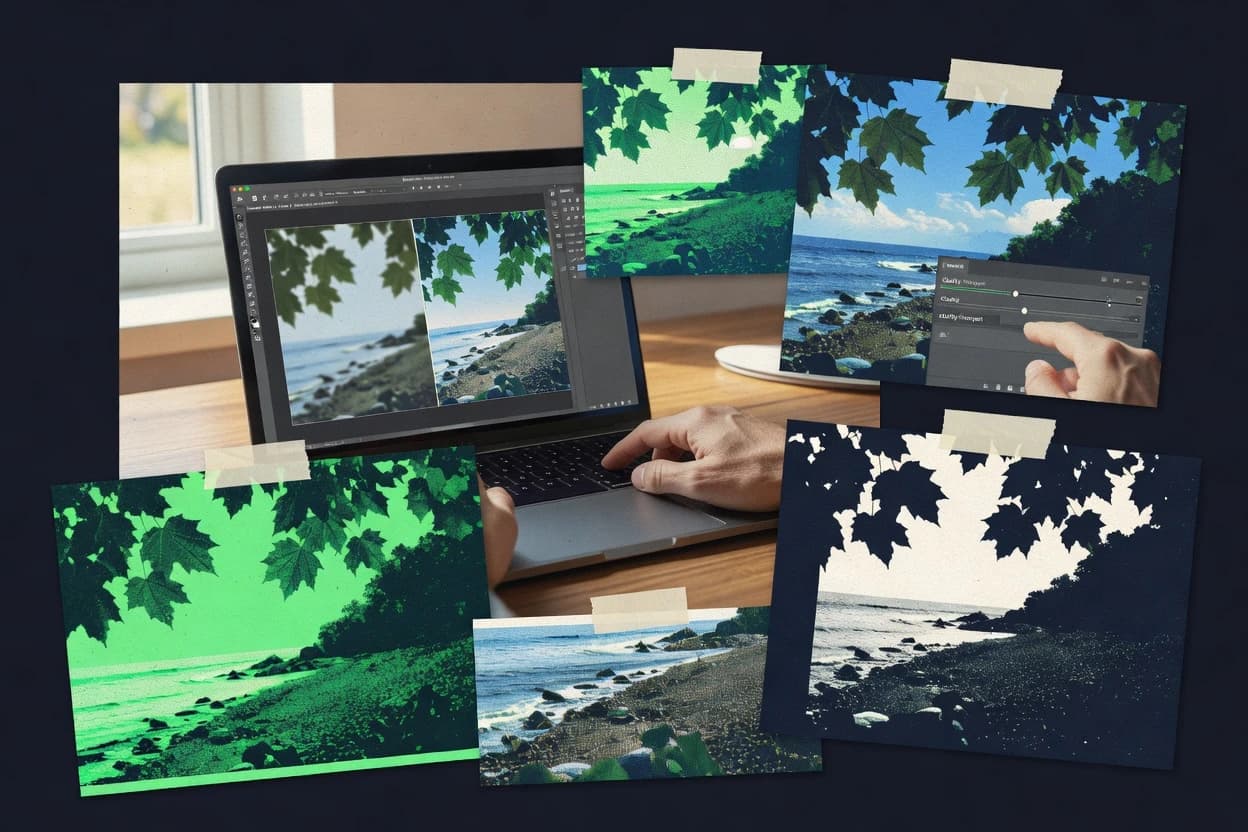
Art DesignTop 10 Best Image Enhancing Software of 2026
Top 10 image enhancing software ranked for noise removal and AI upscaling, with side-by-side tool comparisons for Remini, Luminar Neo, and Gigapixel AI.

How we ranked these tools
Core product claims cross-referenced against official documentation, changelogs, and independent technical reviews.
Analyzed video reviews and hundreds of written evaluations to capture real-world user experiences with each tool.
AI persona simulations modeled how different user types would experience each tool across common use cases and workflows.
Final rankings reviewed and approved by our editorial team with authority to override AI-generated scores based on domain expertise.
Score: Features 40% · Ease 30% · Value 30%
Gitnux may earn a commission through links on this page — this does not influence rankings. Editorial policy
Remini is the best choice overall for teams that need quick, consistent AI face restoration and old-photo enhancement without fiddling with parameters, while Upscale.media is a cheaper entry for fast batch upscaling and Luminar Neo is the better fit when you want creative, editor-grade relighting.
Editor’s top 3 picks
Three quick recommendations before you dive into the full comparison below — each one leads on a different dimension.
Remini
Face-prioritized enhancement that restores facial details more aggressively than uniform whole-image filters.
Built for fits when teams need quick portrait and photo restoration without manual image-parameter tuning..
Luminar Neo
Editor pickAI Sky Replacement combines automatic subject detection with guided edge refinement.
Built for fits when photographers need consistent AI-enhanced exports for many images..
Gigapixel AI
Editor pickSingle workflow combines AI super-resolution with integrated denoising and sharpening for batch-consistent results.
Built for fits when teams need consistent AI upscaling and denoise-sharpen results across large image batches..
Comparison Table
Remini
consumerMobile and web application specializing in AI face restoration and old-photo enhancement.
Face-prioritized enhancement that restores facial details more aggressively than uniform whole-image filters.
Remini’s core value comes from automated enhancement that targets common consumer photo failures such as blur, noise, and compression artifacts, without requiring a RAW pipeline. The app emphasizes identity-focused refinement, with enhancement tuned for face regions first, then applying global sharpening and restoration to the rest of the frame. Batch processing is practical for repeated uploads, but it is not positioned as a deterministic RAW pipeline with repeatable parameter control. The product also supports exporting enhanced results suitable for social sharing and general digital use.
The main tradeoff is limited control over enhancement strength and recovery behavior compared with tools that expose settings like deblurring radius or edge-aware sharpening masks. Remini fits best for quick turnarounds where the goal is a visually improved image rather than a controlled, audit-friendly edit. It is less suitable for workflows that demand strict non-destructive editing, EXIF retention guarantees, or color management steps like ICC profiling and tone mapping control.
- +Super-resolution enhancement that improves perceived detail quickly
- +Consistent face-focused restoration for portraits and selfies
- +Fast iteration from upload to preview for many images
- +Strong denoising and artifact removal for low-quality photos
- –Limited manual control over sharpening and restoration strength
- –Global settings do not match RAW pipeline precision workflows
- –Color management and tone mapping controls are not the focus
- –EXIF retention behavior is not designed for strict metadata workflows
Consumer photo editors
Fixing blurry selfies for sharing
Cleaner, more detailed portraits
Social media teams
Batch-upscaling low-quality event photos
Faster publishing-ready images
Show 2 more scenarios
Real estate marketers
Recovering detail in phone-shot exteriors
More legible listing imagery
Reduces noise and enhances edges to make distant features look clearer.
Family archiving
Restoring older compressed snapshots
Readable, less degraded photos
Performs artifact cleanup and denoising to make memories appear clearer.
Best for: Fits when teams need quick portrait and photo restoration without manual image-parameter tuning.
Luminar Neo
prosumerCreative photo editor with AI-powered tools for sky replacement, structure enhancement, and relighting.
AI Sky Replacement combines automatic subject detection with guided edge refinement.
Luminar Neo is a strong fit for image enhancing tasks where repeatability matters, because AI tools can be applied consistently across a session and then batch processed. It also supports non-destructive editing so adjustments can be revisited without overwriting the source pixels. RAW pipeline support helps keep exposure and color correction options available after initial enhancement decisions.
A practical tradeoff is that deep manual control can feel secondary when AI presets drive much of the workflow. Luminar Neo works best when a batch of similar images needs uniform clarity and cleanup, such as travel sets with mixed lighting, rather than when fine art workflows require tightly managed masks and custom retouching from start to finish.
- +AI-guided enhancement speeds up denoising and sharpening decisions
- +Non-destructive layer workflow keeps edits revisable
- +Batch processing applies consistent looks across large sets
- +Plugin architecture extends effects beyond core modules
- –Manual mask control feels less direct than dedicated editors
- –Some advanced looks depend on add-on tools
- –GPU acceleration can vary by system configuration
- –Fine-grain color management workflows need extra attention
Freelance photographers
Turn RAW shoots into consistent edits
Faster delivery with consistent quality
Event photo teams
Process mixed lighting thousands of images
Reduced per-image adjustment time
Show 2 more scenarios
Content creators
Create share-ready images quickly
More posts with less editing time
Layered tone and color effects produce predictable results for social output.
Wedding retouchers
Improve portraits with guided cleanup
Cleaner skin and sharper eyes
Portrait-focused tools refine facial details without fully manual retouching.
Best for: Fits when photographers need consistent AI-enhanced exports for many images.
Gigapixel AI
professionalStandalone desktop upscaler that enlarges images up to 600 percent using generative face and detail recovery.
Single workflow combines AI super-resolution with integrated denoising and sharpening for batch-consistent results.
Gigapixel AI provides AI upscaling alongside denoising and sharpening stages, so single-pass results often reduce the need to chain multiple tools. Batch processing supports repeated runs across folders, which fits production work like resizing large libraries for catalogs and thumbnails. The app uses a local workflow where image inputs are processed on the machine, with outputs written to disk in standard raster formats.
A tradeoff is that aggressive strength settings can introduce oversharpening artifacts around high-contrast edges, especially in heavy compression sources. Gigapixel AI fits best when there is enough GPU throughput for repeated runs and when the goal is consistent detail restoration across many similar images.
- +AI upscaling tuned for edge clarity on low-resolution inputs
- +Batch processing supports folder-scale enhancement workflows
- +GPU acceleration improves throughput for large image sets
- +Export pipeline is oriented around lossless output workflows
- –Strong settings can create edge halos on high-contrast content
- –Fine control over color management and profile handling is limited
- –Non-destructive editing requires an external workflow, not built-in layers
Photography retouching teams
Restore detail in low-res client photos
Cleaner detail at higher sizes
E-commerce content teams
Upscale catalogs for consistent listings
Consistent visuals across collections
Show 1 more scenario
Archive digitization groups
Improve scanned photos with noise reduction
More readable archival images
Applies enhancement to scanned inputs to improve clarity before manual review and restoration.
Best for: Fits when teams need consistent AI upscaling and denoise-sharpen results across large image batches.
Upscayl
open-sourceFree open-source desktop application that runs multiple Real-ESRGAN models locally for image upscaling.
One-click AI upscaling workflow with GPU-accelerated batch enhancement tuned for consistent super-resolution results.
Upscayl focuses on AI upscaling with a desktop workflow and a local-first approach to image enhancement. The tool performs super-resolution on common raster formats, using GPU acceleration when available to reduce processing time for batch runs.
It also applies denoising and artifact cleanup as part of its enhancement pipeline, which helps preserve edges compared with basic resizing. Output handling supports saving enhanced results while keeping the original files as separate inputs for iterative runs.
- +Local processing keeps image files on the machine during enhancement
- +GPU acceleration improves throughput for larger batches
- +Upscaling includes denoising-like cleanup that reduces obvious artifacts
- +Straightforward workflow supports repeatable enhancements on sets of files
- –Limited control over model choices and enhancement strength
- –Color handling and fine retouching are less configurable than editor workflows
- –Consistent results depend on input resolution and content type
- –Batch processing can saturate GPU and slow other workloads
Best for: Fits when teams need quick AI upscaling runs for large image sets without editor-grade controls.
Radiant Photo
prosumerDesktop image editor using AI scene detection to apply adaptive color grading and dynamic range enhancement.
Radiant Photo’s AI enhancement stack combines denoising and edge-aware detail recovery with mask-based local control.
Radiant Photo applies AI-enhanced editing workflows to improve clarity, denoise frames, and upscale imagery for output-ready results. The software supports a non-destructive RAW pipeline with pixel-level controls for sharpening, noise reduction, and local tone adjustments.
Radiant Photo also handles batch processing so teams can run consistent enhancements across many files and export with EXIF retention. Rendering speed depends on GPU acceleration availability, and complex stacks benefit from careful mask and layer order.
- +Strong AI denoising and sharpening workflows for natural-looking texture control
- +Non-destructive RAW pipeline supports iterative edits without destructive exports
- +Batch processing enables consistent enhancement runs across large photo sets
- +EXIF retention preserves capture metadata through export operations
- –Mask-based workflows can become complex when multiple localized adjustments stack
- –GPU acceleration may not be available or effective on every workstation
- –Advanced artifact removal workflows take time to tune for each camera profile
- –Limited visibility into processing internals can slow troubleshooting on bad outputs
Best for: Fits when photography teams need consistent AI denoising, sharpening, and upscaling for RAW-to-export batches.
HitPaw Photo Enhancer
consumerDesktop and web tool offering AI upscaling, scratch removal, and colorization for photos.
Face-aware enhancement that targets soft facial regions separately from general image sharpening.
HitPaw Photo Enhancer targets people who need quick AI upscaling and cleanup for mixed-quality images, especially when small details look soft. It combines enhancement tools for denoising, sharpening, and artifact reduction with a guided workflow for processing single files or batches.
The output focus is on improved visual clarity with tools that try to preserve natural edges while boosting fine textures. Support for common image formats and an integrated enhancement workspace reduce the need to stitch together multiple utilities for a basic improvement pass.
- +Batch enhancement workflow supports consistent improvements across many files
- +AI-driven face and detail enhancement options improve perceived sharpness
- +Noise reduction tools help stabilize low-light and scan-like images
- +Export flow keeps the enhancement result ready for immediate review
- –Control granularity is limited compared with professional RAW and retouching tools
- –Hallucinated detail can appear on heavily compressed or low-resolution images
- –Workflow is less suited to non-destructive editing and layered refinement
- –No documented plugin architecture for extending enhancement steps
Best for: Fits when teams need fast visual cleanup and AI upscaling for batch image deliveries without deep retouching.
PicWish
SMBWeb and mobile platform providing AI background removal, photo colorization, and image upscaling.
AI enhancement workflow that combines denoising and upscaling in one pass with preview-driven adjustments.
PicWish focuses on AI-driven image enhancement with a UI that routes denoising, sharpening, and upscaling into a single workflow. Batch-oriented processing helps when many images need the same cleanup and scale. The editor also supports common output options so the results can be used for web and print-adjacent pipelines without an extra conversion step.
- +One workflow covers denoising and upscaling with consistent output settings
- +Batch processing reduces repeated manual clicks for large image sets
- +Preview-first editing makes it easier to spot over-sharpening artifacts
- +Export options fit common web and print workflows
- –Advanced control depth is limited compared with desktop RAW-focused tools
- –AI cleanup can introduce skin texture changes in portrait photos
- –High-volume jobs may require careful job sizing to avoid slowdowns
- –No clear RAW pipeline controls for demosaic and tone mapping
Best for: Fits when small teams need AI image cleanup and upscaling for bulk media assets without building a processing pipeline.
ImgLarger
consumerAI image enhancer offering upscaling, denoising, and sharpening through a credit-based web interface.
Dedicated upscaling generation tuned for photo enlargement from low-resolution inputs.
ImgLarger is an image enhancing web tool focused on upscaling small images to larger dimensions. It targets common workflows like enlarging photos for display while trying to preserve edges and improve perceived detail.
The tool supports batch-friendly usage through repeated uploads and generated outputs rather than project-based non-destructive editing. Image export output quality depends on the upscaling model choice and the input image resolution.
- +Simple upload and output flow for quick upscaling results
- +Automatic upscaling geared toward small-to-larger photo enlargement
- +Edge-focused reconstruction that reduces obvious pixel blockiness
- +Batch-style repetition works for small volumes without project setup
- –Limited control over advanced enhancement steps beyond upscaling
- –No documented API for automation or integration into production pipelines
- –No non-destructive layer workflow for iterative edits
- –EXIF retention behavior is not clear for metadata-heavy RAW workflows
Best for: Fits when designers need fast upscaled previews from small images without a full editing pipeline.
Upscale.media
consumerFree web and mobile upscaler that enlarges images up to four times using generative AI models.
Batch enhancement with size and quality controls keeps throughput high for large image libraries.
Upscale.media performs AI upscaling and enhancement on uploaded images, producing larger outputs with reduced blockiness. Batch processing supports multiple files in one run, which helps when converting catalogs or large photo sets.
The workflow focuses on denoising and detail reconstruction, with options to choose the output size and quality level. Export preserves the enhanced raster output without requiring manual layer editing.
- +Batch runs handle many images without manual per-file steps
- +AI upscaling targets detail recovery instead of simple interpolation
- +Simple output controls make size and quality adjustments predictable
- +Works for common photo workflows that need denoise plus enhance
- –Limited control over intermediate steps like mask-based processing
- –No clear support for complex RAW pipeline tuning across multiple parameters
- –Advanced artifact control tools like frequency separation are not exposed
- –Upload-centric workflow adds friction for automated server-side use
Best for: Fits when teams need fast batch upscaling for image sets without editing tools or pipeline work.
Cutout.Pro
API-firstAI-powered image processing suite offering photo enhancement, upscaling, and background removal via web and API.
Auto cutout generation optimized for transparent subject isolation at batch scale.
Cutout.Pro focuses on AI-based image background removal and cutout generation for catalog and e-commerce workflows. It handles batch processing of images for consistent transparency outputs and edge cleanup without manual masking for every file.
The core value comes from automated segmentation, followed by controllable output settings for downstream compositing. Image enhancement is present as a practical companion step for improving the usable result after cutouts rather than a full RAW pipeline.
- +Batch cutouts with automated subject segmentation for large catalogs
- +Good edge handling for product cutouts intended for compositing
- +Simple output options for transparency workflows
- +Fast iteration on segmentation errors compared with manual masking
- –Limited control for deeper denoising and sharpening workflows
- –AI segmentation can fail on complex hair or overlapping objects
- –Few tools for color grading and histogram adjustment per image
- –Enhancement steps are secondary to cutout generation
Best for: Fits when e-commerce teams need fast, consistent cutouts with minor enhancement for catalog delivery.
Conclusion
After evaluating 10 art design, Remini stands out as our overall top pick — it scored highest across our combined criteria of features, ease of use, and value, which is why it sits at #1 in the rankings above.
Use the comparison table and detailed reviews above to validate the fit against your own requirements before committing to a tool.
How to Choose the Right image enhancing software
Image enhancing software turns low-resolution, noisy, or artifact-heavy photos into cleaner, more detailed outputs using automated AI upscaling and targeted denoising workflows. This guide covers Remini, Luminar Neo, Gigapixel AI, Upscayl, Radiant Photo, HitPaw Photo Enhancer, PicWish, ImgLarger, Upscale.media, and Cutout.Pro.
The top picks prioritize clarity gains, noise reduction, and AI upscaling that stay consistent across batches. Tool choice hinges on how each product handles portrait-first restoration in Remini versus editor-style, mask-based control in Radiant Photo and Luminar Neo.
Image enhancing software for AI upscaling, denoising, and sharper detail recovery
Image enhancing software processes raster photos to improve perceived detail through AI upscaling and denoising, often combining edge-aware refinement with batch processing. Many tools also support non-destructive or iterative workflows so edits remain revisable instead of locked to a single output.
Remini leads with face-prioritized enhancement that restores facial details more aggressively than uniform whole-image filters, making it a strong match for portraits and selfies. Gigapixel AI focuses on a single batch workflow that combines AI super-resolution with integrated denoising and sharpening to keep folder-scale results consistent.
Core capabilities that decide real output quality and batch consistency
Image enhancing software quality comes from how it combines AI upscaling with denoising and edge refinement, because each step changes texture, halos, and perceived sharpness. Tools that keep one consistent enhancement workflow across many files reduce variation between early and late batch outputs.
The feature set matters most when the workflow must stay repeatable for a team, because users need predictable restoration strength, controllable masks or subject targeting, and dependable behavior on different image types like portraits, low-resolution landscapes, and compressed social photos.
Subject-prioritized restoration vs whole-image filters
Remini delivers face-prioritized enhancement that restores facial details more aggressively than uniform whole-image filters, which improves selfies and portraits with minimal tuning. HitPaw Photo Enhancer also targets faces, but it splits detail enhancement more conservatively than Remini for softer facial regions.
Batch workflow consistency for upscaling, denoising, and sharpening
Gigapixel AI combines AI super-resolution with integrated denoising and sharpening inside a single workflow designed for folder-scale enhancement runs. Upscale.media uses batch enhancement with size and quality controls to maintain throughput across large image libraries without editing-tool overhead.
Mask-based local control with non-destructive RAW workflows
Radiant Photo combines AI denoising and edge-aware detail recovery with mask-based local control, which supports iterative adjustments across RAW-to-export batches. Luminar Neo uses a non-destructive layer workflow, and its AI Sky Replacement pairs automatic subject detection with guided edge refinement.
GPU-accelerated throughput for large sets
Upscayl emphasizes GPU-accelerated batch enhancement with local processing on the machine, which speeds up large upscaling runs. Radiant Photo can use GPU acceleration for AI denoising and sharpening, but availability can vary by workstation.
Workflow depth for control over strength and artifacts
Radiant Photo provides stronger AI denoising and sharpening workflows with natural-looking texture control, which helps when restoration needs to avoid overprocessing. Gigapixel AI can produce edge halos on high-contrast content when settings are strong, so teams often tune strength by content type.
Production integration and automation surface
ImgLarger lacks a documented API, which limits automated enhancement inside a larger production pipeline. Cutout.Pro focuses on automated subject cutouts for compositing and catalog delivery, but it limits deeper denoising and sharpening control when image quality needs go beyond segmentation.
Choose by restoration target, control depth, and automation needs
Start by selecting the restoration target that matches the majority of files, because Remini and HitPaw Photo Enhancer prioritize faces while Gigapixel AI targets a single consistent batch pipeline for general upscaling with denoise-sharpen integration.
Then choose control depth based on whether the workflow needs mask-based local tuning and non-destructive iteration, or whether one-click upscaling and denoise-upscale passes are enough for catalog delivery and preview outputs.
Pick the primary content type the batch must improve
Choose Remini when the highest volume is portraits and selfies that need face-prioritized enhancement with aggressive facial detail restoration. Choose Gigapixel AI when the batch contains mixed subjects that should receive a single integrated AI super-resolution, denoising, and sharpening workflow.
Select the control model for localized corrections
Choose Radiant Photo when mask-based local control must support iterative changes in a RAW pipeline without destructive exports. Choose Luminar Neo when a non-destructive layer workflow is required and guided edge refinement matters for subject-based tasks like AI Sky Replacement.
Decide whether GPU speed and local processing matter more than editor-like tuning
Choose Upscayl when GPU-accelerated batch enhancement and local processing on the machine reduce transfer overhead for large image sets. Choose PicWish when a single denoise-and-upscale pass with preview-driven adjustments is sufficient and advanced control depth is not required.
Validate artifact behavior on high-contrast and compressed sources
Test Gigapixel AI on high-contrast content to confirm that edge halos do not appear at the strength levels needed for the batch. Test HitPaw Photo Enhancer and PicWish on heavily compressed portraits, because hallucinated detail or skin texture changes can show up on low-resolution inputs.
Match automation expectations to the product’s integration reality
Choose tools with a batch-oriented workflow when production delivery expects repeated enhancement across folders, as Upscayl and Upscale.media emphasize. Choose ImgLarger carefully because it provides simple upload and output flow without a documented API, which makes automated integration harder.
Who image enhancing software fits best by workflow shape
Different teams need different restoration behavior, because face-first pipelines, integrated denoise-sharpen batch tools, and mask-based RAW workflows solve different problems. The best fit depends on whether files need localized edits or uniform outputs across many images.
Workload scale also changes the tool requirements, since some products target one-click upscaling runs and others target iterative RAW-to-export workflows with stronger localized control.
Social media and portrait teams focused on selfies and faces
Remini and HitPaw Photo Enhancer both target face-prioritized enhancement, which improves perceived facial detail quickly without manual image-parameter tuning for each photo.
Photography teams producing RAW-to-export batches with iterative refinements
Radiant Photo supports non-destructive RAW pipeline workflows with mask-based local control, and Luminar Neo adds a non-destructive layer system for revisable edits like AI Sky Replacement.
Studios and agencies delivering consistent upscaling and denoise-sharpen results across large libraries
Gigapixel AI provides a single integrated denoise and sharpen workflow for batch consistency, while Upscale.media emphasizes batch runs with size and quality controls to keep throughput high.
Operations teams needing fast enhancement output without editor-grade controls
Upscayl is built around one-click AI upscaling with GPU-accelerated batch processing and local processing on the machine. PicWish and ImgLarger also support quick bulk enhancement flows, but they provide less control depth than editor-style tools.
E-commerce teams that need cutouts for compositing at catalog scale
Cutout.Pro automates transparent subject isolation for large catalogs and includes good edge handling for product cutouts, while deeper denoising and sharpening remains limited.
Common buying and workflow mistakes that cause bad-looking enhancement
Most failures happen when enhancement strength is set for the wrong content type or when users expect editor-like control from an upscaling-only workflow. Another failure pattern is stacking multiple localized adjustments that are difficult to keep consistent across a batch.
Teams also misjudge hardware constraints, since GPU acceleration may not be effective or available on every workstation even when a product advertises acceleration options.
Choosing a one-click upscaler when the batch needs mask-based local corrections
Radiant Photo and Luminar Neo support mask-based or layer-based localized workflows, while Upscayl limits model choice and enhancement strength control that localized retouching often needs.
Overdriving denoise-sharpen strength on high-contrast content
Gigapixel AI can create edge halos on high-contrast content at strong settings, so the batch should be tested on representative crops before scaling up.
Assuming face enhancement will always preserve natural skin texture on low-resolution sources
PicWish and HitPaw Photo Enhancer can introduce hallucinated detail or skin texture changes on heavily compressed or low-resolution portraits, so portrait-heavy batches need validation.
Building an automation pipeline around a tool that lacks an automation surface
ImgLarger provides simple upload and output flow but has no documented API, so it is a weak match for scheduled or integrated production runs.
Expecting cutout automation to replace denoise and sharpening workflows
Cutout.Pro focuses on automated cutouts for compositing and limits deeper denoising and sharpening, so it should not be used as the only image enhancement step for quality-critical textures.
How We Selected and Ranked These Tools
We evaluated Remini, Luminar Neo, Gigapixel AI, Upscayl, Radiant Photo, HitPaw Photo Enhancer, PicWish, ImgLarger, Upscale.media, and Cutout.Pro using features, ease, and value scoring, with features at 40% weight and ease and value each at 30%. Features coverage prioritized face-first restoration behavior, integrated denoise-sharpen workflow design, mask or layer-based revisability, and batch processing consistency across many files.
Ease reflected how quickly teams can run batch enhancement without deep parameter tuning and how direct the controls feel for common tasks like portraits and sky refinement. Value reflected how well each tool’s workflow shape fits its stated batch use case, and Remini ranked highest because face-prioritized enhancement restores facial details more aggressively than whole-image filters while still supporting consistent portrait and selfie restoration without manual strength matching.
Frequently Asked Questions About image enhancing software
Which tool produces the most consistent AI upscaling across large batches with GPU acceleration?
How does non-destructive editing show up in practice when moving from RAW to export?
What breaks if facial detail restoration is needed for portraits with mixed lighting and background blur?
Where does automated enhancement fall short for photographers who need strict creative control?
How does batch processing differ between desktop apps and web tools for high-throughput work?
Which option is better when denoising and artifact cleanup must be part of the same pass as upscaling?
When does local masking matter more than global sharpening for edge detail and natural textures?
How should teams plan data migration when moving a RAW-based workflow into an AI enhancement stage?
What are the tradeoffs of choosing a face-aware enhancer versus a uniform whole-image enhancer?
When is Cutout.Pro a better fit than general photo upscaling tools for e-commerce delivery workflows?
Tools reviewed
Primary sources checked during evaluation.
Referenced in the comparison table and product reviews above.
Keep exploring
Comparing two specific tools?
Software Alternatives
See head-to-head software comparisons with feature breakdowns, pricing, and our recommendation for each use case.
Explore software alternatives→In this category
Art Design alternatives
See side-by-side comparisons of art design tools and pick the right one for your stack.
Compare art design tools→