GITNUXSOFTWARE ADVICE
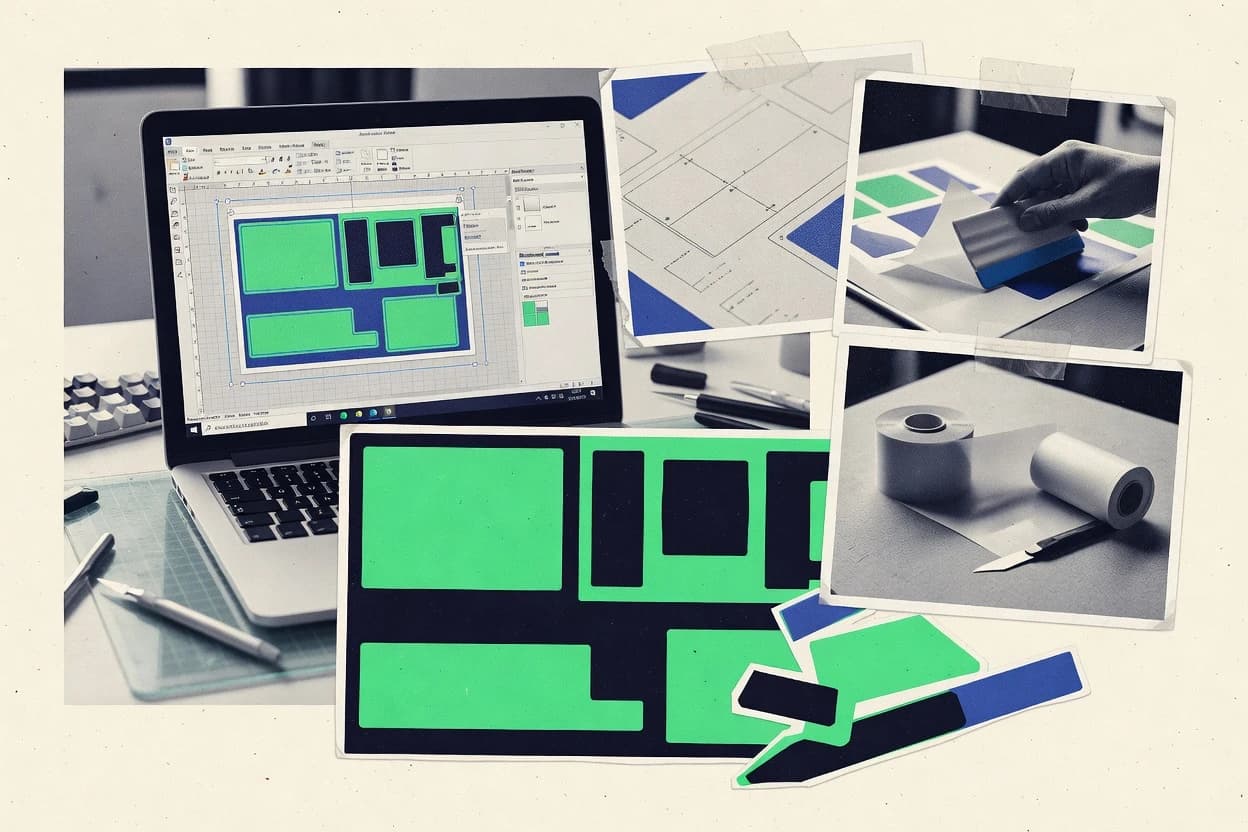
Art DesignTop 10 Best Decal Maker Software of 2026
Ranked decal maker software for vinyl and custom decals, covering CorelDRAW, Inkscape, and Easy Cut Studio with key strengths and tradeoffs.

How we ranked these tools
Before any source is gathered, an editor locks the question, what qualifies, and how the piece will be judged.
Search agents gather the source set and the review record, including transcriptions of video reviews and podcasts.
Framework: Features 40% · Ease 30% · Value 30%
Gitnux may earn a commission through links on this page — this does not influence rankings. Editorial policy
CorelDRAW is the go-to decal maker when shops need repeatable, vector-first production workflows without custom integration, whereas Easy Cut Studio fits teams that want design-to-vinyl-cutter output to stay fast and cutter-ready.
Editor’s top 3 picks
Three quick recommendations before you dive into the full comparison below — each one leads on a different dimension.
CorelDRAW
Built-in nesting and tiling workflows for packing many decals per page.
Best for: Fits when decal shops need repeatable vector production workflows without custom integration code.
Inkscape
Editor pickSVG-first editing with full path control and extension support for niche production steps.
Best for: Fits when vector decal production needs editable SVG plus multi-format exports into existing print pipelines.
Easy Cut Studio
Editor pickPrint-and-cut preparation with registration marks and cut layer handling for mixed-media decal runs.
Best for: Fits when shops need fast, repeatable vinyl cutter output without jumping between design and production tools.
Comparison Table
CorelDRAW
SMBVector illustration and layout software widely used for decal artwork preparation.
Built-in nesting and tiling workflows for packing many decals per page.
CorelDRAW is well suited to decal makers who need precise vector geometry for cut contours and consistent production outputs across multiple designs. The program supports repeatable workflows through styles, templates, and page-level organization that reduces per-job manual cleanup. For print-and-cut work, CorelDRAW can include bleed and registration content in the same document so production teams avoid separate mark files.
A key tradeoff is that CorelDRAW automation relies more on manual template discipline than on developer-facing automation features like a public REST API. CorelDRAW fits best when a shop already standardizes document setup and wants fast operator throughput using built-in tools for tiling, marks, and vector cleanup.
- +Nesting and tiling support for high-volume decal layouts
- +Registration mark placement inside the same document workflow
- +Font outlining for dependable cut and print rendering
- +Vector-centric tools for clean contours and repeat geometry
- –Automation depth depends more on operator templates than APIs
- –Raster-to-vector cleanup can be time-consuming on noisy artwork
Vinyl print shop operators
Batch layout with consistent cut marks
Faster press-ready exports
DIY brand designers
Turn logo files into cut-ready art
Fewer production edits
Show 1 more scenario
Sign makers
Prepare proof files for vendors
Reduced rework cycles
Teams export documents for shared production review with vendor-compatible deliverables.
Best for: Fits when decal shops need repeatable vector production workflows without custom integration code.
Inkscape
SMBOpen-source vector graphics editor used for decal and sticker design.
SVG-first editing with full path control and extension support for niche production steps.
Inkscape supports SVG as the center of the data flow, so decal assets remain editable for nesting, alignment, and cut path refinement. It can export PDF, EPS, and raster outputs, which helps when layout is reviewed in different viewers or when a RIP needs a specific format. Font handling is workable for decal letters through text objects and optional outlining, so the output can remain consistent across devices.
A key tradeoff is that Inkscape does not provide a dedicated print-and-cut studio with built-in registration mark automation or cutter-specific cutline rules. The most common fit is a team that already manages production settings in a RIP or cutter controller and wants consistent vector editing plus repeatable exports for vinyl and stencil production.
- +Path editing and boolean tools support precise decal geometry
- +Native SVG workflow keeps artwork editable for revisions
- +DXF export helps some cutter and CAD-based pipelines
- +Extension system adds automation for format and preflight steps
- –No built-in registration workflow for print-and-cut production
- –Color management controls require manual ICC handling
- –Large tiling and gang layout needs careful manual setup
- –Some vinyl cutter naming and profile logic is not native
Freelance decal designers
Revise lettering and outlines quickly
Fewer re-creates of artwork
Small print shops
Prepare cut paths for vinyl
Cleaner cut edges
Show 2 more scenarios
In-house production teams
Integrate into RIP and CAD tooling
Repeatable handoffs
Maintain an SVG master and export PDF, EPS, and DXF derivatives for each downstream system.
Operations teams
Automate preflight via extensions
Lower remake rate
Apply extension-based checks and conversions to standardize decal files before batch processing.
Best for: Fits when vector decal production needs editable SVG plus multi-format exports into existing print pipelines.
Easy Cut Studio
vertical specialistVinyl cutting and decal design software compatible with many plotter brands.
Print-and-cut preparation with registration marks and cut layer handling for mixed-media decal runs.
Easy Cut Studio centers on taking vector-style shapes and turning them into cutter-ready paths with practical production options like registration marks and cut layer behavior. The workspace is organized around layout, sizing, and cutter output, so operators can iterate without leaving the tool. Import and output features are aimed at shop workflows that need consistent scale and file handoff between design steps and cutting.
A key tradeoff is that Easy Cut Studio is not a full design suite for complex illustration work, so detailed artwork work still fits better in a dedicated editor. It is a strong fit when shops need predictable cut geometry, repeated sticker runs, and a fast path from prepared graphics to cutter-ready output.
- +Cut workflow features prioritize production settings over illustration tools
- +Registration mark and print-and-cut preparation reduce rework on jobs
- +DXF-style import and export support geometry handoff for shops
- +Contour cut support reduces manual path cleanup for irregular graphics
- –Illustration and layout tools lag behind dedicated vector editors
- –Advanced color management options are limited compared with pro prepress workflows
Small sign shops
Repeat sticker runs for storefront labels
Faster cut approvals
Vehicle graphics installers
Contour cut names and decals on matte film
Less rework on sites
Show 2 more scenarios
Production operators
Batch nesting and job layout for cutters
Higher throughput
Layout-to-output workflow supports consistent path generation across batches.
Freelance decal makers
Hand off files to cutter without reformatting
Fewer file errors
DXF-style exchange reduces conversion steps between design and shop workflows.
Best for: Fits when shops need fast, repeatable vinyl cutter output without jumping between design and production tools.
Silhouette Studio
vertical specialistDesign and cut software bundled with Silhouette cutting plotters, widely used for vinyl decals.
Print-and-cut calibration with built-in registration mark generation is tuned for Silhouette registration steps.
Silhouette Studio is a Windows and macOS design and cut-prep application built around Silhouette-brand vinyl cutters and print-and-cut style workflows. It combines vector drawing tools with import and layout features such as trace and text handling to produce cut-ready art.
- +Material-aware cut settings simplify consistent cut-path tuning
- +Trace and vector editing tools reduce reliance on external editors
- +Built-in registration mark workflow supports print-and-cut alignment
- +Nesting and tiling layouts reduce vinyl waste for repeat runs
- –Device output format compatibility is stronger for Silhouette workflows
- –Advanced color workflows like full CMYK separation need external tooling
- –Batch automation and API integration are limited for production pipelines
- –Precision control for weeding and bleed-like tolerances needs manual handling
Best for: Fits when production needs predictable Silhouette print-and-cut registration with light automation and local file-based workflows.
Cricut Design Space
vertical specialistCloud-based design and cut application for Cricut cutting machines.
Print-and-cut registration helpers that automatically manage cut alignment within Cricut’s send-to-device flow.
Cricut Design Space generates cut-ready decal layouts by combining built-in shapes with SVG-based design work and material-aware settings. The workflow centers on print-and-cut and contour-cut style finishing that maps design layers to specific cut operations.
- +Material-specific cut setup guides layer choices for vinyl-style workflows
- +Direct print-and-cut alignment tools reduce manual registration steps
- +Browser-based project flow avoids separate desktop project management
- +Built-in shapes and text tools support quick layout and resizing
- –Export formats and cut-path control can lag behind pro vector editors
- –Fine-tuning weeding lines and kiss-cut behavior takes trial and layout discipline
- –Nested and gang layouts require more manual work than template-based tiling tools
- –Advanced color workflows like spot color preparation are limited for decal proofs
Best for: Fits when single-user or small shops need Cricut-aligned decal production with fast iteration and minimal design tooling.
Sure Cuts A Lot
vertical specialistThird-party cutting software for designing and cutting decals with various machines.
Cut-path generation tuned for vinyl cutters, producing consistent outlines and weeding-friendly output from imported vector artwork.
Sure Cuts A Lot targets vinyl and print-and-cut workflows with a design-to-cut toolchain centered on cutting output rather than general layout. The software focuses on creating cut paths, contour-style outlines, and repeatable decal jobs that can be sent to compatible vinyl cutter devices.
- +Cut-focused workflow reduces steps between artwork and cutter output
- +Artwork import supports practical migration from design tools
- +Handles repeated decal layouts with quick repositioning
- +Built to manage cutter constraints like alignment and cut path output
- –Advanced color management and ICC-driven print control are limited
- –Precision print registration requires external printer workflow discipline
- –Limited automation hooks compared with API-driven design pipelines
- –Complex nesting control can feel basic for high-density production
Best for: Fits when decal makers need fast, cutter-ready cut output from imported artwork without building custom tooling.
Make The Cut!
vertical specialistIndependent cutting software for designing and plotting decals.
Print-and-cut layout controls that generate registration marks and manage contour cut line geometry in one workflow.
Make The Cut! focuses on signmaking workflows with direct control of vector cut paths and print-and-cut layout. The software imports vector files like SVG and can export cut-ready files for common vinyl cutters, including registration marks and contour-style cut lines.
- +Cut-path editing designed around vinyl signmaking workflows
- +SVG import supports common art handoffs without round-tripping to Illustrator
- +Tiling and nesting reduce wasted vinyl for multi-copy layouts
- +Registration marks and cut line controls fit print-and-cut production
- –Automation and API surface is limited compared with workflow automation tools
- –Large design files can feel slower when converting or updating complex vectors
Best for: Fits when decal shops need consistent cut path control and layout automation without custom scripting.
Vectorizer.AI
raster-to-vectorVectorizer.AI converts raster images into vector files for decal cutting and printing.
Automated vector tracing that outputs production-oriented SVG paths with minimal manual redrawing effort.
Vectorizer.AI is a decal maker workflow focused on vector design automation for turning raster artwork into production-ready linework. It centers on raster-to-vector conversion with SVG output intended for vinyl cutters and print-and-cut pipelines.
- +Fast raster-to-vector conversion for turning scans into usable decal shapes
- +SVG export supports common cutter and design workflows
- +Batch-style tracing makes high-throughput decal production less manual
- +Automatic path generation reduces time spent redrawing artwork
- –Tracing quality varies by image type and requires input image cleanup
- –Limited fine control for contour cut line and weeding line editing
- –Artwork editing features lag behind full vector editors for complex decals
- –Requires disciplined setup to manage colors and cut layers consistently
Best for: Fits when decal shops need rapid tracing into cutter-ready vectors from raster artwork batches.
Adobe Illustrator
professional designAdobe Illustrator creates vector artwork for decals, labels, stickers, and cut-ready graphics.
Edit artwork and cut geometry as true vectors, then export print and cut layers through Illustrator’s layer-aware export options.
Adobe Illustrator creates vector artwork used for vinyl and custom decals, including scalable logos, lettering, and production-ready layouts. It supports EPS, PDF, and SVG import and export, with reliable path editing for cut planning and print graphics alignment.
- +Precise vector path editing for clean cut shapes and lettering outlines
- +Layered exports support separating artwork, cut paths, and marks
- +Wide format support covers common print-and-cut pipelines and handoff needs
- +CMYK color management with ICC profiles for controlled print output
- –Decal production requires manual management of cut paths, marks, and bleed
- –Automation needs careful setup since there is no decal-specific production profile
- –Large design files can slow during heavy effects and complex artwork editing
- –Font-to-path workflows add steps for consistent cutter output
Best for: Fits when teams need vector-first decal production with controlled exports for print-and-cut.
VinylMaster
vertical specialistVinylMaster provides sign design, contour cutting, and vinyl production tools.
Raster-to-vector conversion and cleanup designed specifically to produce cut-ready shapes from imperfect source images.
VinylMaster is a decal maker application aimed at sign makers and vinyl cutters who need predictable print-and-cut outputs. It focuses on authoring vector artwork, managing cut-ready objects, and exporting cutter-friendly files for downstream workflows.
- +Cutline oriented workflow that keeps vector geometry production-ready
- +Raster cleanup tools help convert scanned artwork into cleaner vector shapes
- +Export options fit common cutter and print-and-cut pipelines
- +Strong workspace focus for batching decals into production layouts
- –Vector editing feels narrower than general-purpose design tools
- –Print-and-cut setup needs careful configuration for each media profile
- –Advanced typography workflows rely on outlining more than live text features
- –Automation and scripting surface is limited compared with full graphic suites
Best for: Fits when small sign shops need repeatable decal layouts and reliable cutter-oriented exports.
Conclusion
After evaluating 10 decal maker software, CorelDRAW stands out as our overall top pick — it scored highest across our combined criteria of features, ease of use, and value, which is why it sits at #1 in the rankings above.
Use the comparison table and detailed reviews above to validate the fit against your own requirements before committing to a tool.
How to Choose the Right Decal Maker Software
Decal maker software sits between artwork creation and cutter output by generating print-and-cut layers, registration marks, and cutter-ready cut paths. This guide covers CorelDRAW, Inkscape, Easy Cut Studio, Silhouette Studio, Cricut Design Space, Sure Cuts A Lot, Make The Cut!, Vectorizer.AI, Adobe Illustrator, and VinylMaster.
The tools differ most in integration depth, automation focus, and how production workflows are modeled from import through export. CorelDRAW prioritizes built-in nesting and tiling for packing many decals per page, while Easy Cut Studio emphasizes print-and-cut preparation with registration mark and cut layer handling.
Decal Maker Software that turns vector and raster art into print-and-cut cutter output
Decal maker software converts decal designs into a production bundle that separates artwork and cut geometry into export-ready layers. It often includes contour cut line generation, registration mark support, and cut path output tuned to a specific vinyl cutter or printer workflow.
CorelDRAW supports high-volume decal packing by combining tiling and nesting inside the same vector production flow. Inkscape focuses on SVG-first editing with extension support, which keeps decal geometry editable, while its production registration workflow requires more manual handling for print-and-cut jobs.
Decal Maker Software capabilities that control print-and-cut output quality
Decal maker software directly affects whether artwork turns into usable print-and-cut layers with reliable cut paths, weeding-friendly outlines, and correctly positioned registration marks. These capabilities matter because production failures usually show up at the boundary between illustration and cutter execution.
Layout automation for high-output decal sheets
CorelDRAW includes built-in nesting and tiling workflows that reduce manual rearrangement when packing many decals per page. This is a workflow differentiator compared with Adobe Illustrator, which leaves nesting and packing to external processes.
Print-and-cut registration workflow design
Easy Cut Studio centers the workflow around registration marks and cut layer handling for mixed-media decal runs. Silhouette Studio complements that focus with built-in print-and-cut calibration tuned for Silhouette registration steps.
SVG editing depth and extension support
Inkscape provides SVG-first editing with full path control and extension support for niche production steps. Adobe Illustrator can export layer-aware print-and-cut layers, but it requires manual cut-path and mark management for decal production.
Cut-path generation tuned to cutter behavior
Sure Cuts A Lot generates cutter-ready outlines from imported vector artwork with a cut-focused workflow that reduces steps between artwork and cutter output. Make The Cut! adds print-and-cut layout controls that generate registration marks and manage contour cut line geometry inside one workflow.
Conversion from raster scans into cutter-ready vectors
Vectorizer.AI automates raster-to-vector conversion into production-oriented SVG paths with minimal redrawing effort. VinylMaster targets raster-to-vector conversion and cleanup designed to keep cut-ready shapes reliable when the source artwork is imperfect.
Cutter-aligned output helpers inside send-to-device flows
Cricut Design Space includes print-and-cut registration helpers that automatically manage cut alignment within its send-to-device flow. CorelDRAW achieves cutter readiness through export-ready layers and document workflow, not through device-specific alignment automation.
Choose based on where the workflow should be automated
The fastest way to pick decal maker software is to map the workflow bottleneck to the tool design. Some tools automate production setup and cut-layer preparation. Other tools optimize vector editing and packing inside the design environment.
Identify the primary time sink in production
If packing many decals per sheet dominates cycle time, CorelDRAW’s built-in nesting and tiling workflows directly target that bottleneck. If registration setup and cut layer handling dominate, Easy Cut Studio’s print-and-cut preparation workflow reduces rework from mismatched marks.
Match the tool to the output device workflow boundary
If production is centered on Silhouette registration steps, Silhouette Studio’s print-and-cut calibration is tuned for consistent cut-and-registration alignment. If production is centered on Cricut send-to-device behavior, Cricut Design Space uses direct print-and-cut alignment tools to reduce manual registration steps.
Pick the design model that fits revision frequency
If decals require frequent geometry changes while staying editable as vector paths, Inkscape’s native SVG workflow keeps artwork editable for revisions. If cut paths and marks are expected to be managed inside a general-purpose design environment, Adobe Illustrator supports layer-aware export options but requires more manual decal production management.
Decide whether the workflow should be cut-first or layout-first
If the production goal is cutter-ready cut output from imported artwork, Sure Cuts A Lot keeps the workflow cut-focused and reduces artwork-to-cutter steps. If the goal is to generate registration marks and contour cut line geometry while managing layout automation, Make The Cut! provides those controls in one workflow.
Evaluate how raster-to-vector conversion quality will be controlled
If source files are scans and batch tracing speed is the priority, Vectorizer.AI outputs production-oriented SVG paths that reduce manual redrawing effort. If cleanup quality and cutline orientation from imperfect source images matter more, VinylMaster adds raster cleanup tools designed to produce cutline-ready shapes.
Confirm export-layer and cut-control expectations match the tool’s limits
If full CMYK separation and advanced prepress-style color controls are required inside the decal workflow, Inkscape’s color management controls require manual ICC handling and can shift work elsewhere. If advanced color management is not central and cut workflow correctness is the priority, Sure Cuts A Lot’s limited ICC-driven print control becomes less risky.
Who benefits from specific Decal Maker Software workflow designs
Decal maker software fits best when its workflow mirrors the actual production boundary between design changes and cutter execution. The most suitable tool depends on whether the shop needs sheet packing automation, print-and-cut registration reliability, or automated conversion into cut-ready vectors.
Decal shops producing many variants per day
CorelDRAW helps these shops because nesting and tiling workflows reduce manual rearrangement when packing many decals per page. The same environment supports registration mark placement inside a consistent document workflow.
Print-and-cut operators focused on repeatable registration
Easy Cut Studio fits operators who need fast, repeatable vinyl cutter output because it prioritizes production settings with registration mark and cut layer handling. Silhouette Studio fits teams aligned to Silhouette registration steps with tuned print-and-cut calibration.
Teams standardizing on editable vector assets and SVG handoffs
Inkscape fits teams that want SVG-first editing with full path control and extension support for niche production steps. SVG-native editing reduces friction when revisions require precise decal geometry changes.
Small sign shops converting scans into usable decal shapes
VinylMaster fits shops that need raster-to-vector conversion and cleanup designed for cutter-oriented outputs from imperfect images. Vectorizer.AI fits shops that prioritize automated tracing speed and accept that tracing quality can require image cleanup.
Cricut-centered makers running frequent print-and-cut jobs
Cricut Design Space fits makers who rely on Cricut-aligned workflows because it manages cut alignment inside its send-to-device flow. This reduces manual registration steps compared with tools that focus on export layers rather than device alignment automation.
Common Decal Maker Software pitfalls during print-and-cut setup
Most production problems come from mismatches between what the tool automates and what the operator expects to control manually. The fastest fixes come from aligning cut geometry generation, registration marks, and raster-to-vector cleanup decisions before running production volumes.
Treating a general vector editor like a production-ready decal workflow
Adobe Illustrator supports true vector editing and layer-aware exports, but it requires manual management of cut paths, marks, and bleed. That manual handling can slow turnaround when cut path and mark placement must be standardized across jobs.
Assuming print-and-cut registration automation works across cutter ecosystems
Cricut Design Space provides registration helpers inside its send-to-device flow, so alignment expectations tied to Cricut can fail on other cutter workflows. Silhouette Studio is tuned for Silhouette registration steps, so using its workflow assumptions on non-Silhouette devices risks rework.
Skipping image cleanup before raster-to-vector conversion
Vectorizer.AI outputs production-oriented SVG paths, but tracing quality varies by image type and requires input image cleanup. VinylMaster includes raster cleanup tools, yet vector editing still feels narrower than general-purpose design tools.
Over-relying on automation when templates drive nesting and packing quality
CorelDRAW’s automation depth depends more on operator templates and document workflow than on a deep automation API surface. Without consistent templates, nesting and tiling results can drift across operators and jobs.
Expecting advanced color separation control inside cutter-first tools
Sure Cuts A Lot focuses on cut-path generation and limits advanced color management and ICC-driven print control. Inkscape supports SVG-first editing, but color management controls require manual ICC handling, so full CMYK separation may need external prepress tooling.
How We Selected and Ranked These Tools
We evaluated CorelDRAW, Inkscape, Easy Cut Studio, Silhouette Studio, Cricut Design Space, Sure Cuts A Lot, Make The Cut!, Vectorizer.AI, Adobe Illustrator, and VinylMaster using feature coverage for decal production workflows and measured ease of turning designs into export-ready print-and-cut layers. Features counted for 40% of scoring because decal work depends on registration marks, cut layer handling, contour cut line generation, and packing automation.
Ease of use and value each counted for 30% because production time is affected by how quickly operators can repeat correct settings across jobs. CorelDRAW led the ranking because it combines built-in nesting and tiling workflows for packing many decals per page with a single document workflow that supports registration mark placement alongside export-ready decal outputs.
Frequently Asked Questions About Decal Maker Software
How does CorelDRAW handle nesting and tiling for batch decal runs?
When does print-and-cut registration break in Silhouette Studio, and what tool behavior causes it?
Which workflow is more suitable for raster scans: Vectorizer.AI or Make The Cut!?
What breaks if a shop edits cut geometry as shapes instead of true vectors in Adobe Illustrator?
How do extension ecosystems change automation in Inkscape compared with CorelDRAW?
Where does vinyl cutter output preparation fall short when moving from Easy Cut Studio to a general vector editor?
How does Sure Cuts A Lot create consistent cut paths from imported artwork?
When is the Cricut send-to-device flow a constraint compared with sending files from Illustrator?
How can Vectorizer.AI and VinylMaster differ in what data gets cleaned and output?
Tools reviewed
Primary sources checked during evaluation.
Referenced in the comparison table and product reviews above.
Keep exploring
Comparing two specific tools?
Software Alternatives
See head-to-head software comparisons with feature breakdowns, pricing, and our recommendation for each use case.
Explore software alternatives→In this category
Art Design alternatives
See side-by-side comparisons of art design tools and pick the right one for your stack.
Compare art design tools→